Administration: Job Scheduling
Job Scheduling lets you set up automated recurring emails with reports and lead views to your chosen recipients.
Navigation Page
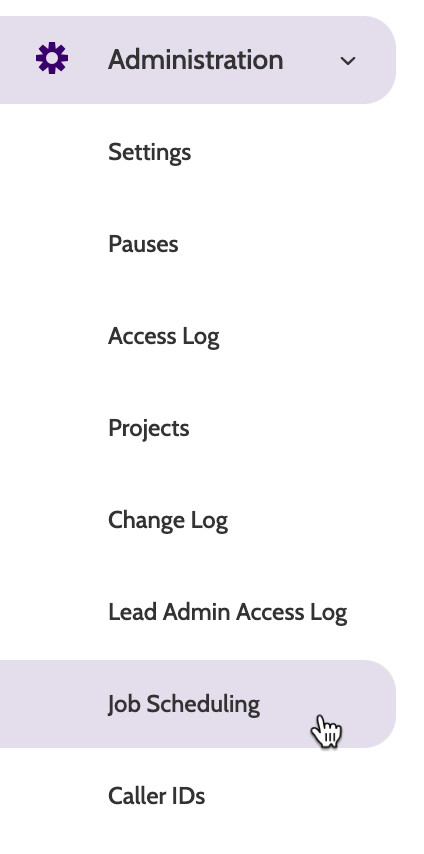
Job Scheduling can be found under the Administration menu.
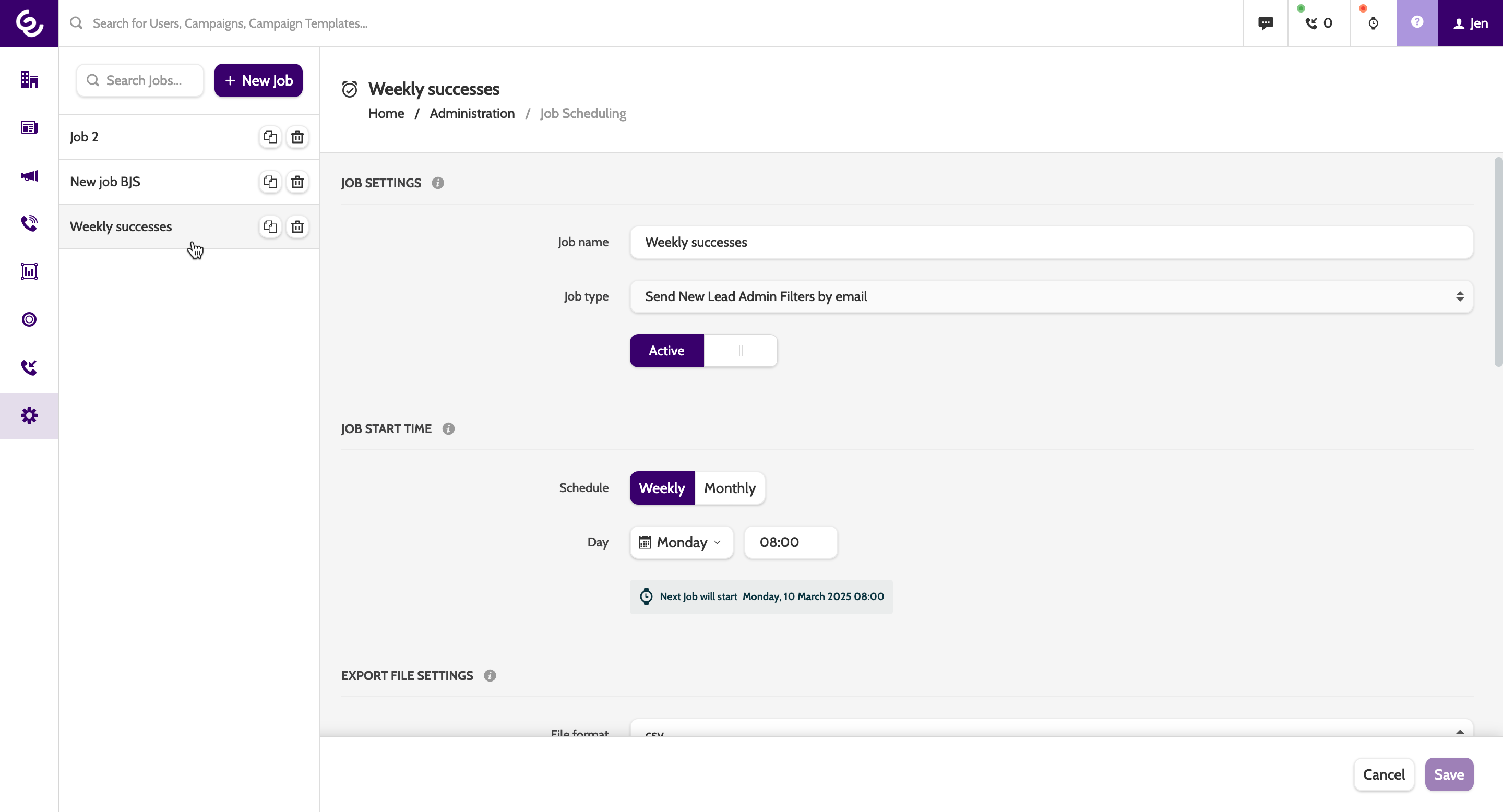
In the navigation page you will see a list of current active jobs. Click one to view or edit the details.
To create a new job, click + New job.
Job Settings
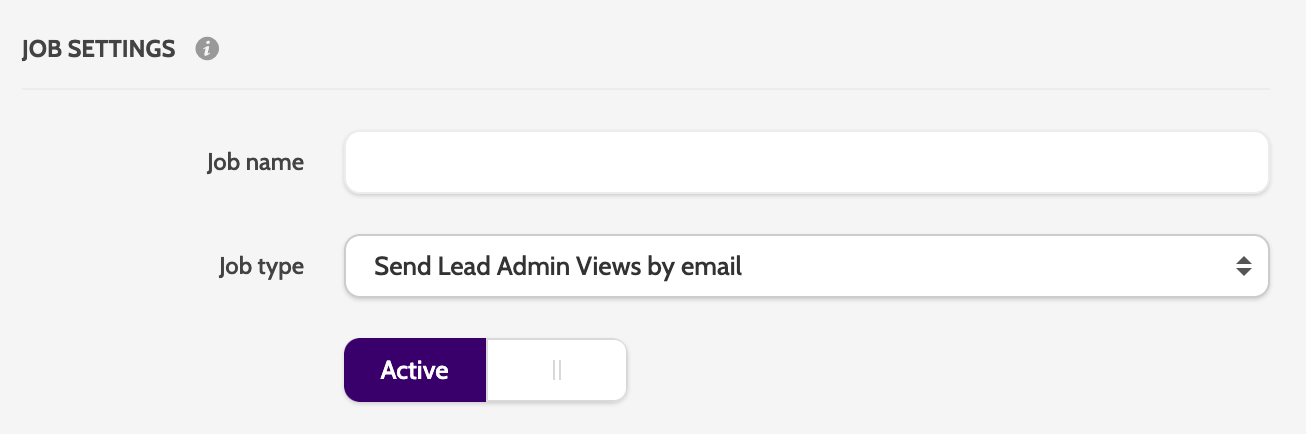
In Job name, enter a descriptive name for your job.
Expand the Job type menu and choose the type of report you want to send (note that the options may differ depending on your access):
- Send lead admin views by email is Lead Admin (old)
- Send new lead admin filters by email is Lead Admin
- Send user reports by email is Report Admin
- Send new reports by email is Reports
You will be able to select which reports of views further down under Included user reports.
Check Active if you want to activate the job immediately.
Job Start Time
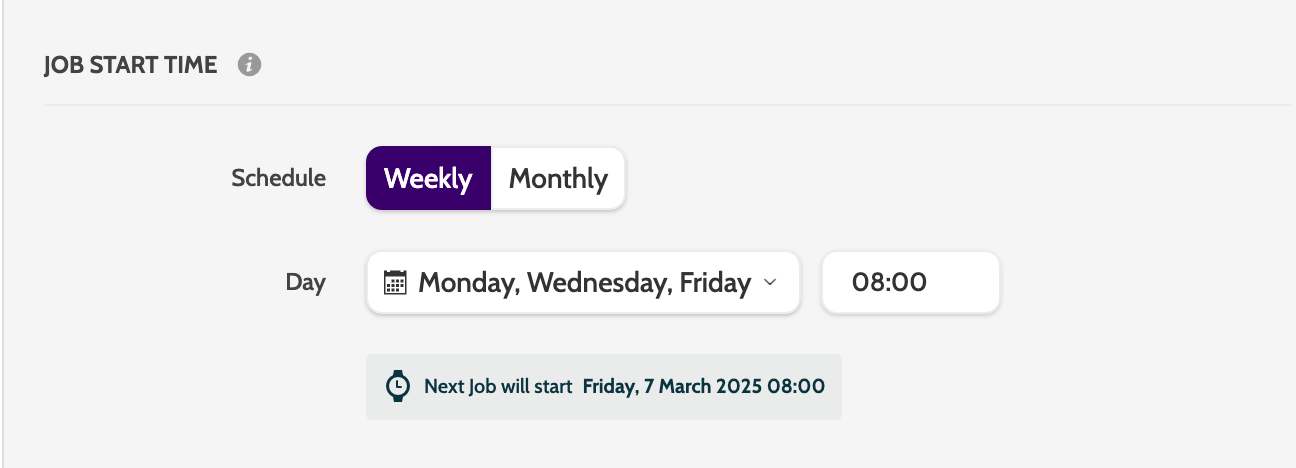
Under Schedule you can configure the frequency of the job.
Select which days the job should run, and the time the email will be sent.
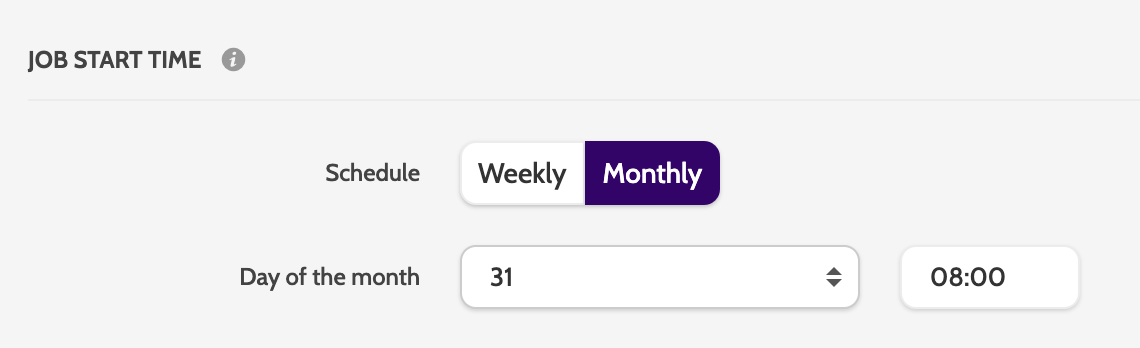
Sending a monthly report?
Don't choose the 31st!
If you choose this setting, then any month with less than 31 days will be skipped by the automation.
We recommend you select the 1st of the month to see the previous month's report.
Export file settings
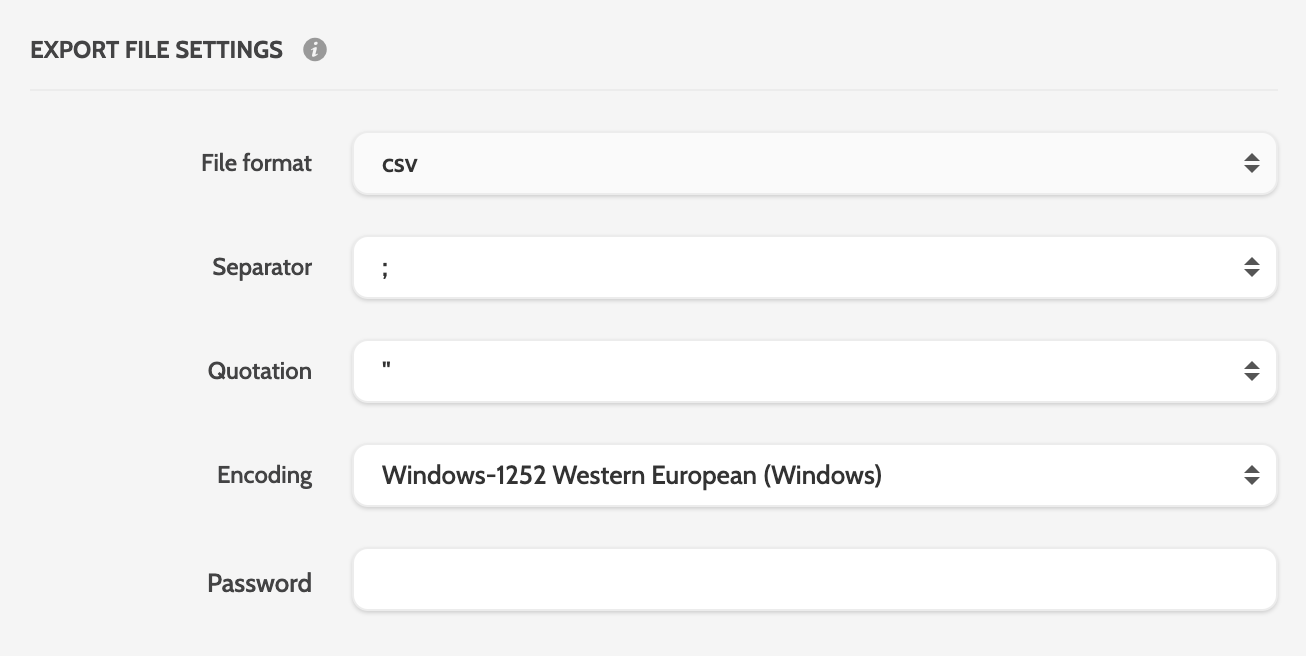
Switch between the CSV, txt, and xlsx tabs to decide in what format you want to export the file.
If you are exporting in CSV or txt, set the Separator and Quotation.
Expand the Encoding drop-down menu to choose between UTF-8, ISO, and Windows encoding.
Enter a password if you want to password-protect the file.
Email settings
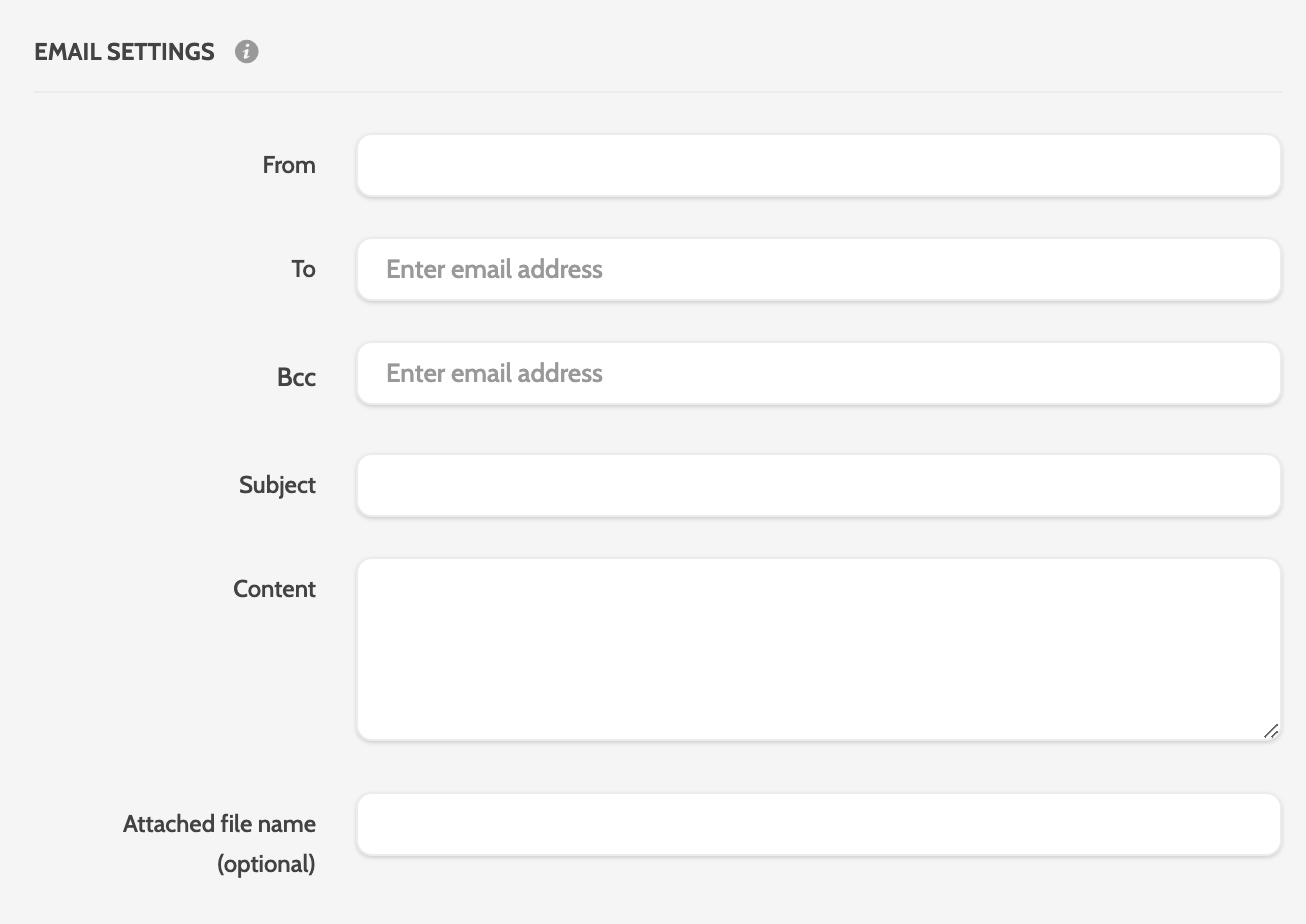
Under Email settings, enter the details of the email that will send the report:
- From: the sender email address. If this is left blank, your Outbound username will be used
- To: the receiving email address. Mandatory
- Bcc: any additional addresses that will receive the email.
- Subject: the email subject line
- Content: the the email body
- Attached File Name: rename the attached files if necessary.
Included user reports
Select the reports of filters that should be sent.
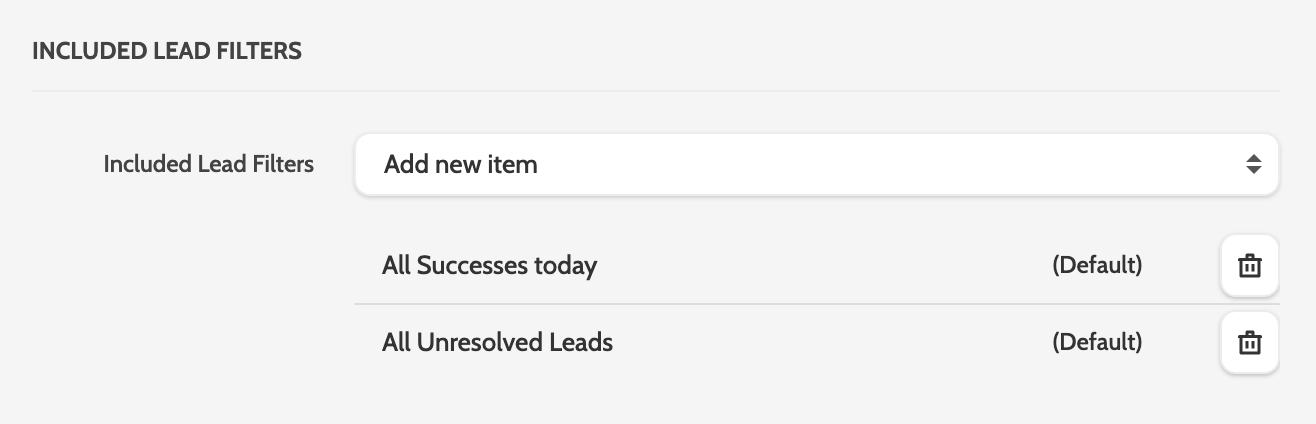
Click Save to finish configuring the job.