
Admin Training 101
Welcome to Enreach Outbound!
In this guide, we'll go through the necessary steps to get started as an admin in Enreach Outbound.
Head to the Glossary if any terms are unclear, or ask Kit, your Enreach Outbound navigator.
Key Terms
Before we get started, lets take a look at some of the key terms you'll come across when working in Enreach Outbound:
A Campaign is where all the lead data, result data, dialing options, reports, and all other settings are designed and collected.
In Enreach Outbound, a campaign is what you and your agents will work with, and where you'll gather all the information about leads.
A campaign template determines what data you will upload and collect to your campaign. Campaign templates can be applied to other campaigns, saving time and streamlining data collection. Once a template is chosen for a campaign it cannot be changed.
A project is a container for campaigns that also determine factors such as deletion rules for lead data and call recordings. Projects are often associated with individual clients, and will contain all campaigns related to that specific client
Result data
Result data is where you record the outcome of a call with a lead. For example, if a lead replies "Yes" to your offer, you would record the call as a Success.
A lead pool is a list of leads that are imported into a campaign, either from a CSV file or API. Lead pool settings can set the priority of leads, distribution rules, and active date times.
Outbound
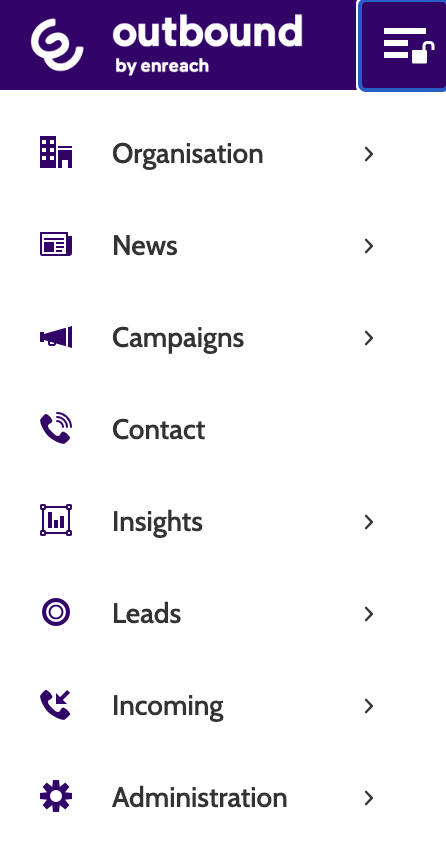
The menu to the left is where you will navigate to all pages in Enreach Outbound. Lock it in place by clicking the lock icon to the right of the Outbound logo.
Use the search to search for users, campaigns, and campaign templates.

In the top right corner there are several icons for administrative tasks.

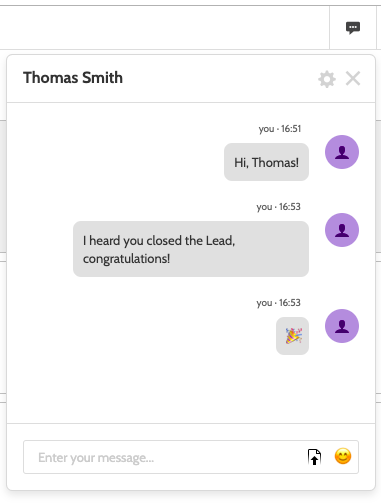
Click on the chat icon to open the chat box.
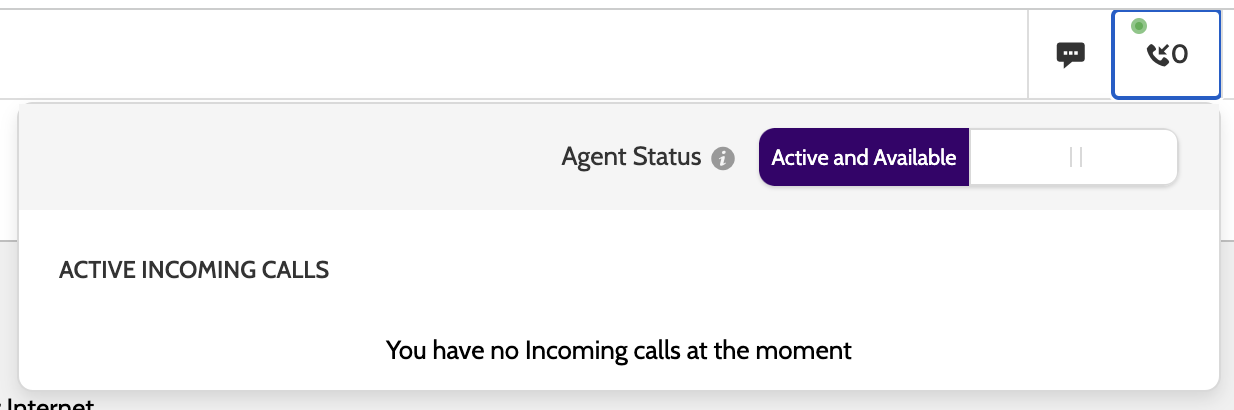
Expand the telephone icon to the left to view any active incoming calls.
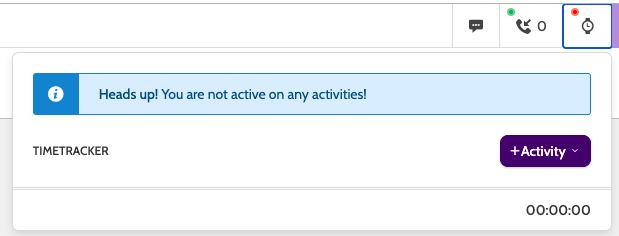
If you have the Manage Work Schedule module, then expand the clock icon to manage the TimeTrack and record any activities you are working on.
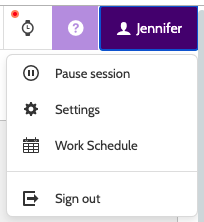
Expanding your user icon to:
- Pause session: record a pause in your current working session
- Settings: set the preferred language, and customise the contact page
- Work Schedule: when enabled, view the work schedule.
- Sign out: log out of Outbound.
Creating the campaign template
This article will continue in the form of practical exercises for you to follow to get started as an admin user in Outbound.
Let's start by creating a campaign template.
Campaign templates will determine what kind of lead data you will upload, and what result data you will record when calling a lead.
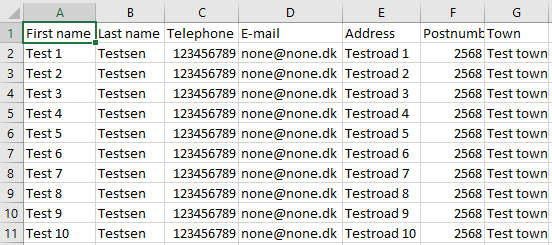
Before you begin, make sure you have a CSV file that contains all the leads you want to upload. A typical CSV file will look something like the image below.
Each column header will be identical to the names of the Master Data Fields in the campaign template.
Creating a campaign template
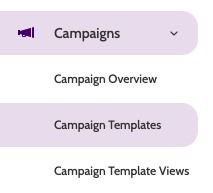
1. In the navigation menu, expand Campaigns and click Campaign Templates.
2. Click New.
3. Choose a name for your campaign template.

4. Under Base Campaign Template on, expand the drop-down menu and choose Upload File.

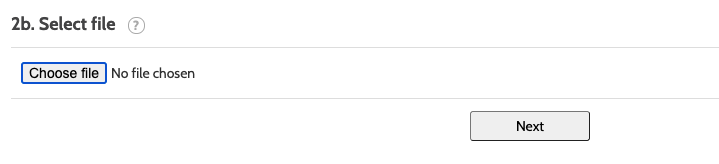
5. Click Choose File to upload the CSV file from your computer. Click Next.
Master data fields
Once your CSV file has been uploaded, you will see the Edit template page. This is where you will configure all the lead data of your campaign template.
Under Master Data Fields you will see all the different types of data you imported from your CSV file. Click New to add more.
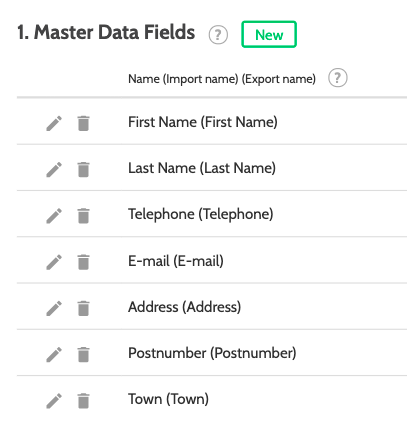
You will now need to match each Master Data Field with a suitable Data type.
By default, Outbound will select Text (Small Field) as the data type.
For this exercise we'll focus on two of the most commonly used data types:
- Text (Small Field): suitable for lines of text shorter than 30 characters. Extra characters will not be visible, so for longer texts use Text (Large Field).
- Phone Number: a necessary field that designates the lead's phone number.
How to Edit the Master Data Fields
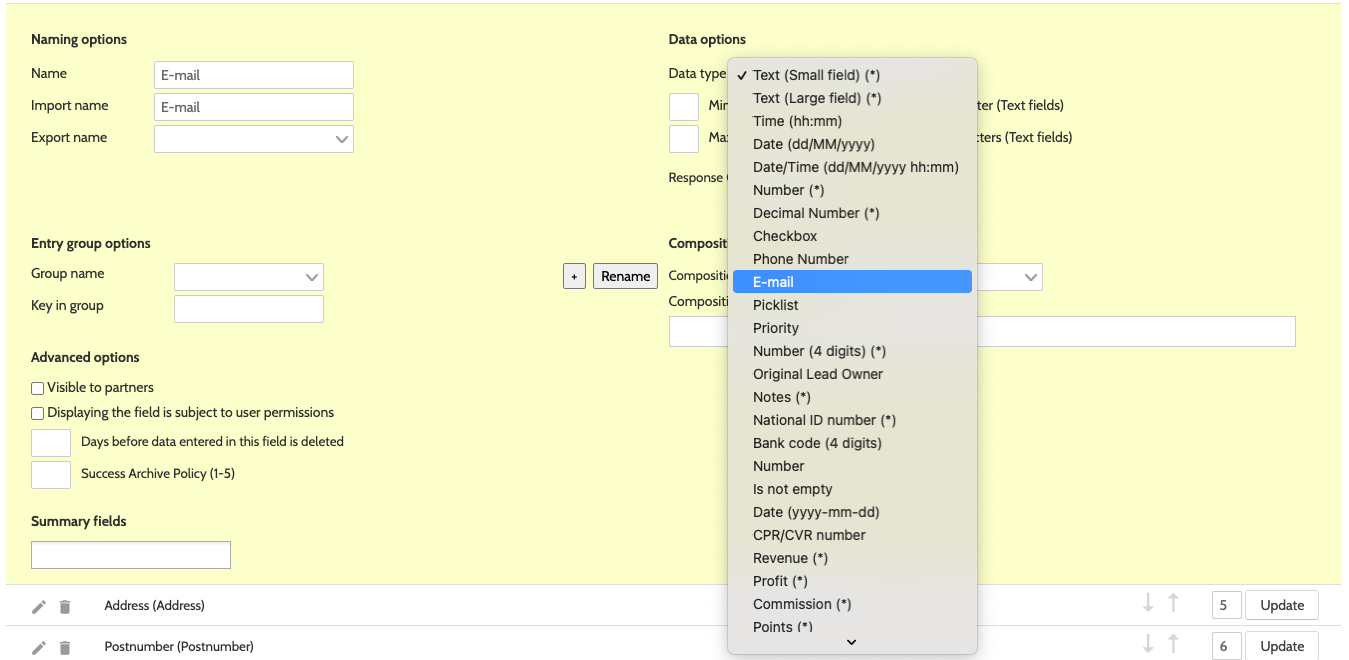
1. Click the pencil icon on the Master Data Field you want to edit.

The settings will expand.
Under Data Options, expand the Data Type drop-down menu and select the data type you want to match to the master data field.
Do this for each of your master data fields.
Result data fields
When you have configured your lead master data, you will have to configure your result data.
In Outbound, the outcome of calls are known as Results. These will differ depending on what type of campaign you are running. You can have several results, but it is mandatory to have a Main Outcome data type, which is the basic "Yes, please," or "No, thanks" option.
In this example, let's build a charity campaign for a client asking for donations. Our client needs the following information from leads:
- Would the lead like to donate? (Yes/No)
- If Yes: how much per month?
- How many months would the lead like to donate? (1/3/12)
- A calculation field that sums the full donation amount.
- Would the lead like a monthly e-mail from the client?
Let's begin with the Main Outcome, which is aways a drop-down menu, or Picklist.
Picklist and other outcomes
For our first result data fields, we want to ask our lead would they would like to donate. Here's how to do that:
1. Click the pencil on the result data field you want to edit.
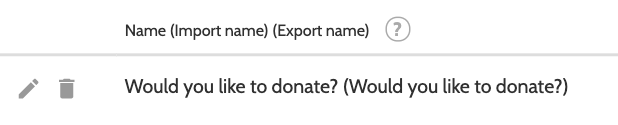
2. Select Main Outcome in the Data Type drop-down menu.
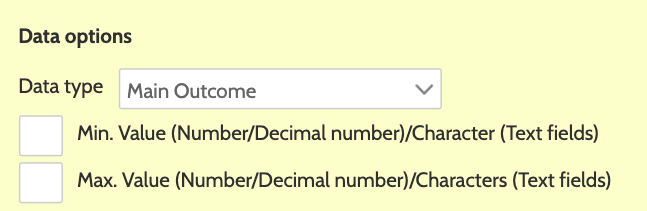
3. To enter the main outcomes, Enter the Name and the Value in the text boxes.
Click the green arrow to save, and repeat as many times as necessary.

For our next result data field, we want to ask our lead how much per month they want to donate. Here's how to do that:

For our next result data field, we want to ask our lead how many months they want to donate.
Options for a picklist will be entered the same was as when you configured your main outcome. Here's how to do that:
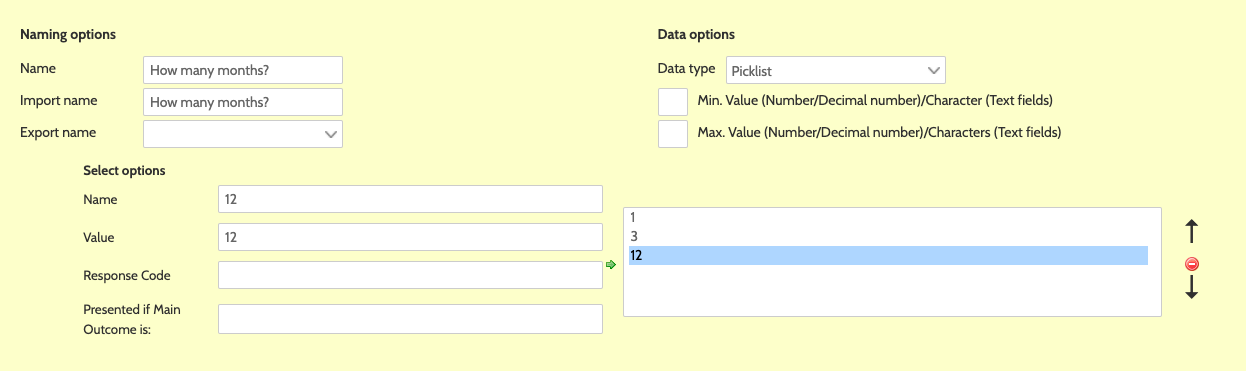
For our next result data field, we want to ask our lead if they would like to receive a monthly newsletter.
As a Yes/No response, we will choose the Checkbox Data Type. Here's how to do that:

For our final result data field, we want to calculate how much money our lead will donate.
Under Composition Template Type, select Formula from the drop-down menu.
Next, click How much per month and How many months from the Composition Template, including the multiplication operator (*) between the fields.
Outbound will automatically calculate the total forecasted donation based on the previously configured result data fields.
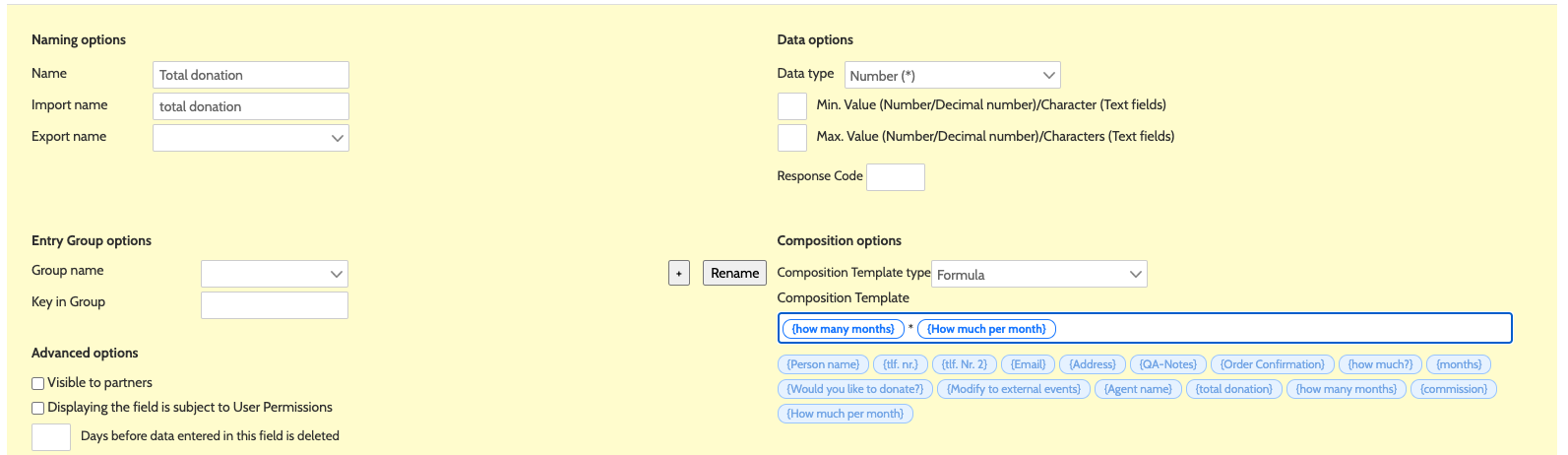
Now the result data fields are configured for our charity campaign!
You will notice that under Validate and Continue, only Main Outcome has not been selected is incomplete.
Click Next to continue to the next stage.
Field behaviour and use
Now you have configured all the master lead data and result data fields you need for your campaign template, it's time to finish setting them up, and to tell Outbound how to use these fields.
Step 1
First, let's match the answers we configured in our main outcome picklist to the Outbound selections by selecting the question from the drop-down menu.
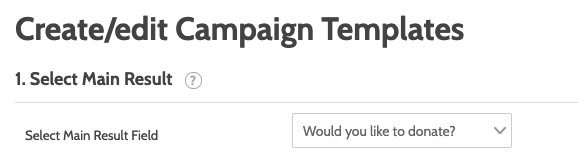
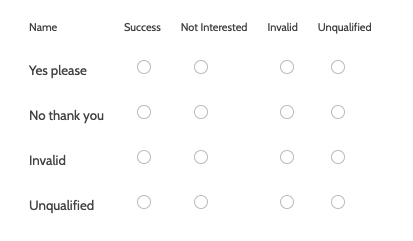
In the Name column will be the outcomes you configured.
Define how the leads will be closed by matching these to one of the four results (Success, Not Interested, Invalid, Unqualified).
Step 2
In Step 2 you will decide how the master data fields and result data fields will be used. Check the following boxes if;
- Upload: the field is required to have content when uploading leads to the campaign
- Result: the field is a required result field
- Editable: the agent is allowed to edit this field.
- Duplicate search key: the field should be used when looking for duplicate leads.
- Visible: the field should be visible to the agent.
- Lead ID: the field Lead ID should be visible (unique across all campaigns in the company).
In our example I’ve configured the following settings and used Telephone as the Duplicate Search Key:
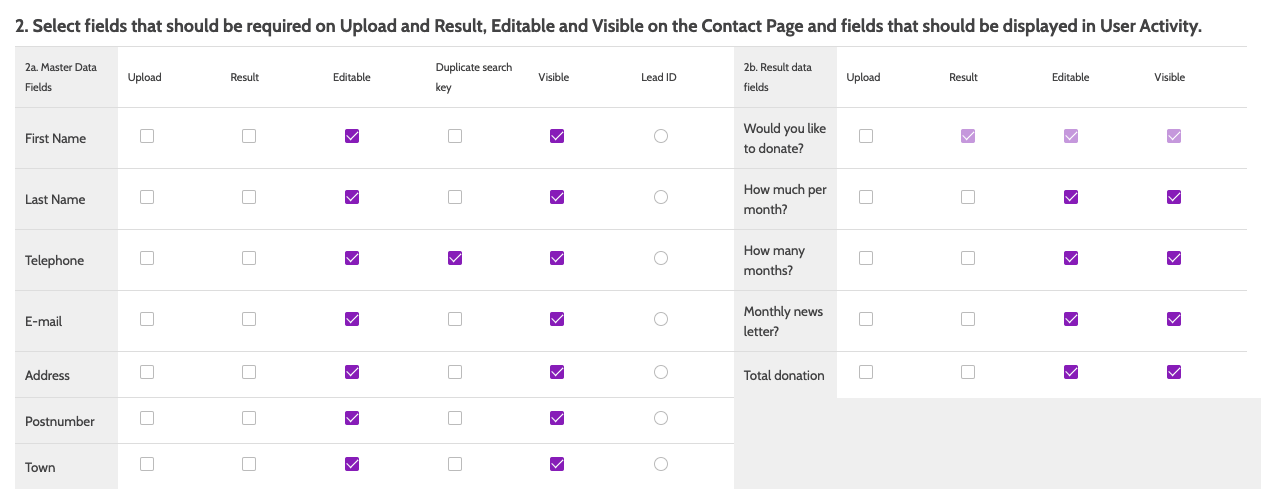
Please note that a URL Master Data Field can’t be marked as Editable.
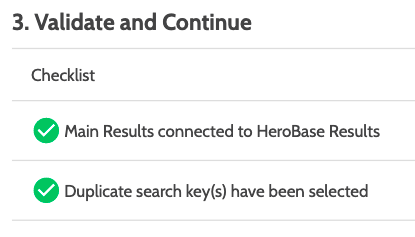
When you’re done, the validation checklist at the bottom should look like this:
Click Preview to preview how the campaign template will look for agents when calling a Lead.
Happy with everything?
Click Save to save your campaign template, and to continue.
Field dependencies
Now your campaign template is ready, it's time to tell Outbound what fields to show depending on the information an agent will receive from a lead.
In our campaign, only after the lead agrees to donate will the options for How much? and How often? become visible.
Configuring the field dependencies
1. As the main outcome is Would you like to donate? we want to hide all outcomes related to a Yes Main Result until the lead responds Yes.
Expand the Field dependencies drop-down, select Would you like to donate?, and click Add.
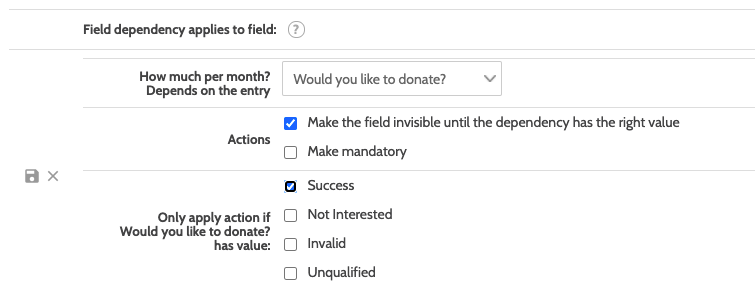
2. In Actions, check the box marked Make the field invisible until the dependency has the right value.
This will ensure that How much? will be visible only when the Lead has responded Yes to Would you like to donate?
3. In Only apply action if Would you like to donate? has value, check the box marked Yes.
This will ensure that when the lead has responded that they would like to donate, and the agent records a Yes, only then will the field How much? be visible to the agent.
4. Click the Save icon to save your field dpendency, and click Save at the bottom of the screen when done.

5. Repeat for each field that is dependent on your main outcome.
In our example, we've hidden all fields that are only relevant if a lead responds Yes to donate. When you're done, it will look something like this:
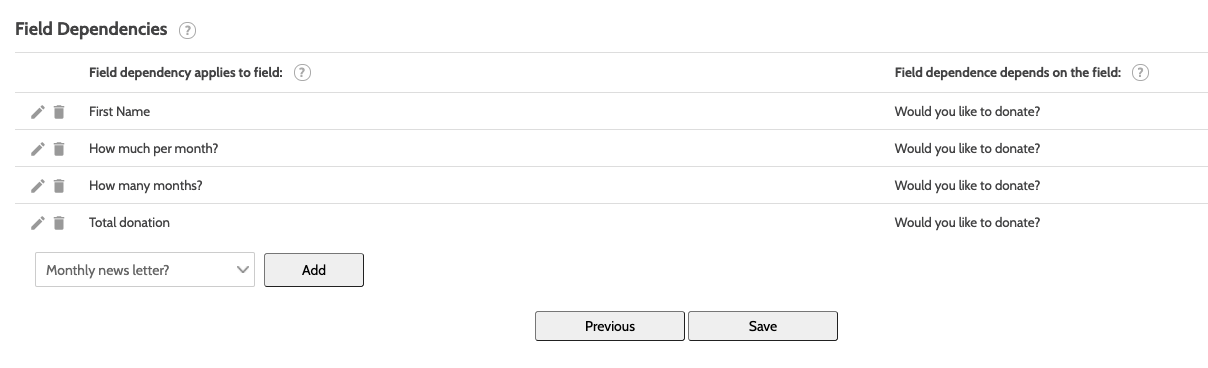
Click Save when you're done.
Congratulations, you have completed your first campaign template in Outbound!
Campaign settings
Now the campaign template is complete, it's time to configure the campaign settings, upload leads, and get to work!
After saving you will automatically be taken to the Edit Campaign home.
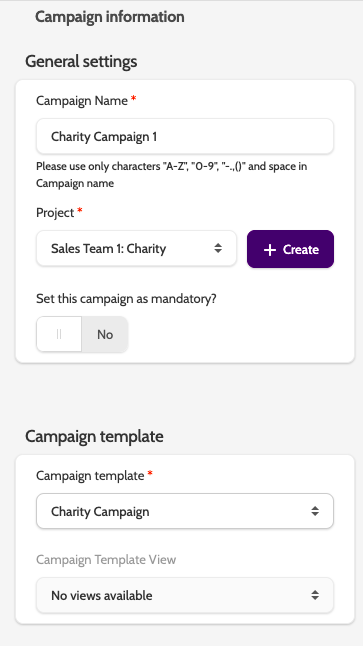
Here, you'll find 4 mandatory fields to complete.
- Campaign Name: the name of your Campaign
- Project: select the project that will contain your campaign or click +Create to make a new one
- Campaign Template: this is the name of the template you'll use for your campaign. Select the one previously made.
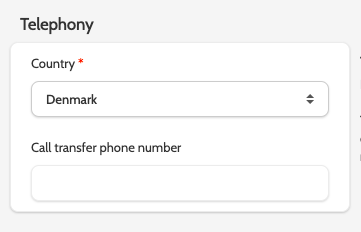
- Telephony: the country where you'll call from.
Dialer settings
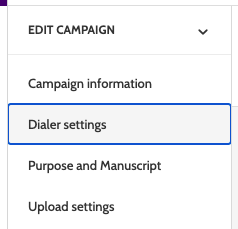
Now it's time to configure the dialer settings for your campaign.
1. Select Dialer Settings.
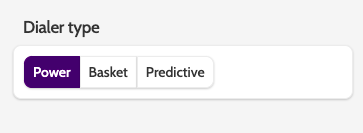
2. Under Dialer type, select Power Dialer. This will call leads one-by-one as soon as the agent is ready, and is recommended for calling fresh lead pools.
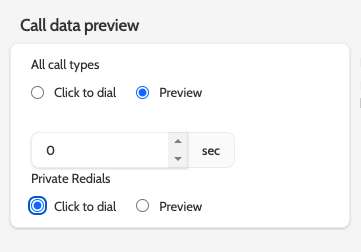
3. Under Call data preview, check Preview for All call types.
This will allow the agents to preview the lead data before being connected to the lead. Adjust the preview time in seconds by clicking the arrows.
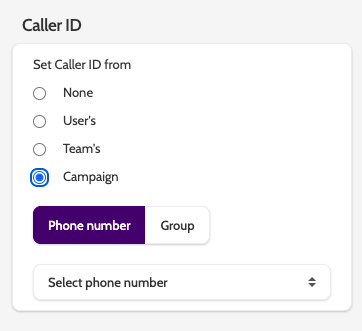
4. Under Caller ID, decide what caller ID will be displayed. For our Charity Campaign, we will set the the Caller ID to Campaign, and select the correct number from the drop-down menu.
If a lead needs to return a call, a Campaign Caller ID will ensure the lead will be connected to an agent working in the same campaign.
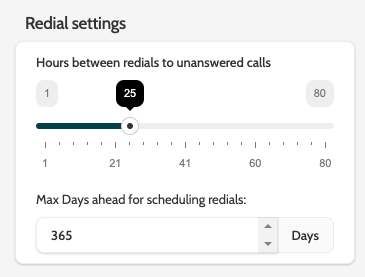
5. Under Redial Settings, decide how many hours to wait until you can redial a lead that didn't answer.
The default setting is 25 hours, so if your lead did not answer a call at 10am on a Monday, a redial will be scheduled for 11am on Tuesday. Adjust the maximum number of days for scheduling redials by clicking the arrows.
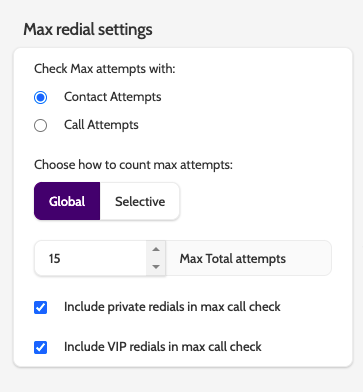
6. Under Max redial settings, you can further adjust how agents will be able to redial leads. For our campaign, I have checked Contact Attempts, selected Global, and set the Max Total attempts at 15.
This means that agents will be allowed 15 contact attempts with a lead, even if the lead had more than one listed phone number. So, unanswered calls to all phone numbers associated with a lead will count only as 1 contact attempt.
Global sets the maximum total redial attempts, regardless of redial type.
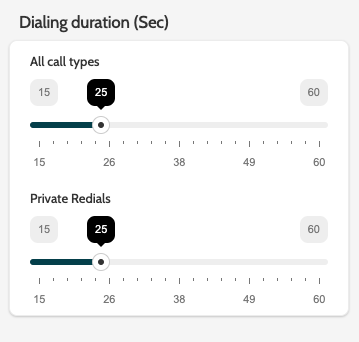
7. Under Dialing duration, set how many seconds the Dialer will dial a lead for, before the call is determined to be unanswered.
The default is 25 seconds, which will cut the call before most answering machines pick up.
Private redials can usually have a longer dialing duration, as the lead has already expressed interest.
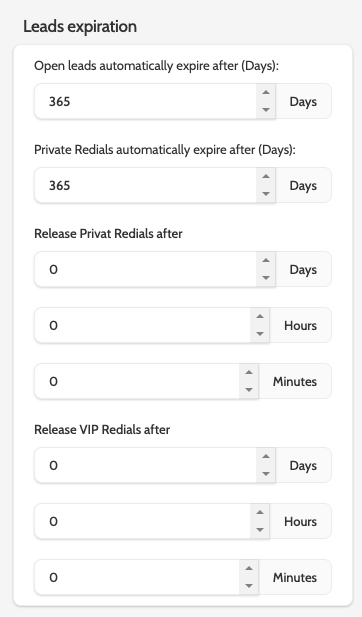
8. Under Leads expiration, adjust how many days open leads and private redials will be active for.
Adjust the expiration time in days by clicking the arrows.
9. Under Other Settings there are the final Dialer Settings.
Check the Dial through box to ensure the dialer will try all phone numbers associated with a lead before terminating the call.
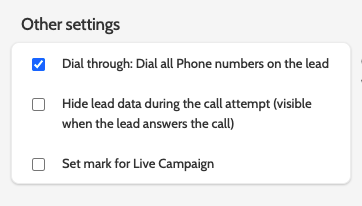
Other settings
Your charity campaign is now ready to upload leads. Jump directly below to learn how, or check out the remaining Campaign Settings to see what you can do with Outbound.
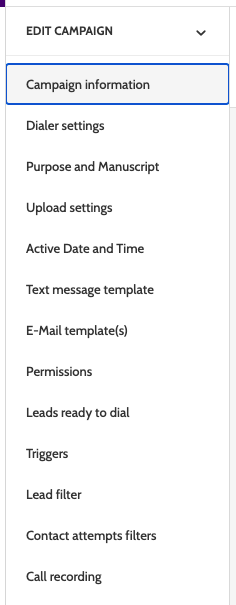
- Purpose and Manuscript: enter a purpose of the campaign with goals for the agent, and a manuscript of points if one is required
- Upload Settings: adjust the settings for duplicate leads
- Active Date and Time: set the date and time for when the campaign is active
- Text Message Template: create or select a template to send SMS messages to leads.
- E-mail Template(s): create or select which email templates should be available on this campaign
- Permissions: grant access rights for this Campaign
- Leads Ready to Dial: in campaign overview there is a distribution graph, a colour-coded graph of how many leads you have ready to call in each campaign. Here you can set the minimum boundary for how many leads appear in each colour
- Triggers: configure triggers to automate actions such as clone, send email, and send SMS
- Lead Filter: filter out certain leads for specific agents or teams
- Contact Attempts Filters: schedule the time frame in which leads with certain number of contact attempts will be called
- Call Recording: decide whether you want call to record calls, and configure deletion rules.
Uploading leads
The final step before using your campaign is uploading leads to a lead pool. This can be done with a CSV file, through Triggers, or via API.
For our campaign, let's upload via a CSV file.
1. To upload your lead pool, expand the Campaigns drop-down menu and select Upload Lead Pool.

2. Follow the steps to upload your Lead Pool. For in-depth instructions on how to do this, head to this guide.
In File upload, upload the same CSV file you used to create your campaign template.
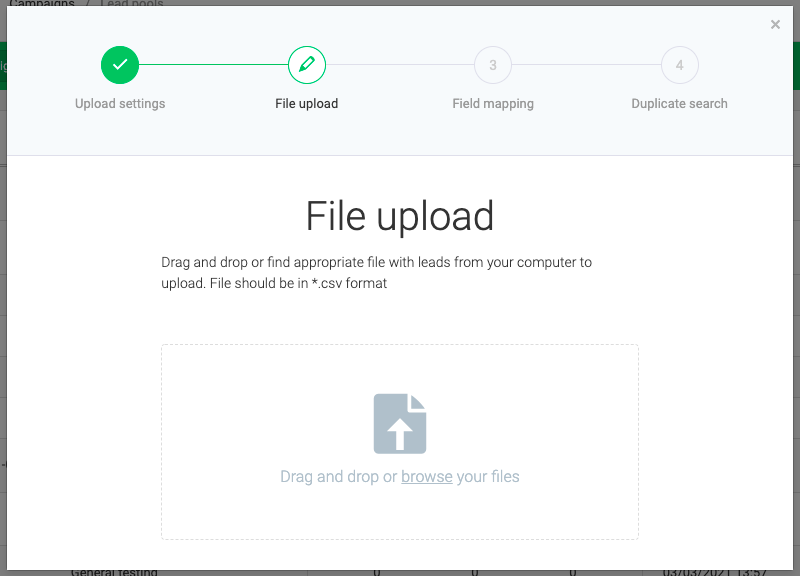
3. Click Upload, map the fields, and choose duplicate settings.
4. When your CSV is uploaded, you will be taken to Lead Pools where you can view all the details related to your uploaded leads.
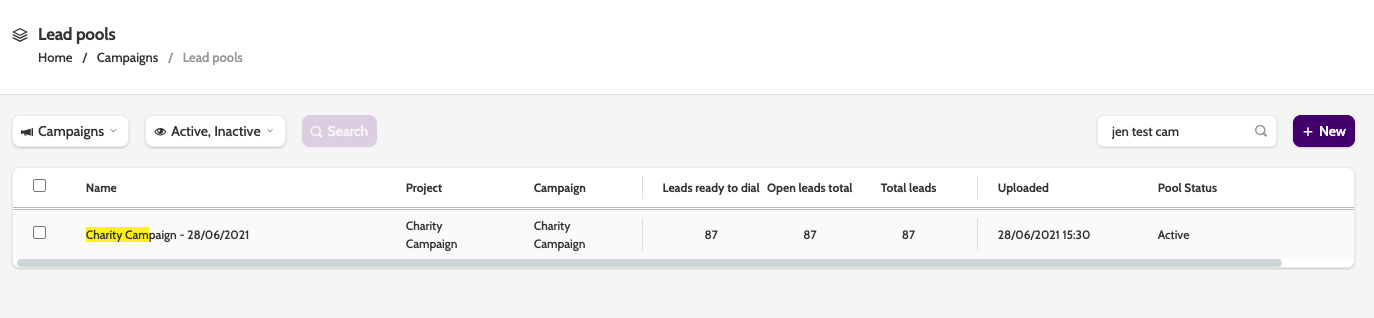
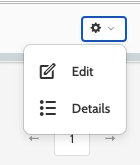
5. To see an overview of all lead information, click the cog icon and select Details.
Permissions
Now you have uploaded your lead pool, it's time to assign permissions for the agents who will work on this campaign.
1. There are two ways to assign permissions:
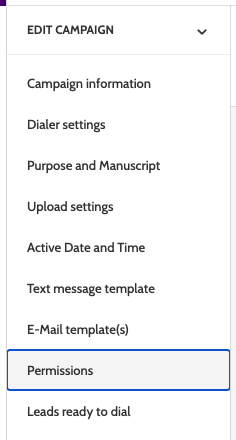
In Campaign Overview, select the campaign you want to work with, and click the permissions tab in the top.

Alternatively, select Permissions from the Edit Campaign menu.
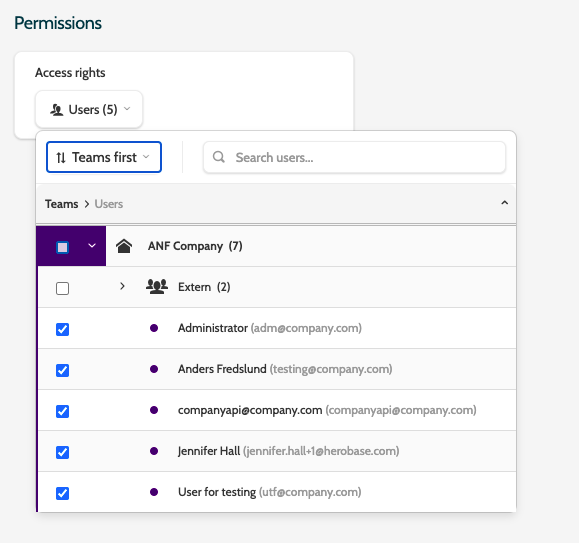
2. Expand the Teams first drop-down menu and choose between Teams first or Users first to change the Organisation view.
Check the boxes of the individual users you wish to assign permissions to, or check the box of the team to assign permissions to all users in that team.
Click Save when finished.
All done?
Congratulations! 🎉
You have now created your first, fully-functional Campaign in Outbound.
This guide has taken you through all the necessary steps, but there is much more you can do to optimise you campaigns and become an expert in all things Outbound.
Browse through the other guides in the Outbound Help Center to learn more, or reach out to Support with any questions you may have.