
Quickstart: Email & SMS
With email and SMS, you can automate follow-ups, personalise messages, and enhance the customer experience
Before you start
- For email templates, be sure SMTP settings are configured first so you can send emails.
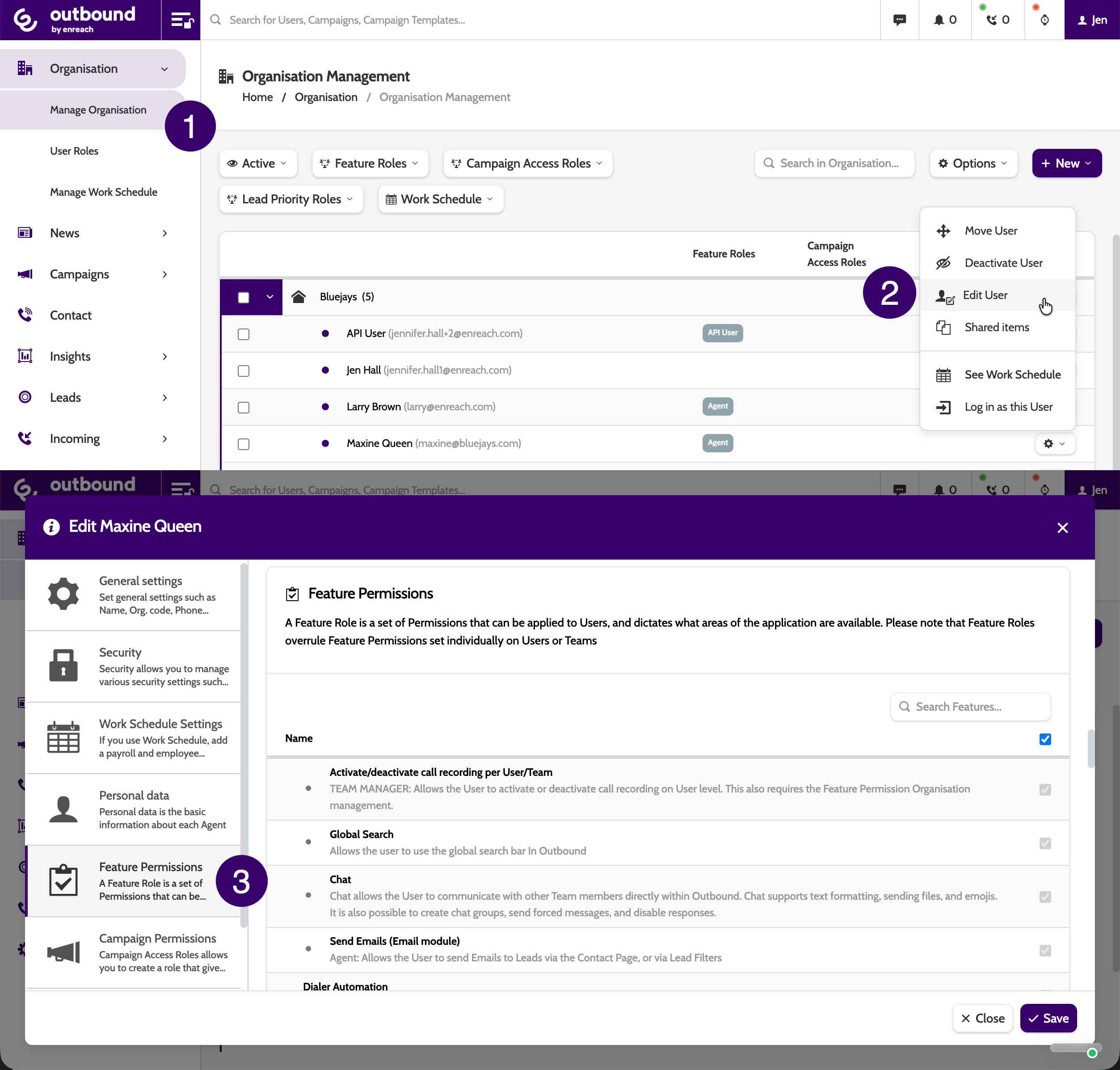
You'll need the follow permissions to create templates:
- Campaigns > SMS Templates
- Campaigns > Email Templates
And the following permissions to send email and SMS
- Leads > Send SMS
- Send Emails
Permissions are granted in Manage Organisation - click to enlarge!
Step-by-step
1. Create an Email Template
- Go to Campaigns > Email Templates
- Click the + (plus) icon to start
- Under the Settings tab, enter some essential information:
- Name: Internal name for the template
- From?: Either check the box to use the agent's email address, or enter your company name and email under Senter Name & Sender Address
- Save after entering settings.
- Under the Email Body tab:
- Enter Subject and message body.
- Use the rich text editor: formatting, links, HTML, images, etc.
- Insert dynamic merge fields (e.g., lead name, campaign data) to personalise messages.
- Save the template when done.
Read more about Email Templates here.
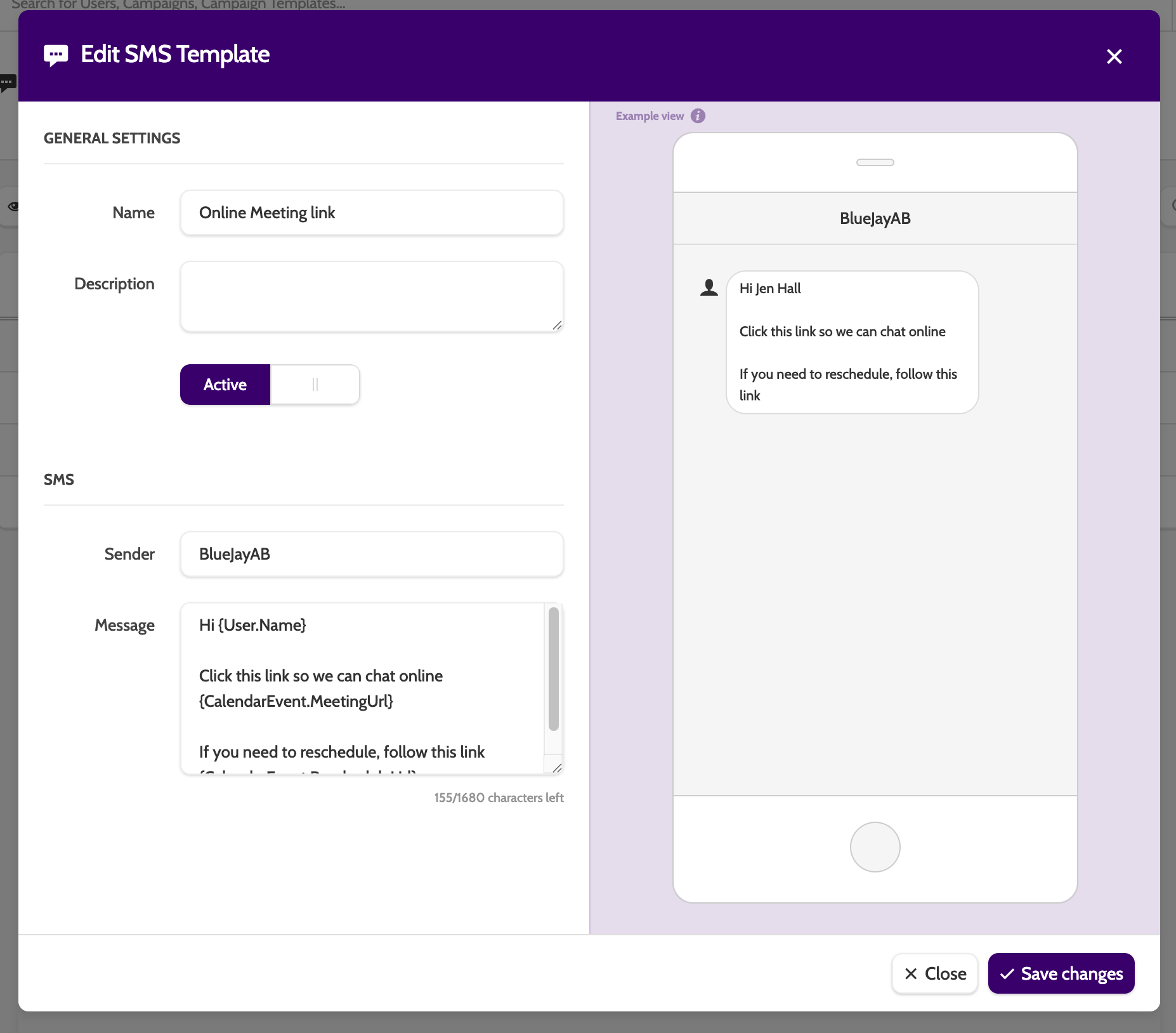
2. Create an SMS Template
- Go to Campaigns > SMS Templates
- Click New to start.
- Enter the following essential information:
- Name: Internal name for your SMS template
- Sender: Display name shown in the recipient’s SMS sender field (must include correct formatting).
- Message: enter the text body; can include merge fields for personalisation (e.g., lead fields, campaign fields).
- Save Changes when done.
Read more about SMS Templates here
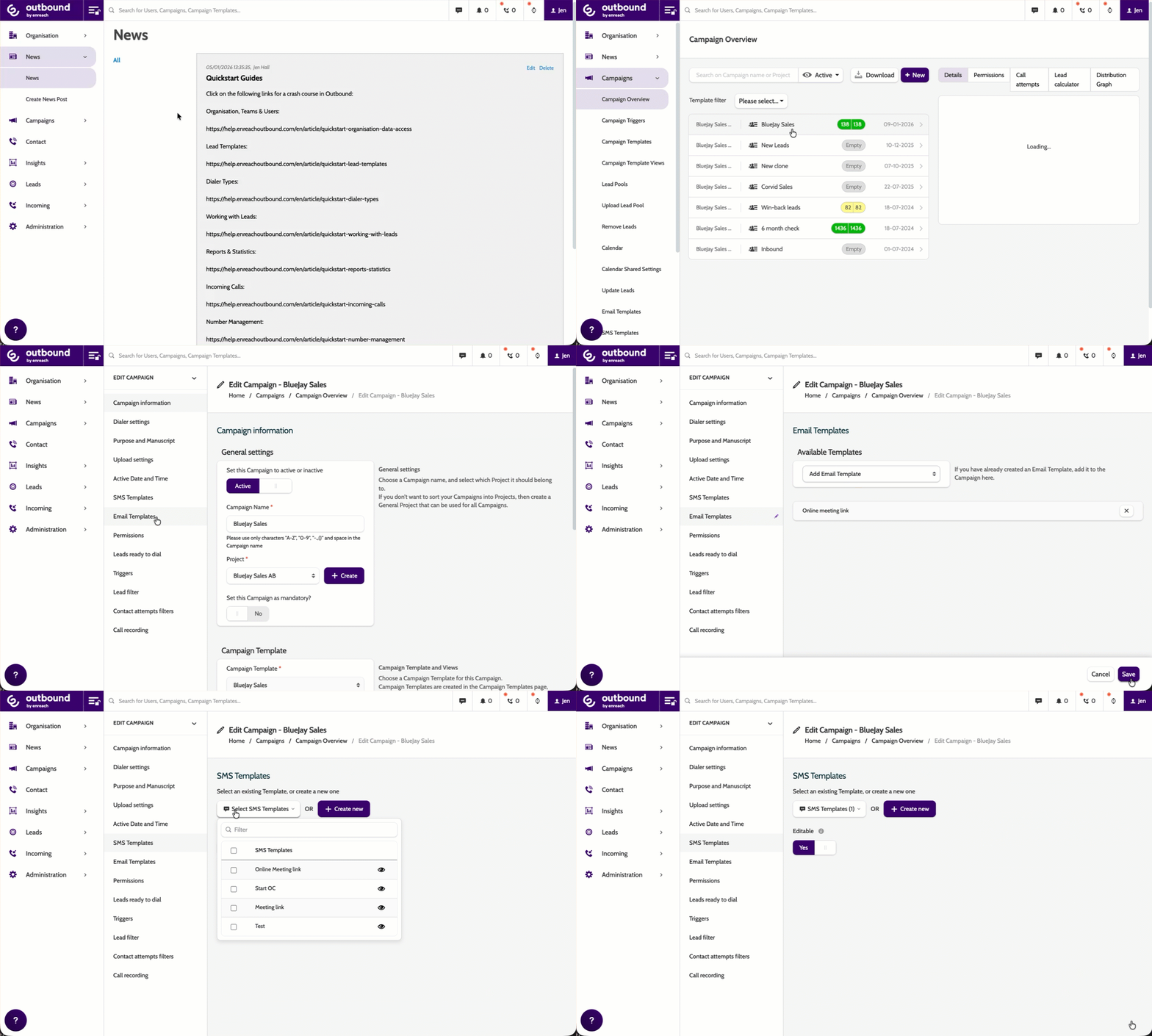
3. Use Templates in a Campaign
Once templates are created they need to be linked to the Campaigns they should be used in.
- Go to Campaigns → Campaign Overview.
- Select the campaign you want to update and click the pencil (edit) icon.
- Under the Edit Campaign dropdown:
- For emails: select Email Templates and choose the desired template.
- For SMS: select SMS Templates and add the template.
- For SMS templates, you can toggle Editable so agents can adjust the message when sending.
- Click Save to attach the template to the campaign.
4. Send Messages
✅ Agents have permission to send messages?
✅ Templates are added to the Campaign?
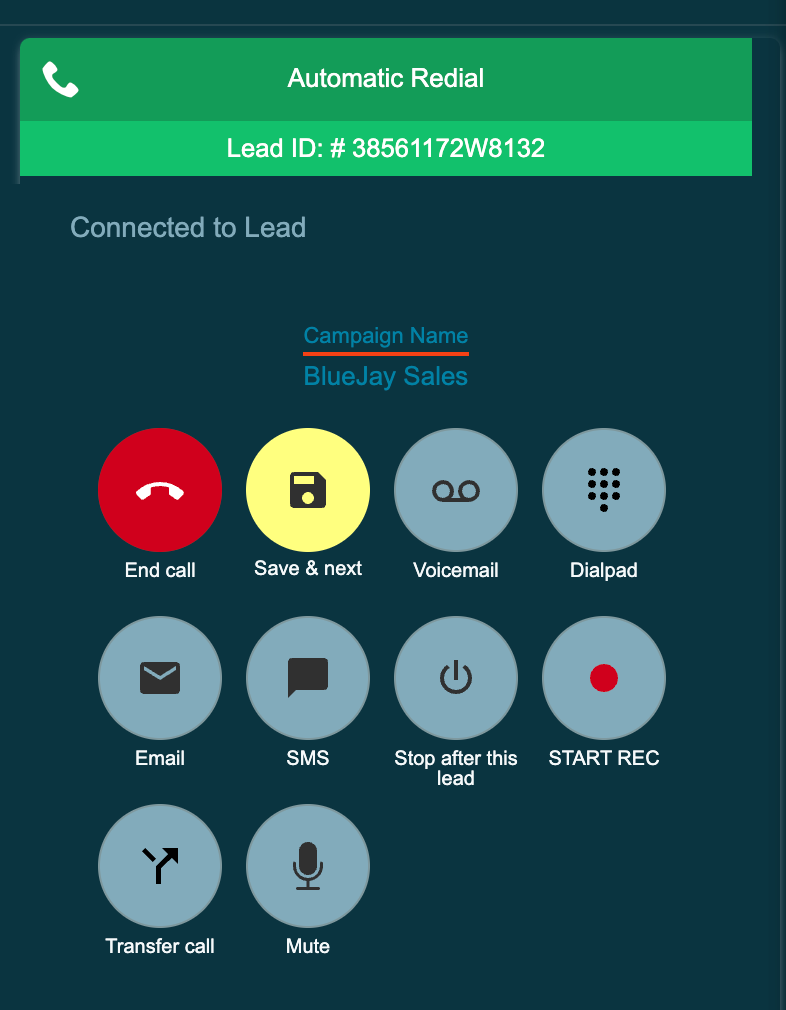
Messages can now be sent directly from the Contact Page
Lead Admin...
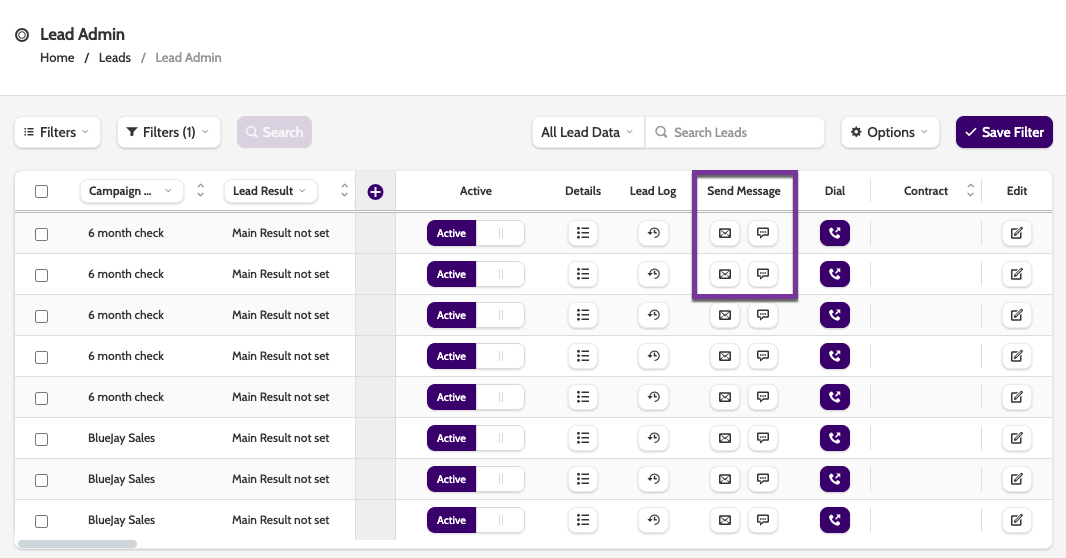
And more!
Check it’s working
- Your email templates appear in the Email Templates list and are active/usable.
- Your SMS templates show up and can be selected in campaigns.
- When creating or sending messages from campaigns, the body is pre-populated with the template.
Troubleshooting essentials
- SMTP not working? Confirm SMTP settings are configured before sending emails.
- Template not visible? Check the status filter (Active/Inactive) and search.
- Merge fields not merging? Ensure the field exists in the campaign template and is correctly inserted.
- SMS sender not displaying? Some carriers require specific formatting — include internationally formatted numbers or approved sender names.
Last updated: 1/21/26, 5:00 PM