Organisation: Top Bar
Wherever you are in Outbound, except the Contact Page, you will always see the top bar.
Here you can navigate around the application and carry out essential functions, regardless of what activity you're currently performing.
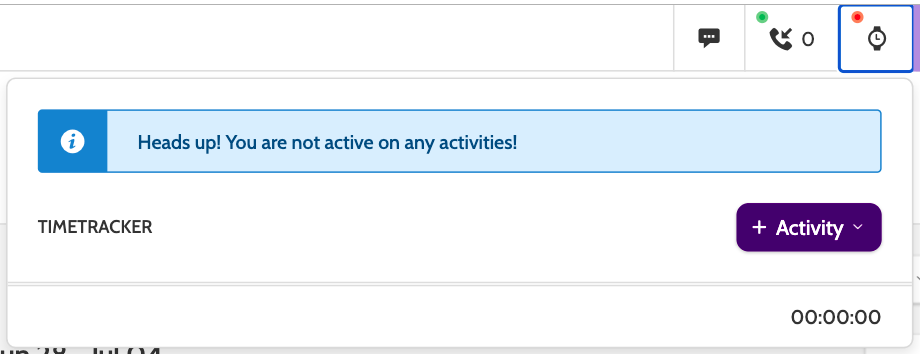
Choose between Search, Chat, Active Incoming Calls, and TimeTracker
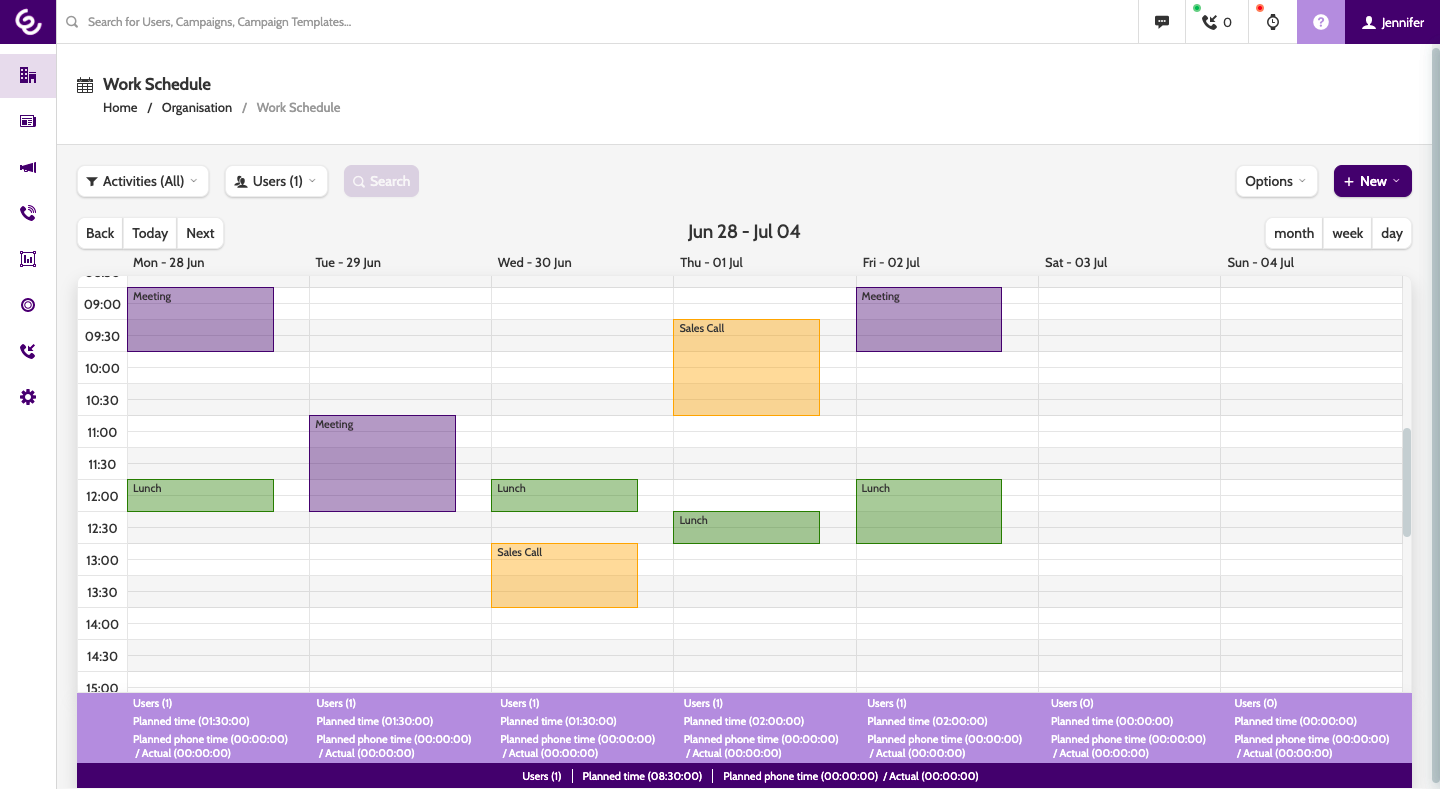
Let's take a closer look at the options available:
In the top left corner of the application you will see the Outbound logo. Hover your cursor over the logo to expand the navigation menu.
Click on the Outbound logo to return to the news page at any point.
Use the search bar to search for users, campaigns, and campaign templates.

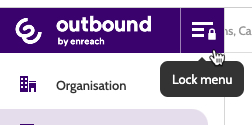
The menu is dynamic, but if you want to keep it in one place, click the lock icon.
In the top right corner there are several icons for administrative tasks:

Chat
Click the chat icon to expand the Outbound internal chat system. Here you can easily send instant messages to other users in your organisation, or start group chats for quick communication.
What can I use chat for?
Outbound chat is a great tool for when a team needs to communicate about campaigns, share handy pointers for successful conversations with leads, or even for a supervisor to give live feedback to an agent while they monitor their call to a lead - all with the ease of not having to switch between different applications.
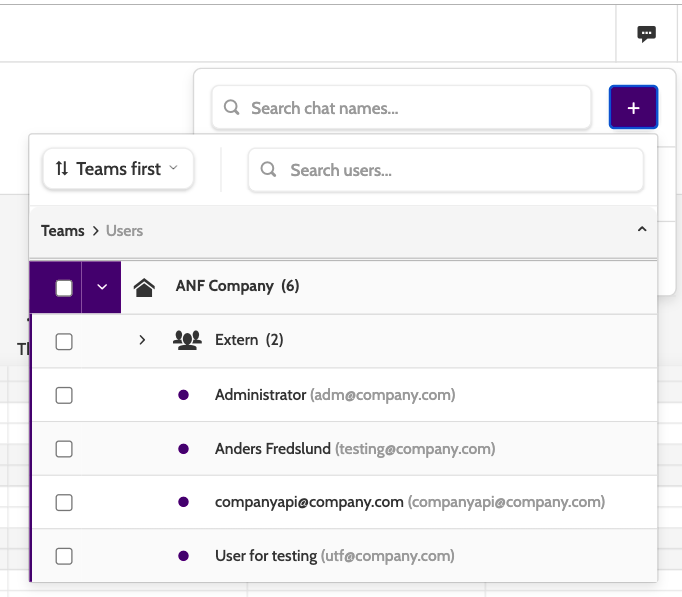
User the search bar to search through open chats with other users, or click the plus icon to begin a new chat.
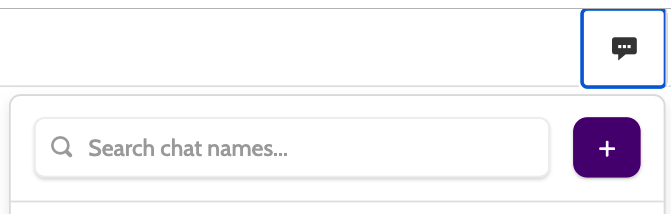
Clicking the plus icon will expand a hierarchical list of all users in your organisation. Filter using the search bar or reorganise the structure using the Teams first button.
Check the box next to the user or users you want to start a chat with, then select Start new chat with selected agents.
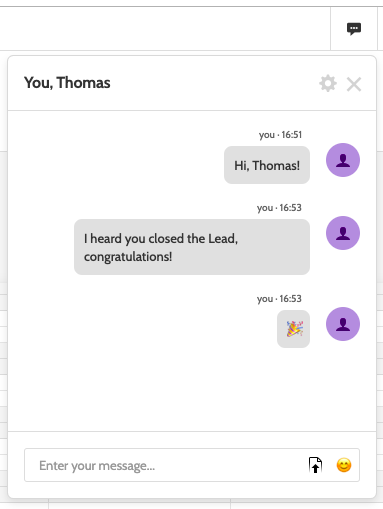
When in the chat, click the arrow icon to add an attachment (max 2MB), or the smiley face to add emojis.
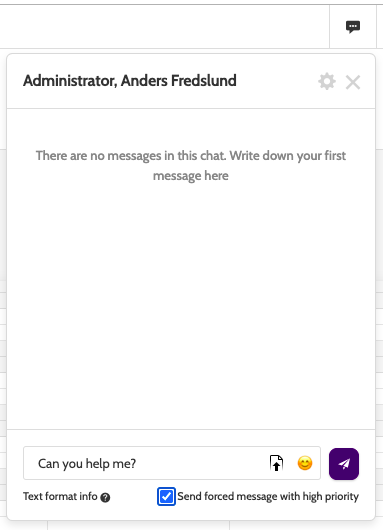
If you want to send an urgent message, check the box marked Send forced message with high priority. This will automatically display the message to the user in a chat pop-up.
Click the cog icon in the top of the chat to open the options.
Members will allow you to view and add other users to the chat. Click Leave this chat to exit the chat, if you're a member of a group chat for example.
Click the X to close the chat box.
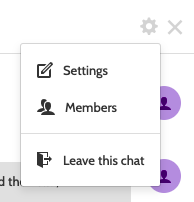
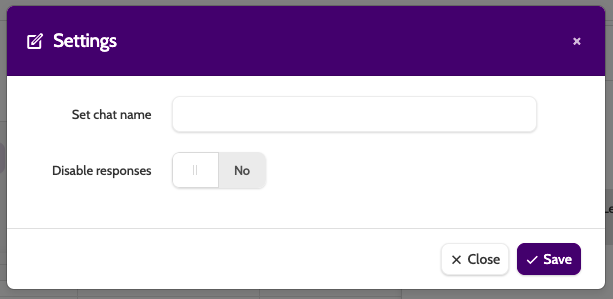
Click Settings to rename the chat, and to enable or disable response notifications.
Active Incoming Calls
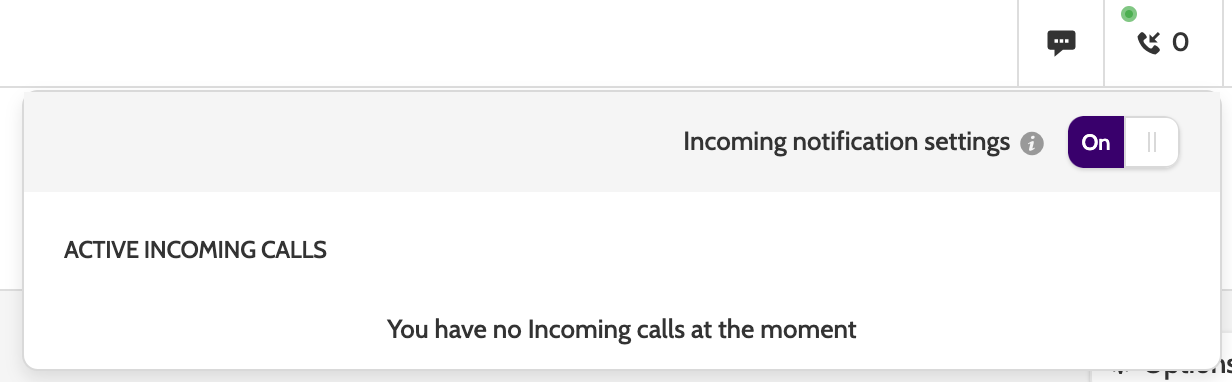
If you have Incoming Configuration set up, click the phone icon to view and answer any incoming calls.
Toggle Incoming notification settings to On to receive notifications in the top bar, and the ability to answer the call.
Time Tracker
If you have Timetrack activated, then click the watch icon to log and monitor any activities.