
Insights: Live Operations
If you are a team leader or admin, you can use live operations to monitor agent calls live, track the activity of you team, and view up-to-date KPIs and statistics in real time.
Overview
Live Operations can be found under the Insights menu.
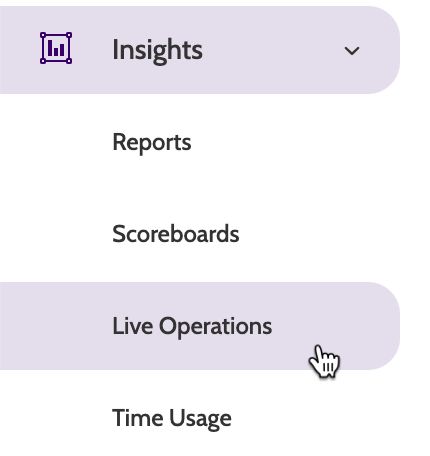
In the overview you will see a dashboard displaying all live operations data.
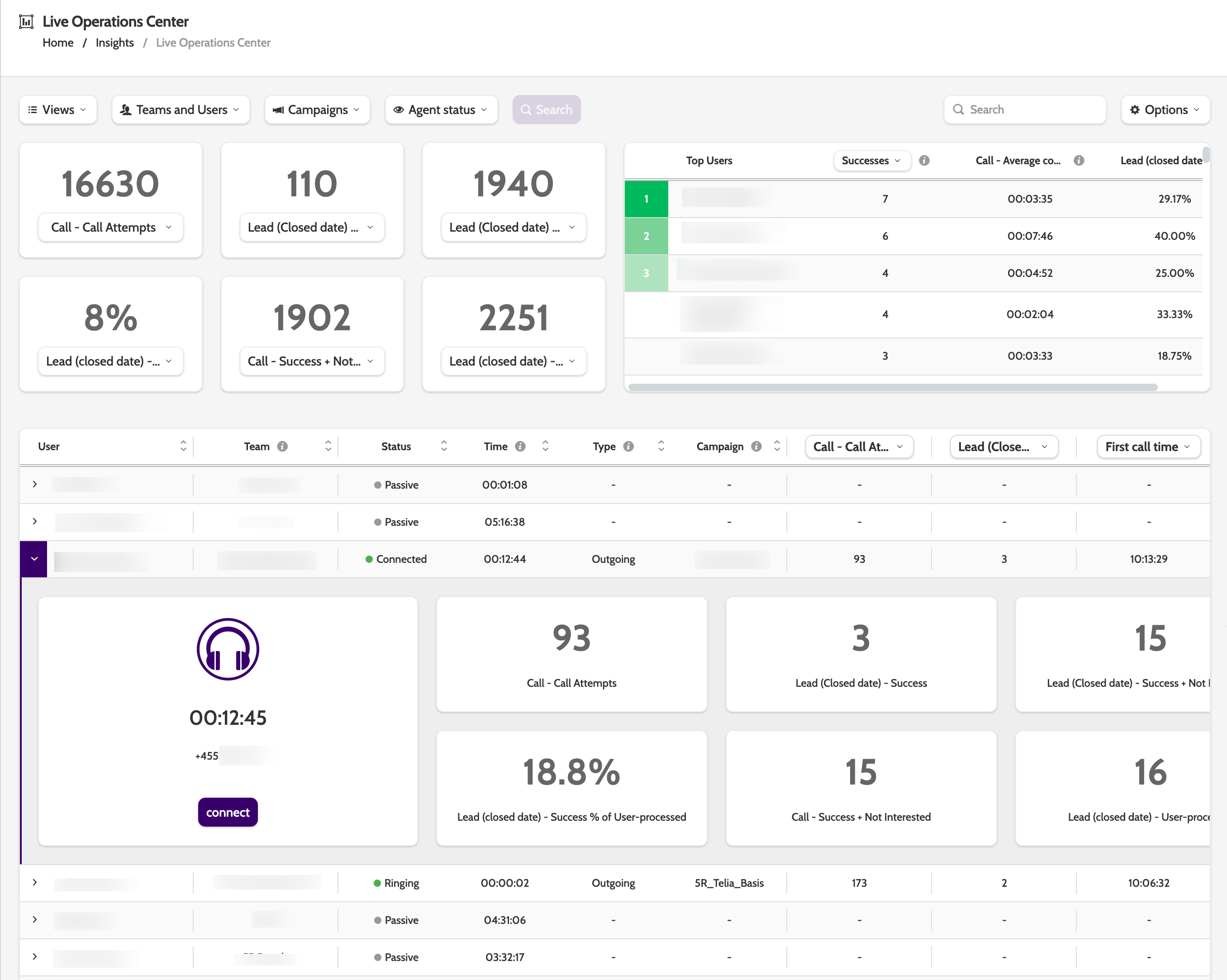
In the top bar, you will see a number of filters to change the navigation view:
- Views: Open any previously saved filters
- Teams and Users: select which teams and users to view
- Campaigns: choose which campaigns you want to show the live statistics for
- Agent status: filter the view by currently active agents, or all agents that have been active today
- Search: click Search to update the view

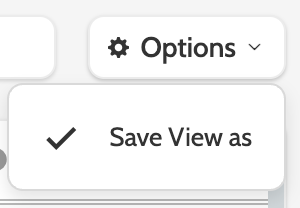
Expand the Options menu and click Save View as to save your chosen filters as an easily accessible dashboard, under the Views filter. This is useful if you want to switch between campaign views, or certain users.
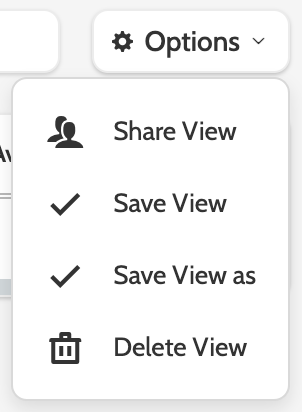
If you are viewing a Saved View, you will see different options:
- Share View will allow you share the dashboard with others in your organisation
- Save View will save your view with any changes made, such a KPI alternations
- Save View as will allow you to edit the view name
- Delete View will delete the view
Monitoring Calls
Live Operations is great for team leaders who want to monitor live agent calls, for training and quality assurance purposes.
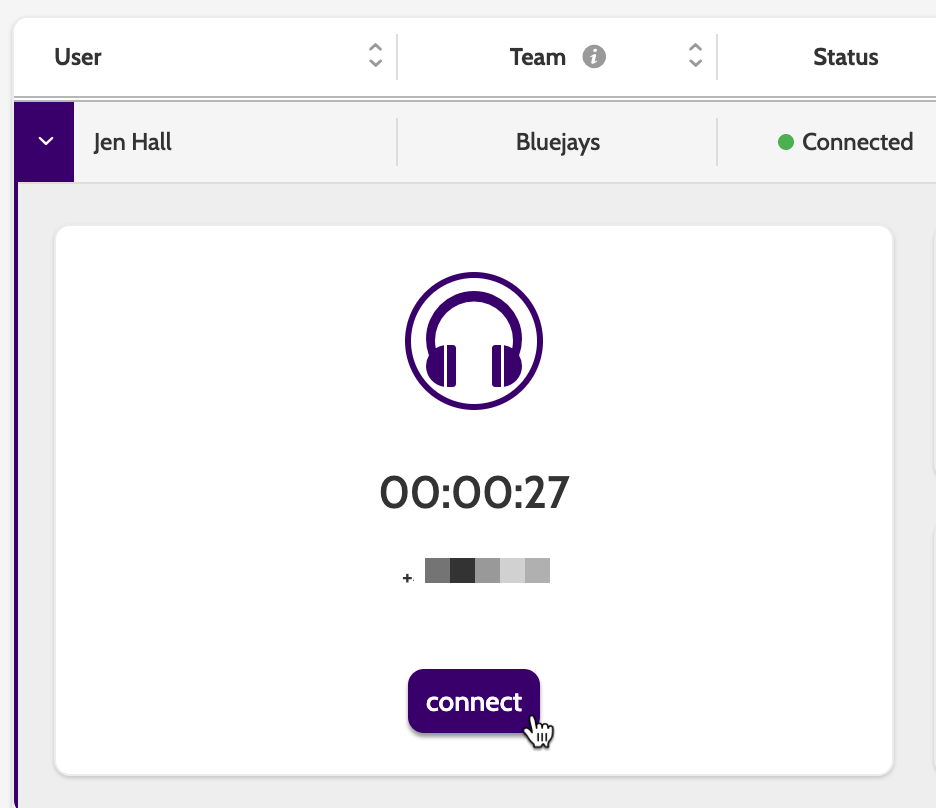
When an agent is connected to a lead, click the purple arrow to expand the user overview, and click Connect.
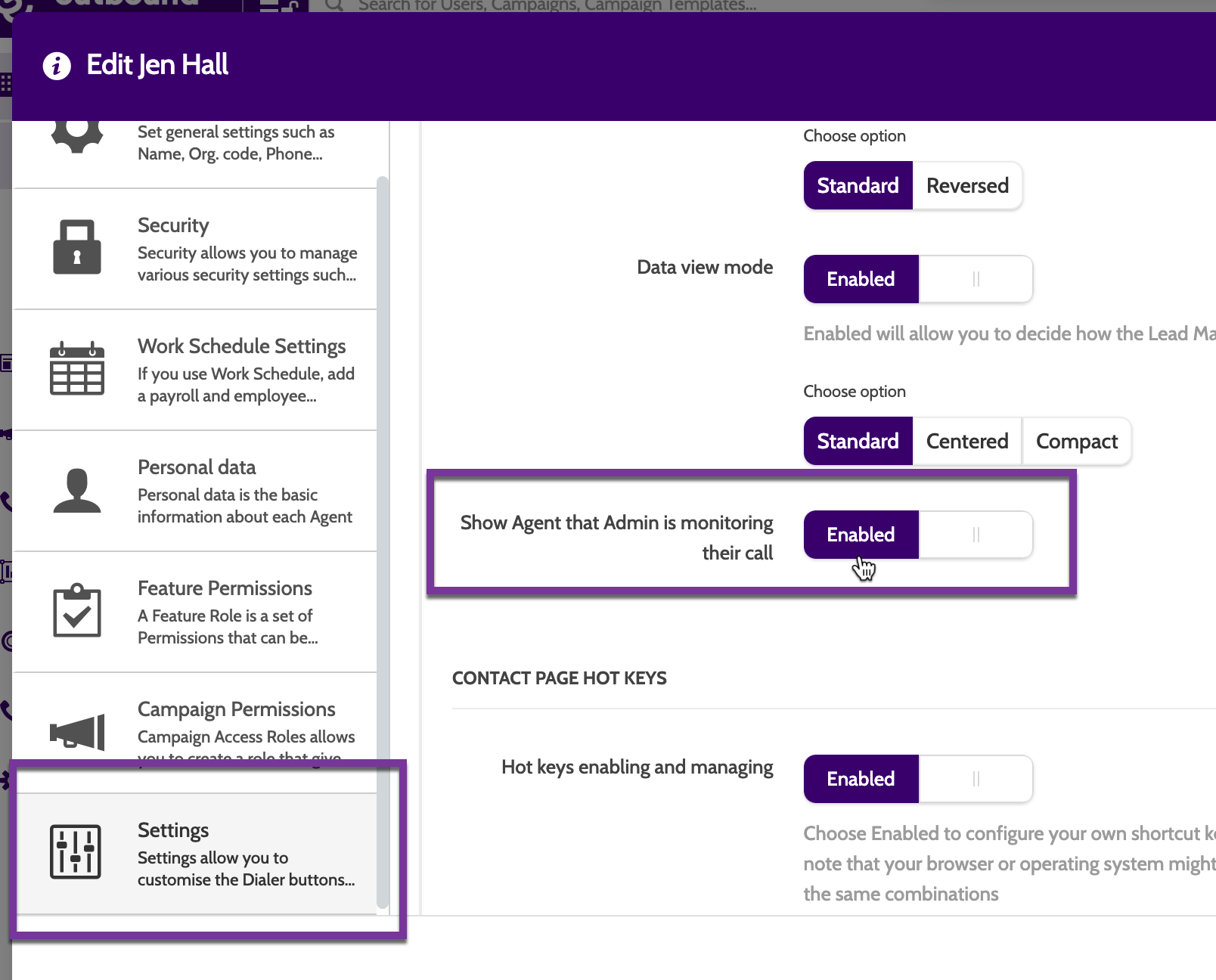
The agent won't be notified that they are being monitored unless the following user setting is enabled:
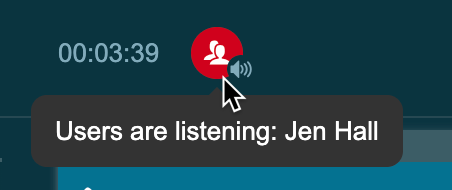
When they're being monitored, they will see this icon at the top of the contact page.
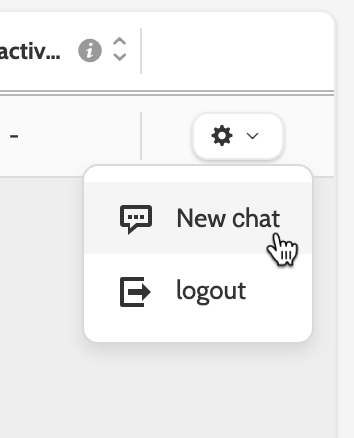
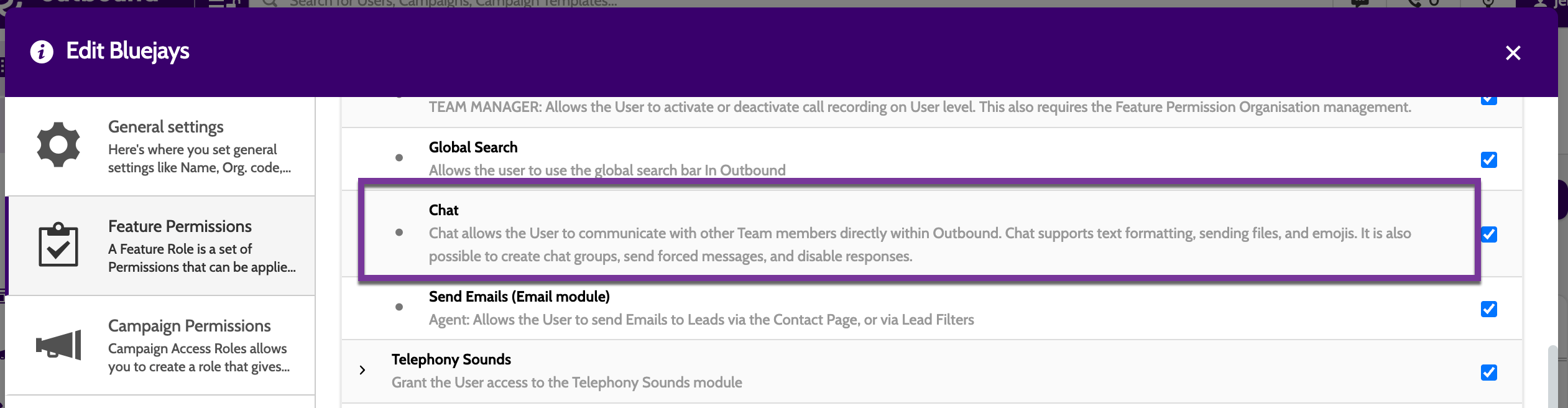
When a team leader is monitoring an agent, they can discreetly message them through chat - either by clicking New chat in the agent overview, or opening the chat box in the top bar of Outbound.
Please note that access to Chat is a Feature Permission, that can be enabled on both a Team and User level:
KPIs
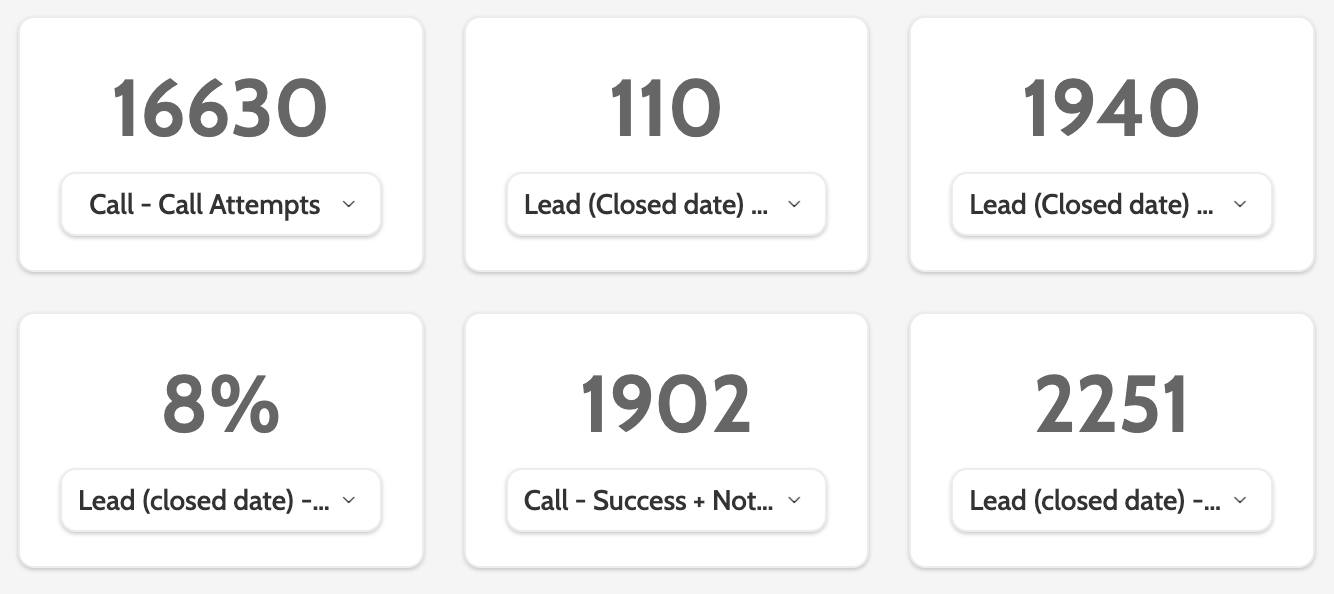
In the top left of the dashboard you will see six KPIs where you can view statistics for some of the most important KPIs in your organisation.
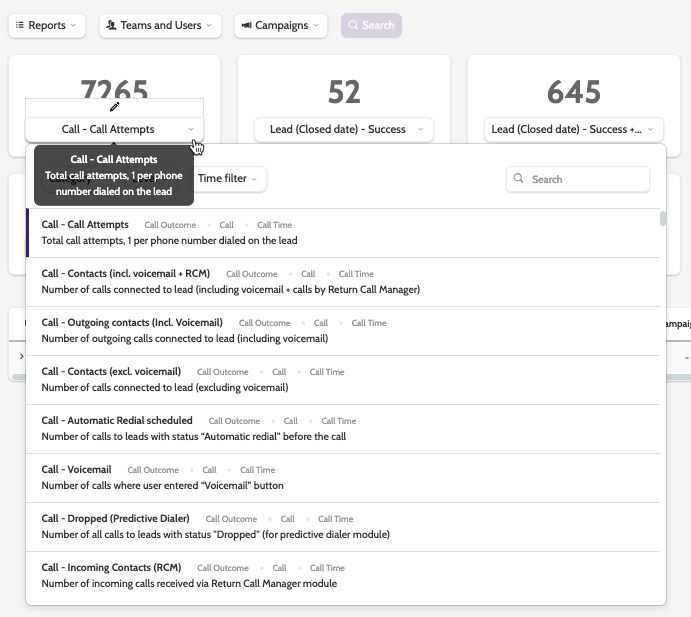
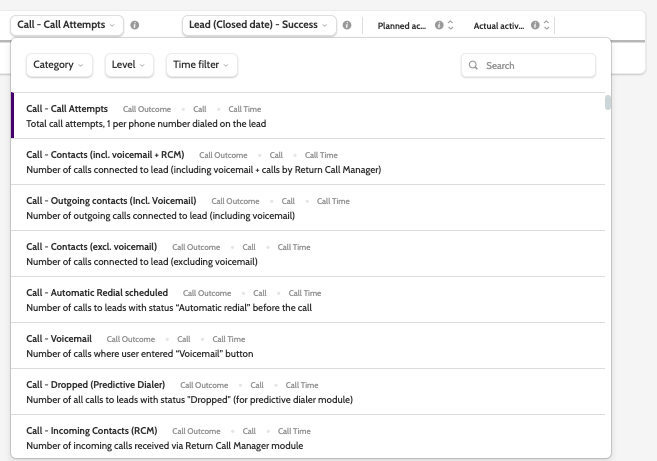
To change a KPI, click on the title to expand a list of all available KPIs.
These can be filtered by expanding the Category, Level, and Time Filter options in the top bar.
Click the pencil to edit the name of the KPI.
How is wrap-up time calculated?
Wrap-up time is the amount of time it takes between an agent finishing a call with a lead and entering a lead status.
If an agent is calling to more than one number associated with a lead, then the wrap-up time will include those idle seconds or minutes between calling each number.
In Live Operations, the following KPIs include wrap-up time:
- Call - Revenue per online hour (Successes)
- Call - Points per online hour (Successes)
- Call - Profit per online hour (Successes)
- Call - Commission per online hour (Successes)
- Call - Number of sold units per online hour (Successes)
- Call - Avg. number of Contacts per hour
- Call - Successes per online hour
- Call - User-processed per online hour
- Call - Success + Not Interested per online hour
- Call - Idle time per online time
- Call - Wrap-up time per online time
- Call - Success per Total Hours
- Call - Success + Not interested per Total Hours
- Call - Preparation time per online time
- Call - Conversation time per online time
- Call - Wrap-up Time
- Call - Total time spent on the Contact Page
- Call - Total time spent on the Contact Page (as decimal)
Top users
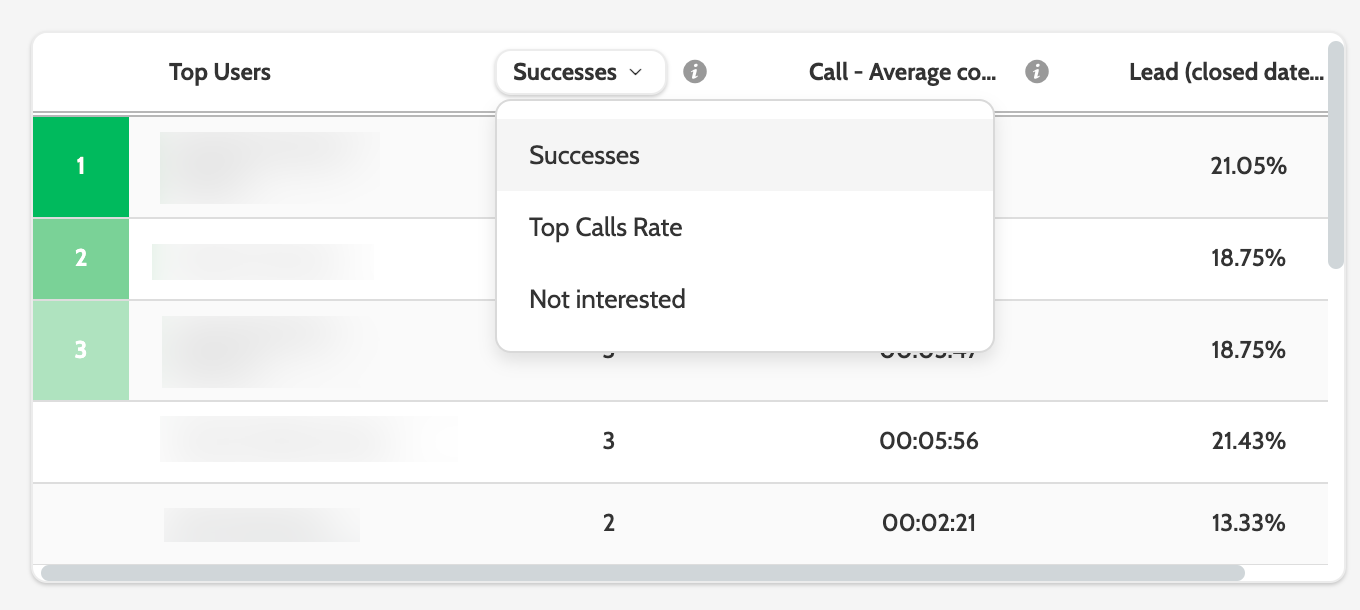
In the top right of the dashboard you will see a table of the current top performing users based on a KPI.
Expand the Successes menu to change the ranking according to different KPIs:
- Successes is the number of leads closed with a Success status
- Top Calls Rate is the total call attempts when dialling the lead
- Not Interested is the number of leads closed with a Not Interested status.
The average conversation time and percentage of leads closed as a success will then be shown in the table.
Organisation table
In the bottom of the dashboard you can view all agents currently using Outbound, view their call statistics, and monitor their conversations live.
Click a user to expand their KPI data for their current dialing session, and if they are currently connected to a lead, click connect to monitor the conversation live.
The organisation table can be regrouped by clicking on the arrows next to Team, Status, Time, Type, and Campaign.
This way you can gain an easy overview of all connected calls, or all agents working a certain campaign, for example.
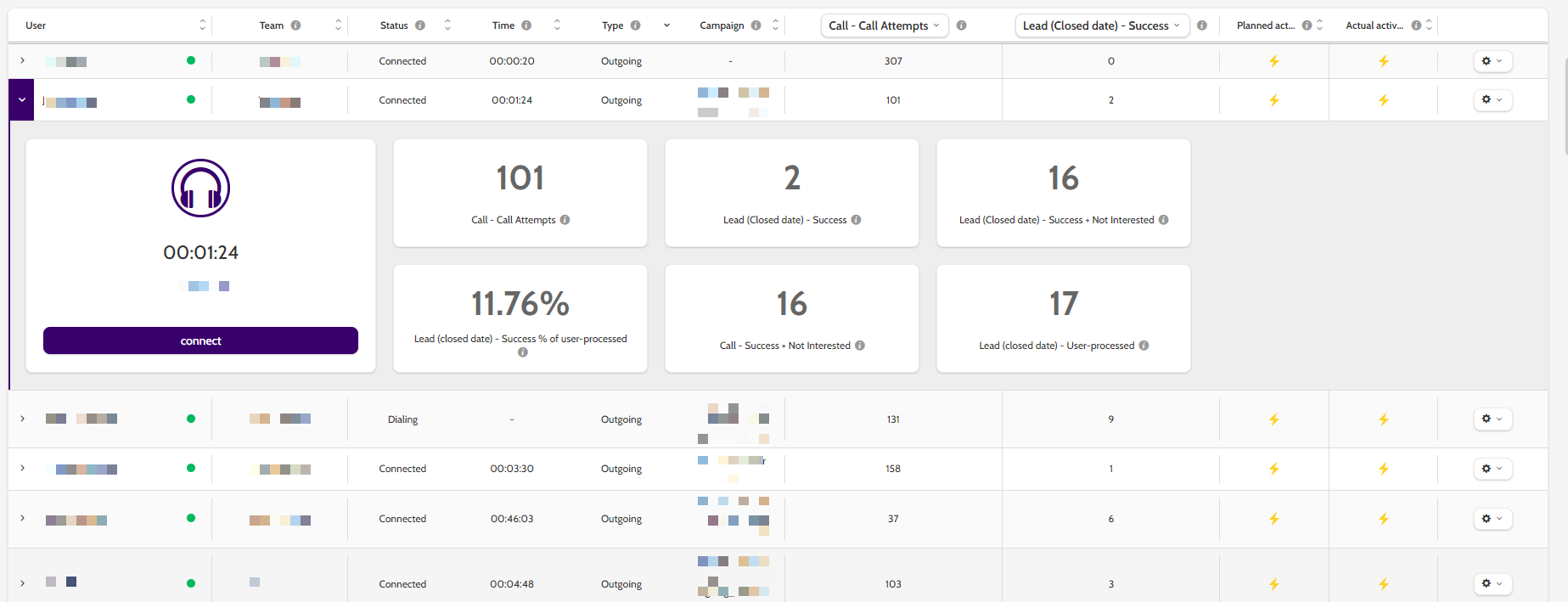
Agent overview
- User: user-name of the agent
- Team: the team they belong to
- Status: the status they are in
- Time: the length of time they have been in the status
- Type: call type - either Outgoing or Incoming
- Campaign: the name of the campaign they are currently working in.

Status types
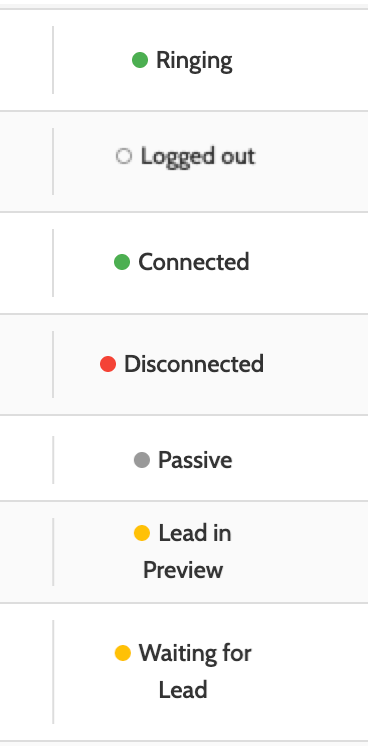
- Ringing: the agent is on the contact page and their outoing call to the lead is ringing
- Logged out: the agent has been logged in today, but is currently signed out of Enreach Outbound
- Connected: the agent is in a connected call
- Disconnected: the agent is on the contact page and in wrap-up, as the call has disconnected
- Passive: the agent is not currently in a call. Passive is a call-state indicator, not a status-indicator, so a Passive agent could be elsewhere in Enreach Outbound, or does not have an active work session but has not logged out
- Lead in Preview: the agent is previewing the lead details before they initiate the call
- Waiting for lead: the agent is working in a predictive dialer campaign and is waiting to be presented with a connected call
To the right of the organisation table are two KPI columns. The default views are Call - Call Attempts and Lead (Closed Date) - Success.
These can be customised by clicking the title to expand the list of KPIs.
If you are using Manage Work Schedule, you can see in the next two columns the planned activity for the agent, and the actual activity that the agent is currently working on.
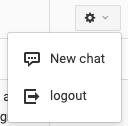
You can begin a chat with an agent by clicking the cog and selecting New chat. If they have the Chat feature permission, they will see a notification on the contact page.
Click logout to log the agent out of Outbound.
User Status