Setting up music on hold
Setting up music on hold takes just a few steps.
To upload music, it should be in WAV file format.
If you don't have a WAV file, there are websites where you can download royalty free music files to use.
1. Permissions
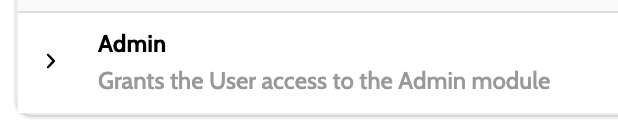
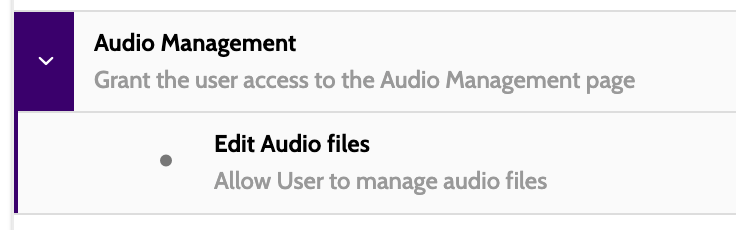
Before you begin, you will need the following permissions to upload and manage your audio files.
2. Upload music
Go to Administration > Audio Management.
Please note that this page used to be called Incoming Call Sounds, and has now been moved from the Incoming menu to the Administration menu - it will require the above permissions to view the page and upload sound files.
Click + New.

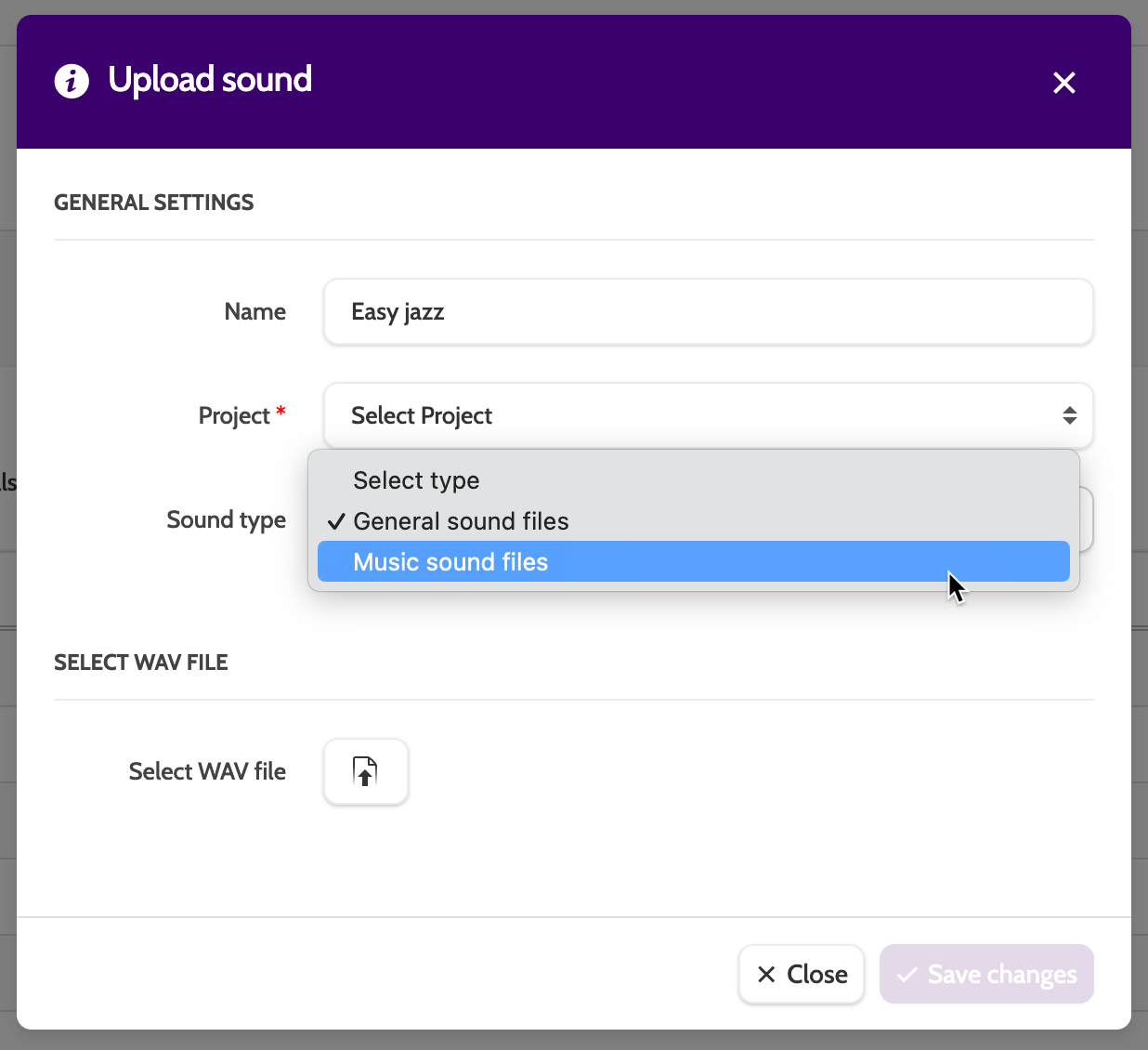
In the modal, enter the name of the file, select the Project it should belong to, and choose Music sound files from the Sound type drop-down.
Click Select WAV file and upload your music.
3. Activating music on hold
Go to Administration > Projects.
Choose the Project the music file was uploaded to in step 2.
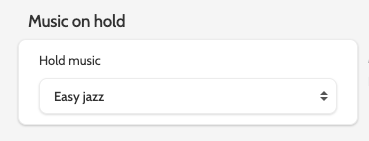
Under Music on hold, select the file from the drop down menu.
Click Save.
4. Playing music on hold to leads
Once the music has been uploaded to the Project, it will apply to all Campaigns within that Project.
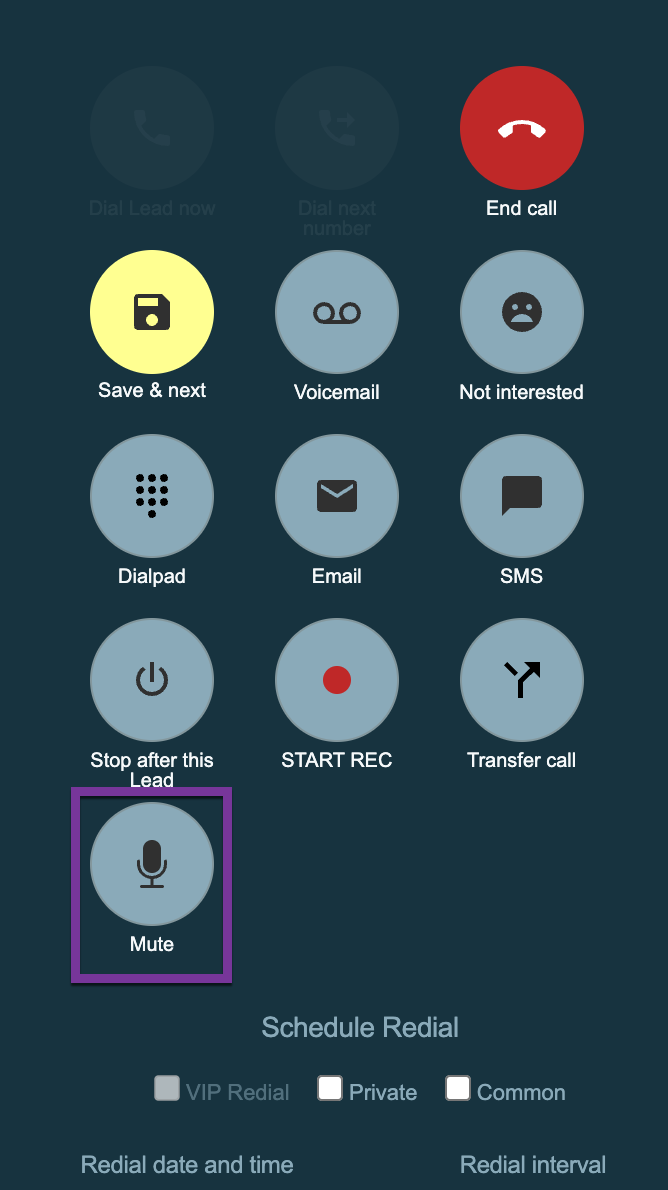
When agents press Mute to put the lead on hold, they will now hear music and not silence 🎶🎶