Campaigns: Remove Leads
Remove leads in bulk from your projects and campaigns via CSV files.
To remove leads you will need a CSV file containing all of the lead data you want to remove.
How to remove leads
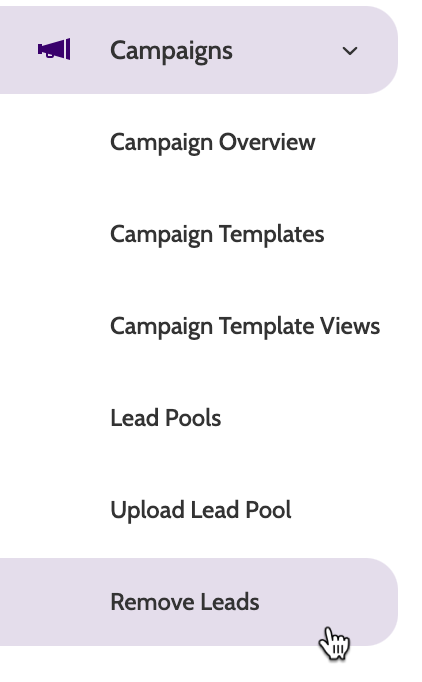
Expand the Campaigns drop-down menu and select Remove Leads.
There are two methods to remove leads:
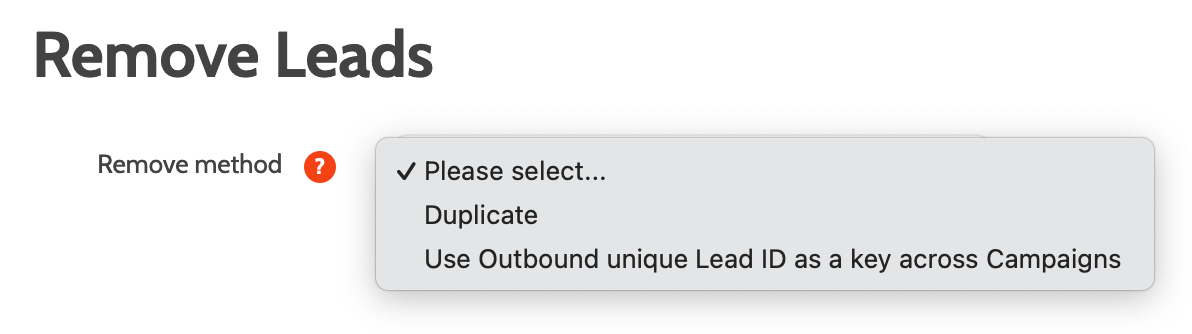
Expand the Remove method drop-down and choose between Duplicate and Use Outbound unique Lead ID as a Key across Campaigns.
- Duplicate will search for all duplicate leads and remove them.
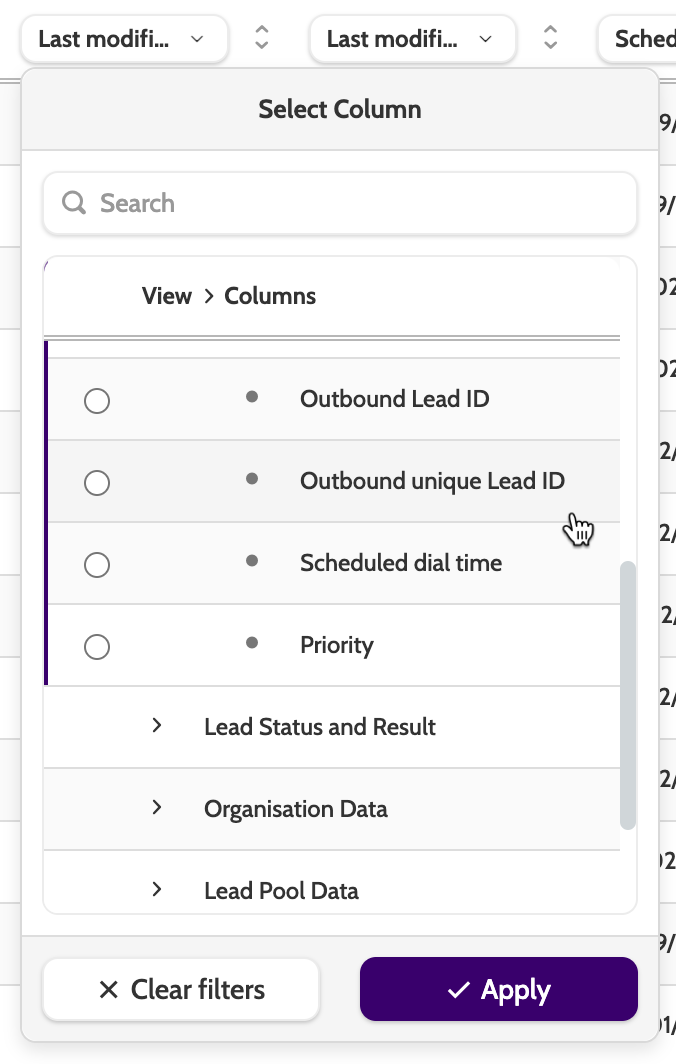
- Outbound unique Lead ID will use the unique Lead ID of the Lead to remove a specific Lead. The unique lead ID can be found in Lead Admin by adding the column Outbound unique Lead ID.
Click Show/hide history to view any history of lead removal.

Duplicate
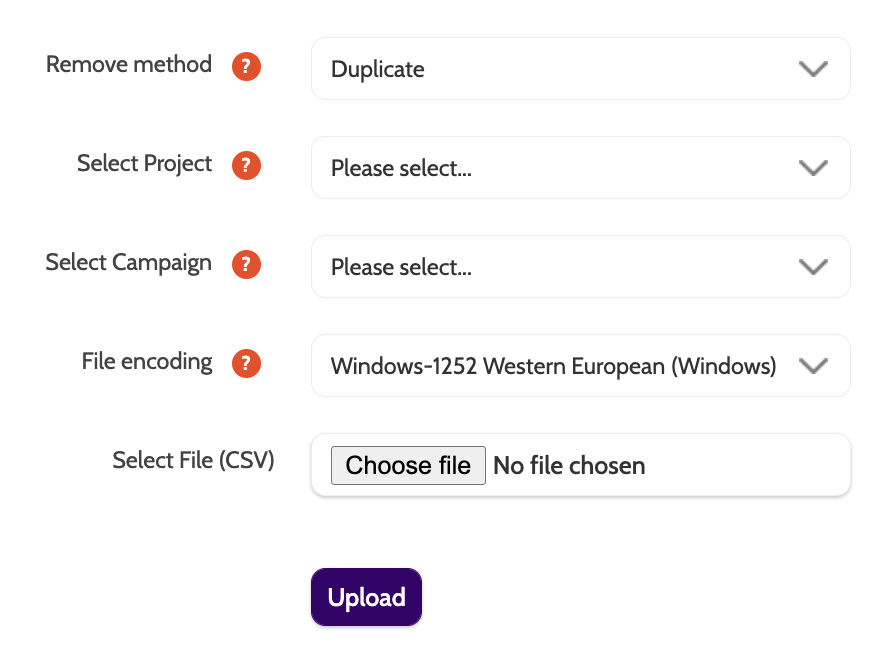
If you choose to remove leads with the Duplicate option, you will see the following options:
- Remove method: this will be duplicate by default. Change it to Outbound unique Lead ID and a different set of options will show
- Select Project: if removing leads from an entire project, select the project
- Select Campaign: alternatively, if removing leads from a specific campaign, select the Campaign
- File Encoding: select the encoding method for the file you'll upload
- Select File: click to select a CSV file containing all of the Leads you want to remove.
When this is done, click Upload to upload your file.
OutboundID
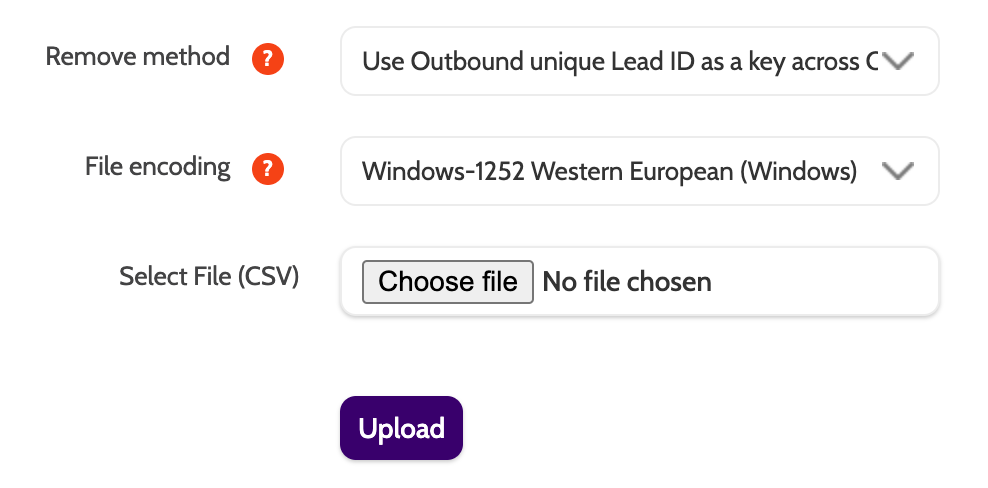
If you choose to remove Leads with the Use Outbound unique Lead ID as a Key across Campaigns option, you will see the following options:
- Remove Method: this will be the Outbound unique Lead ID
- File Encoding: select the encoding method for the file you'll upload
- Select File: click to select a CSV file containing all of the Leads you want to remove.
When this is done, click Upload to upload your file.
To view the status of the lead removal, click Show/Hide History on the navigation page, and Refresh to view updated information.