
Quickstart: Creating a campaign
Before you start
- You need a campaign template
- We recommend you to have the Campaigns feature Permission

Best practices:
Now that you’ve created a campaign template — defining the data you want to store and the results you want to track — you’re ready to create your Campaign.
This is where you define how your team works — dialing methods, duplicate handling, call recording, email, SMS, and more.
Follow this guide to set up the essentials and follow some best practices.
Step-by-step
1. Campaign Overview
- Head to Campaigns > Campaign Overview
- Click New to create a Campaign
There are 13 sections in which you can customise your campaign settings.
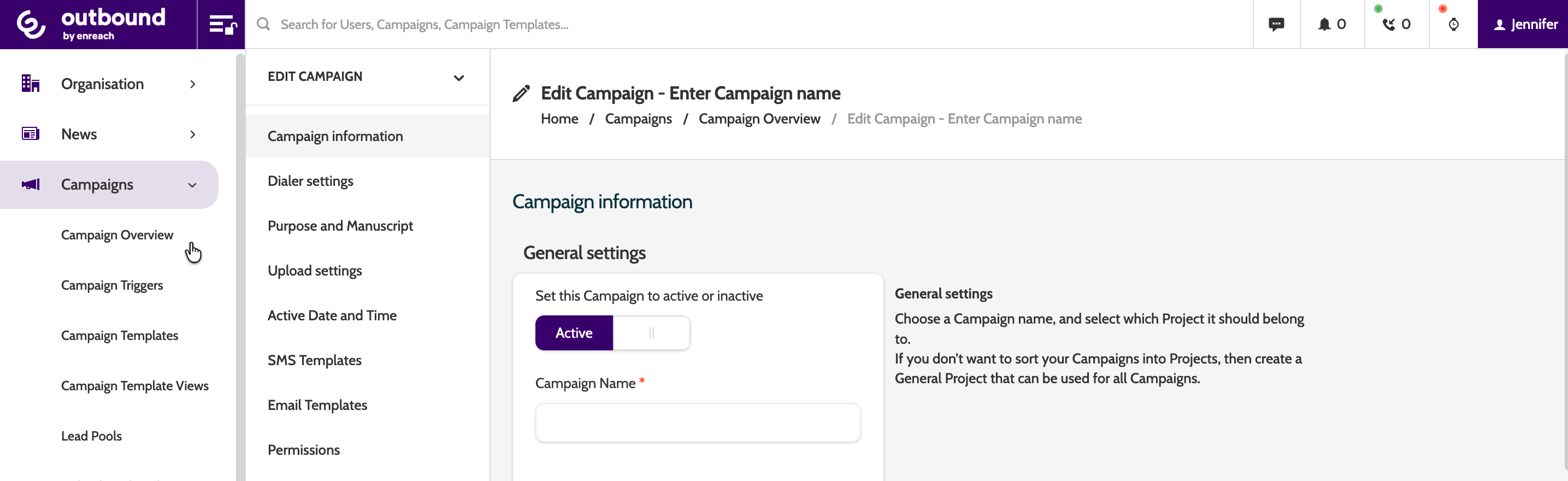
Let's go over the essentials to get started.
2. Campaign Information
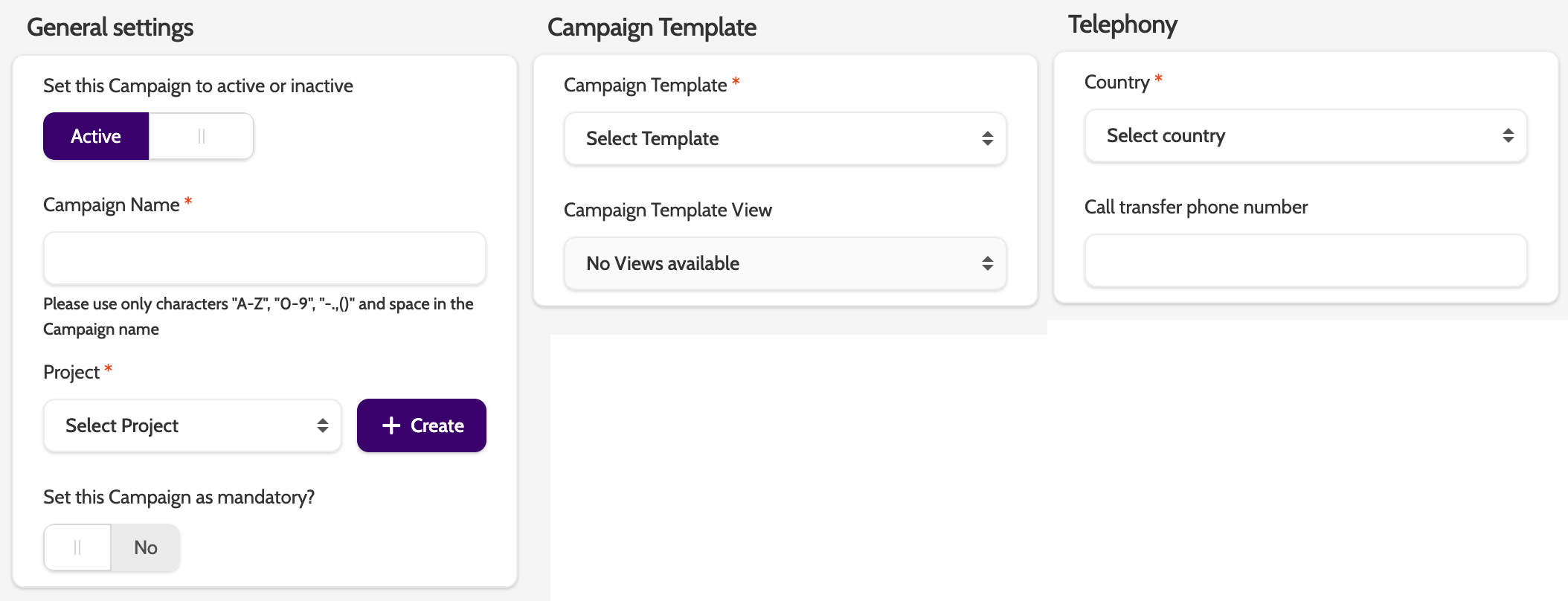
General settings
- Enter a name, and select a Project it will belong to. If you haven't created one, click + Create, and fill in the details later
- Choose the template
- Under Telephony > Country, choose the country you'll be calling to
3. Dialer Settings
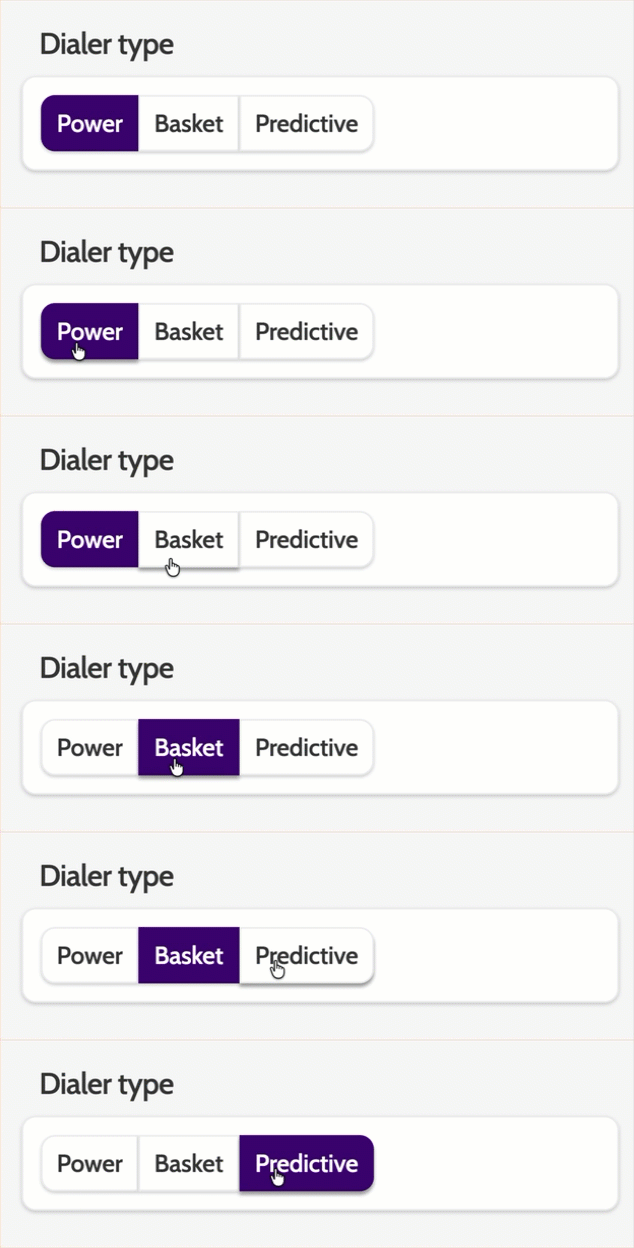
- Select the Dialer type
- Power usually works best, but you may want Predictive or Basket depending on the campaign type
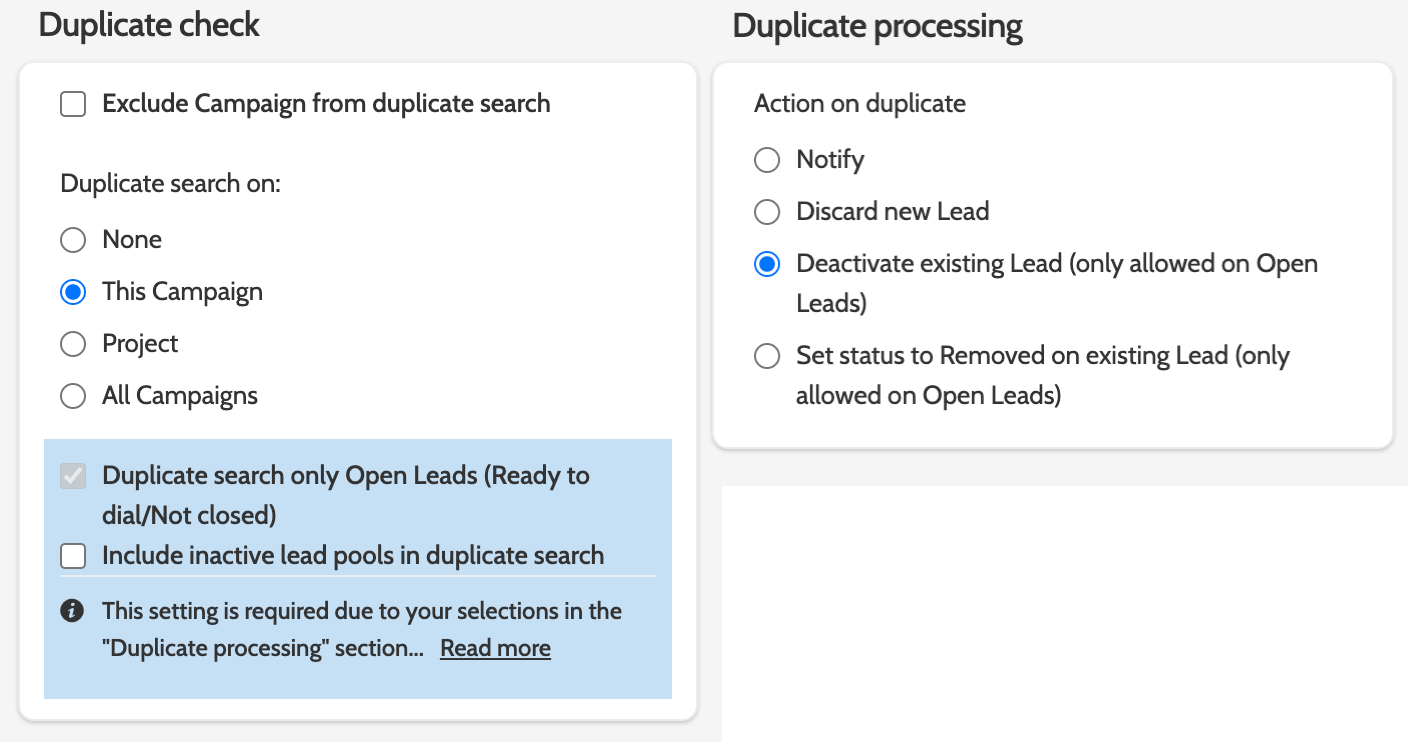
4. Duplicate Processing
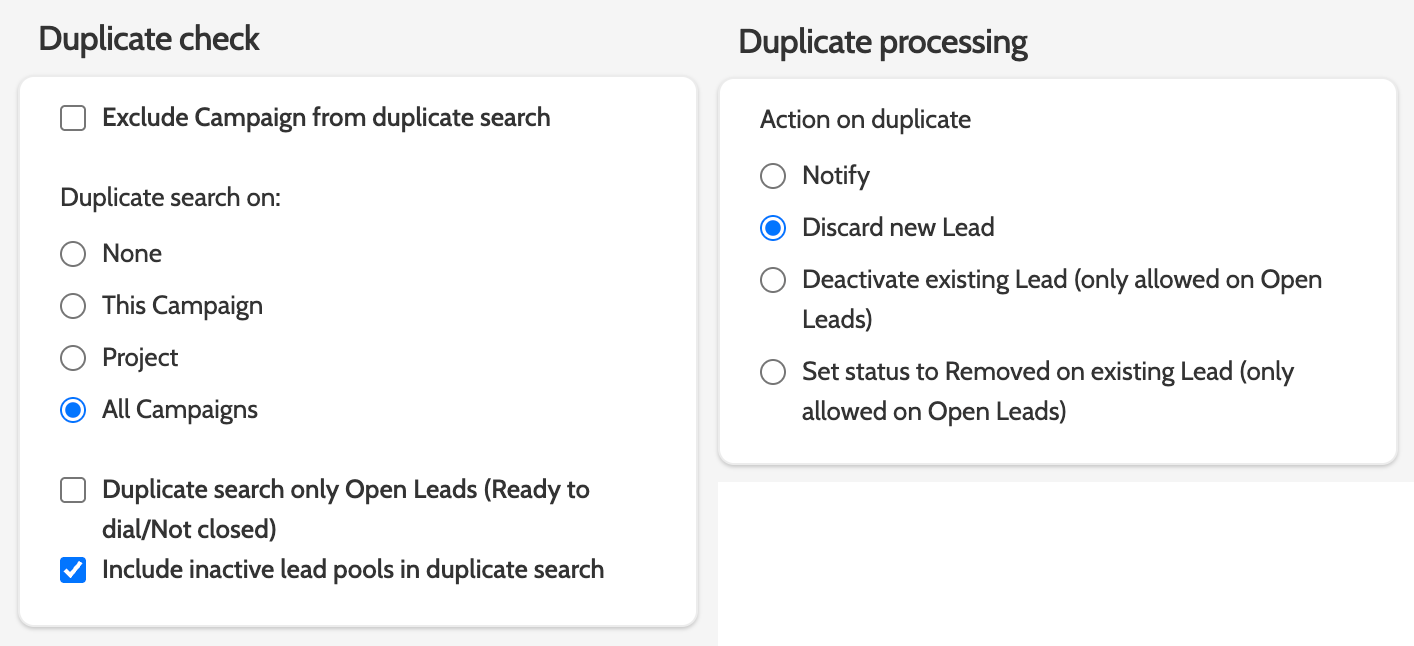
Under Upload settings, decide how to handle duplicate leads.
Setting clear duplicate-processing rules keeps your data clean and your agents efficient.
Without them, you risk wasted calls, confused customers, and unreliable reporting.
Best practices
If each lead should only exist once across everything
- Duplicate search on: All Campaigns
- Duplicate search only open leads: Off (so even closed leads are caught)
- Include inactive Lead Pools: On
- Duplicate processing: Discard new Lead
→ Safest for customer experience and clean reporting.
If you reuse leads in new campaigns (e.g. reactivation, check-ins)
- Duplicate search on: Project (or This Campaign if very isolated)
- Duplicate search only open leads: On
- Duplicate processing: Deactivate Existing Lead or Set status to "Removed" on Existing Lead
→ Ensures agents only work one open record per person, but allows new “fresh” leads.
5. SMS & Email templates
Sending Emails and SMS let you reach leads beyond the call, and automate a lot of manual follow-up.
You must have templates already created to add them to your Campaign!
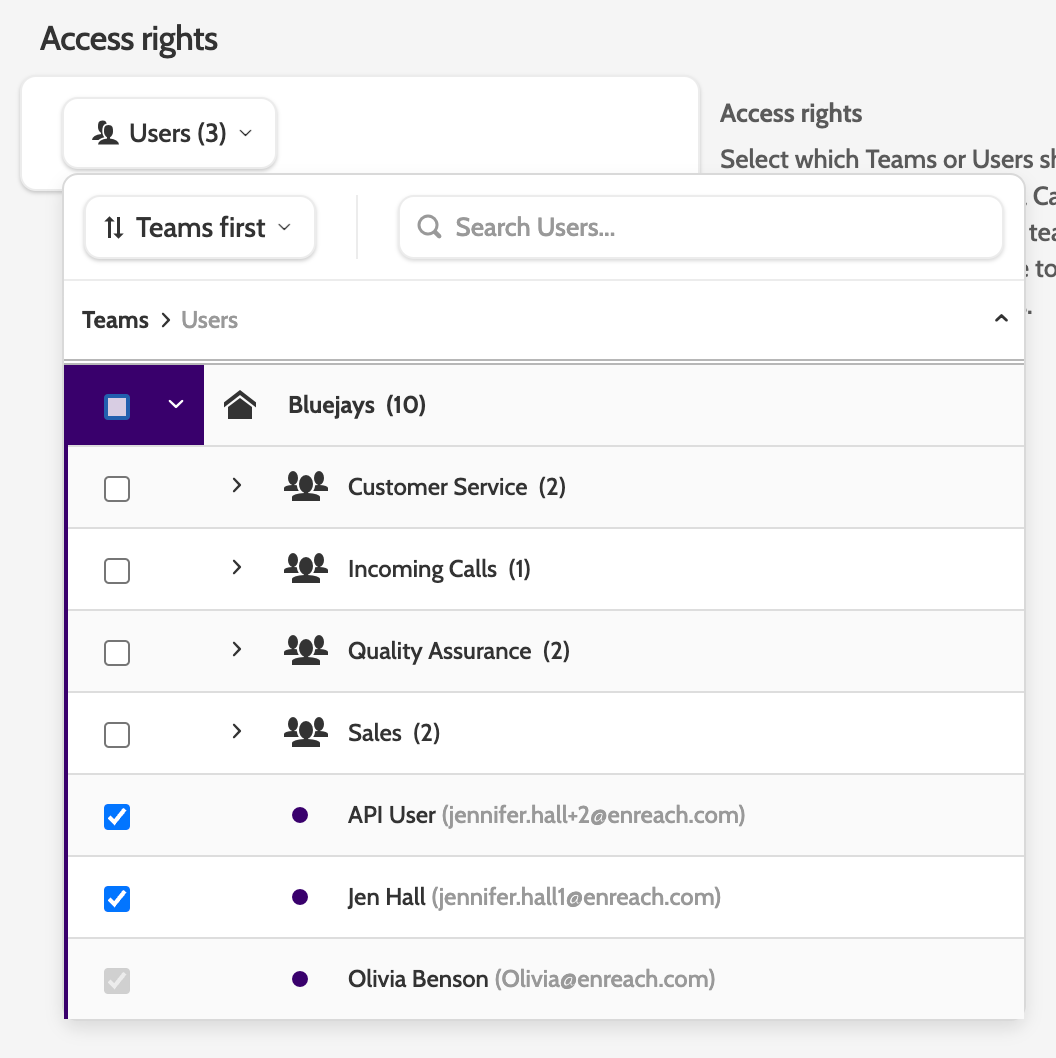
6. Permissions
Grant permission to the campaign directly under the Permissions tab.
When you're working with multiple Campaigns, creating Campaign Access Roles in Organisation > User Roles and assigning permissions in the organisation overview gives you greater control
Monitor performance and tweak settings
You can get big performance gains by tuning a few key settings in Edit Campaign.
Focus on how fast you dial, how long you ring, and how often you redial.
Do! ✅
- Monitor live sessions: Check Predictive Dialer Performance during each session; add agents or tweak pacing if blanks or waits spike. Session data is per current run.
- Structure redials: Use Automatic for no‑answers; Private for owned follow‑ups; VIP sparingly (only critical callbacks). Review overdue private/VIP daily.
- Control retries: Set Max Redial rules (Global or Selective) and hours between redials (default ~25h) to avoid over‑dialing and closure churn.
- Tune dialing duration: Start near 25s; shorten for broad prospecting, extend for private/VIP/high‑value segments (there’s a small answer bump around ~27s).
Don’t 🚫
- Don’t rely on VIP redials for routine follow‑ups; it bottlenecks queues.
- Don’t set long ring‑times across all campaigns; tailor by segment value.