
Getting started with Report API
What is Report API?
Outbound's Report API makes it possible to export reports made in Outbound into external systems, such as power BI, and work with the data in greater depth.
Who is this guide for?
In this guide we will primally focus on getting you started, generating reports in the easiest way possible.
If you have an API user and can create API requests, then this guide is for you!
Create a POST API call
Once your API user has been granted access to this endpoint (granted through support), you will be able to generate reports using the same KPIs and structure as the Reports within Outbound.
You can access our Swagger page through this URL, changing the X to match your server: https://ws0X.enreachoutbound.com/api-docs/#!/reporting
There are four different endpoints:
- GET /reporting/columns/schema :will return the schema of the columns/KPIs available
- GET /reporting/examples :will return different examples of payloads generating reports
- POST /reporting/immediate :takes a payload of a report and returns the generated report
- GET /reporting/schema :will return the schema of the reporting payload
The Report Webservice API uses the same structure and KPIs as in Reports in the UI.
To export the report data from Outbound to your external system, simply create a report with the desired structure and KPIs.
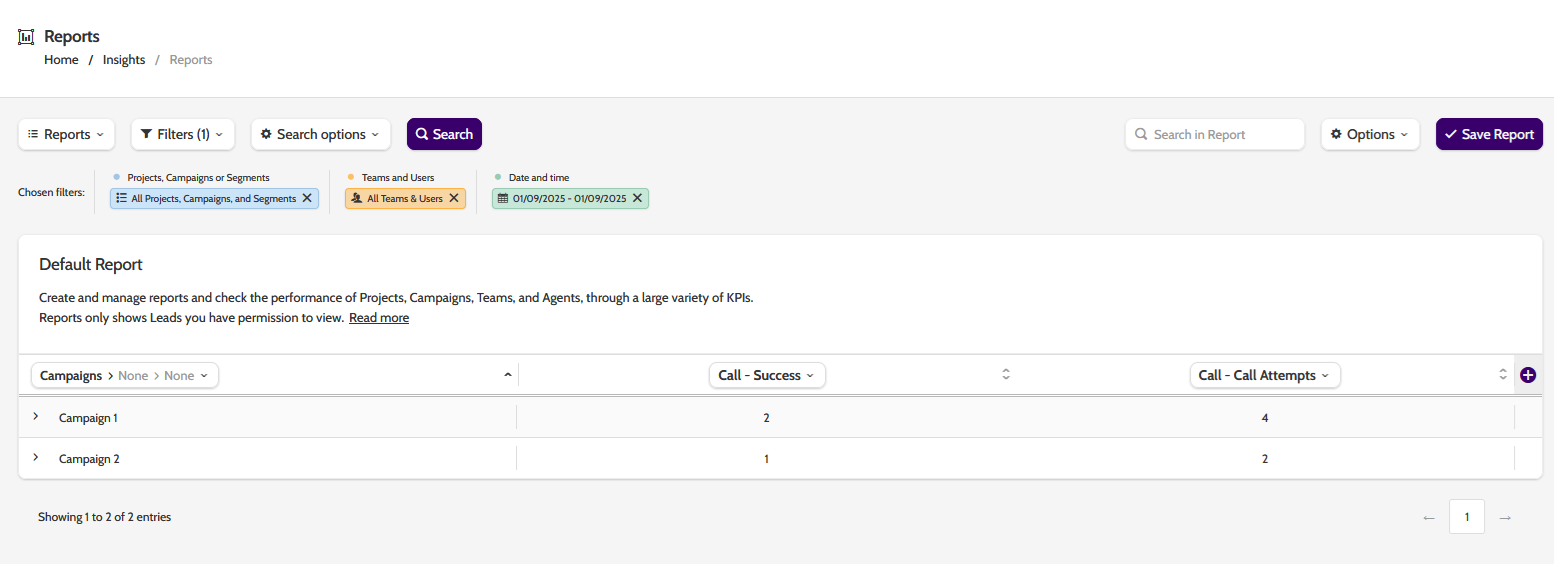
Next, open the Developer tools in the browser, and click on the Network tab.
Depending on your browser, click Search (Firefox) or Reload page (Chrome) to regenerate the report request.
Next the user need to open Developer tools in the browser and navigate to the Network tab.
Locate the Calculate row, and and select Request (Firefox) or Payload (Chrome).
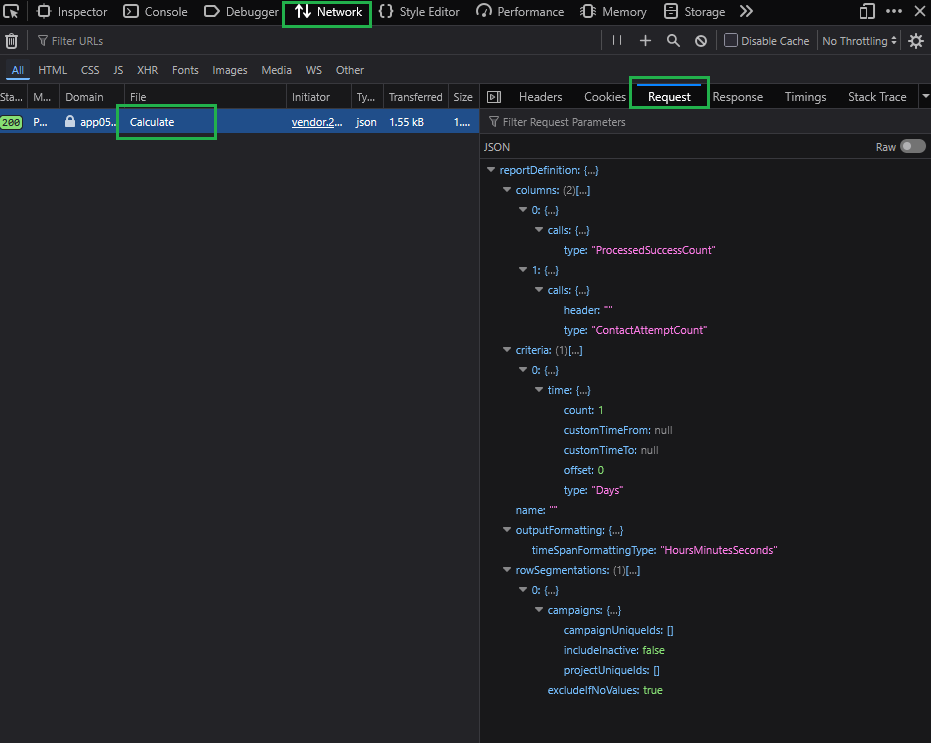
You will now see the payload which is needed to create the report.
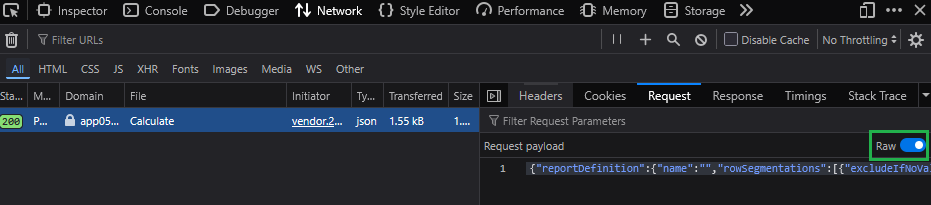
In FireFox, flip the Raw toggle to get the JSON body: View source button in Chrome
Copy the JSON body.
{"reportDefinition":{"name":"","rowSegmentations":[{"excludeIfNoValues":true,"campaigns":{"campaignUniqueIds":[],"projectUniqueIds":[],"includeInactive":false}}],"columns":[{"calls":{"type":"ProcessedSuccessCount"}},{"calls":{"type":"ContactAttemptCount","header":""}}],"criteria":[{"time":{"type":"Days","offset":0,"count":1,"customTimeFrom":null,"customTimeTo":null}}],"outputFormatting":{"timeSpanFormattingType":"HoursMinutesSeconds"}}}This can be run through a JSON formatter, so it becomes easier to edit.
{
    "reportDefinition": {
        "name": "",
        "rowSegmentations": [
            {
                "excludeIfNoValues": true,
                "campaigns": {
                    "campaignUniqueIds": [
                    ],
                    "projectUniqueIds": [
                    ],
                    "includeInactive": false
                }
            }
        ],
        "columns": [
            {
                "calls": {
                    "type": "ProcessedSuccessCount"
                }
            },
            {
                "calls": {
                    "type": "ContactAttemptCount",
                    "header": ""
                }
            }
        ],
        "criteria": [
            {
                "time": {
                    "type": "Days",
                    "offset": 0,
                    "count": 1,
                    "customTimeFrom": null,
                    "customTimeTo": null
                }
            }
        ],
        "outputFormatting": {
            "timeSpanFormattingType": "HoursMinutesSeconds"
        }
    }
}
In order to create a payload that can be used directly in POST /reporting/immediate, remove the outer "reportDefinition": {
and the final }at the end of the string. See the new string below:
{
    "name": "",
    "rowSegmentations": [
        {
            "excludeIfNoValues": true,
            "campaigns": {
                "campaignUniqueIds": [
                ],
                "projectUniqueIds": [
                ],
                "includeInactive": false
            }
        }
    ],
    "columns": [
        {
            "calls": {
                "type": "ProcessedSuccessCount"
            }
        },
        {
            "calls": {
                "type": "ContactAttemptCount",
                "header": ""
            }
        }
    ],
    "criteria": [
        {
            "time": {
                "type": "Days",
                "offset": 0,
                "count": 1,
                "customTimeFrom": null,
                "customTimeTo": null
            }
        }
    ],
    "outputFormatting": {
        "timeSpanFormattingType": "HoursMinutesSeconds"
    }
}
Using this as payload in POST /reporting/immediate will return a report with a response body:
{
    "MaxRowHeaderDepth": 1,
    "MaxColHeaderDepth": 1,
    "GlobalCriteriaDisplayTexts": [
        "01-09-2025"
    ],
    "GlobalCriteriaDisplayText": "01-09-2025",
    "RowColumnHeaders": [
        {
            "Text": "Campaigns"
        }
    ],
    "ValueColumnHeaders": [
        {
            "Id": "Calls ProcessedSuccessCount",
            "LeafColSegmentDisplayTexts": [],
            "AggTexts": [],
            "VarText": "Call - Success",
            "IsCustomName": false,
            "ValueType": "Integer"
        },
        {
            "Id": "Calls ContactAttemptCount",
            "LeafColSegmentDisplayTexts": [],
            "AggTexts": [],
            "VarText": "Call - Call Attempts",
            "IsCustomName": false,
            "ValueType": "Integer"
        }
    ],
    "Rows": [
        {
            "IsAverage": false,
            "IsTotal": false,
            "Headers": [
                {
                    "Text": "Campaign 1",
                    "Type": "CampaignCriterion",
                    "EntityType": "Campaign",
                    "UniqueId": "CAMP1424R43"
                }
            ],
            "Cells": [
                {
                    "Val": 2,
                    "N": 2,
                    "Text": "2"
                },
                {
                    "Val": 4,
                    "N": 4,
                    "Text": "4"
                }
            ]
        },
        {
            "IsAverage": false,
            "IsTotal": false,
            "Headers": [
                {
                    "Text": "Campaign 2",
                    "Type": "CampaignCriterion",
                    "EntityType": "Campaign",
                    "UniqueId": "CAMP1425R43"
                }
            ],
            "Cells": [
                {
                    "Val": 1,
                    "N": 1,
                    "Text": "1"
                },
                {
                    "Val": 2,
                    "N": 2,
                    "Text": "2"
                }
            ]
        }
    ]
}
As you can see from the structure of the response you will have your “RowColumnHeaders” and “ValueColumnHeaders”:

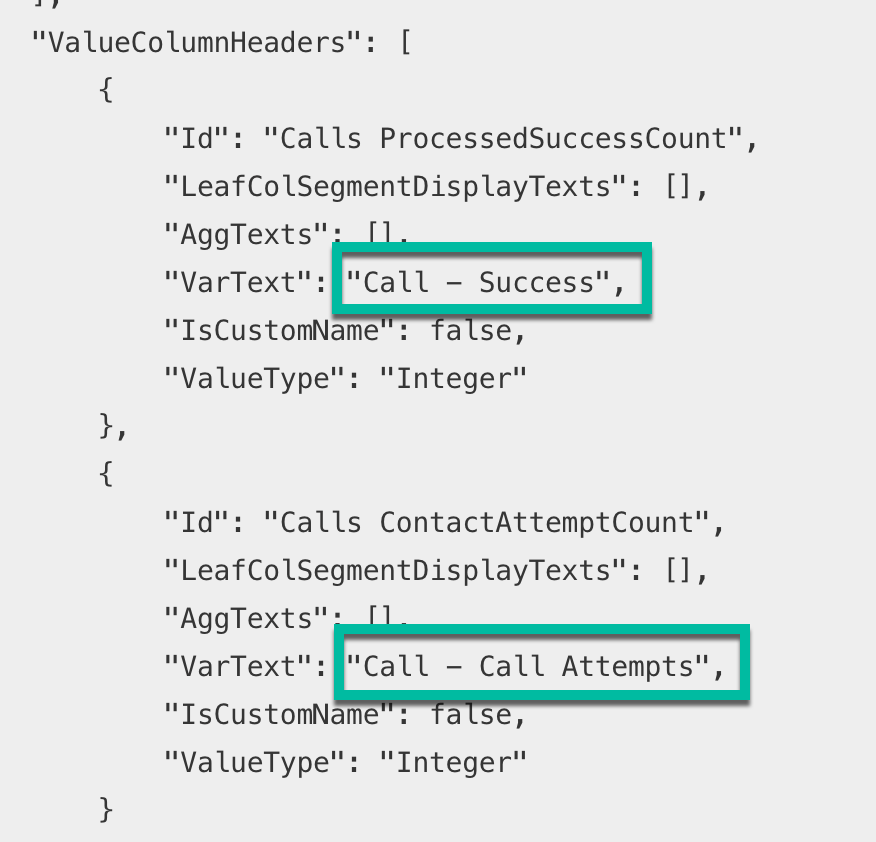
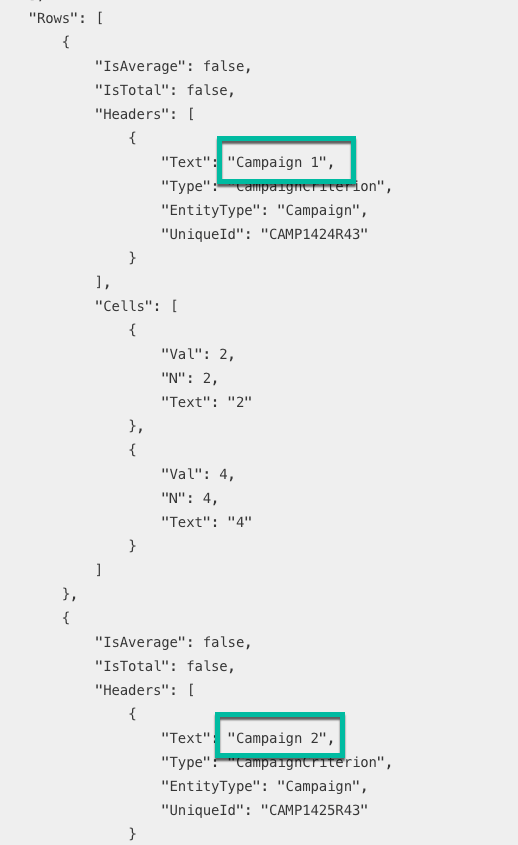
And your “Rows”:

More complex row segmentations and time criteria for reports will be covered in an Advanced guide for the Report API.