
Quickstart: Choosing the right dialer settings
Choose the right dialer and configuration to maximise contact rate and improve agent efficiency.
Before you start
- All dialer settings are found in Edit Campaign > Dialer Settings.
- Know your campaign goals (high-volume, personalised outreach, manual control, etc.).
Step-by-step
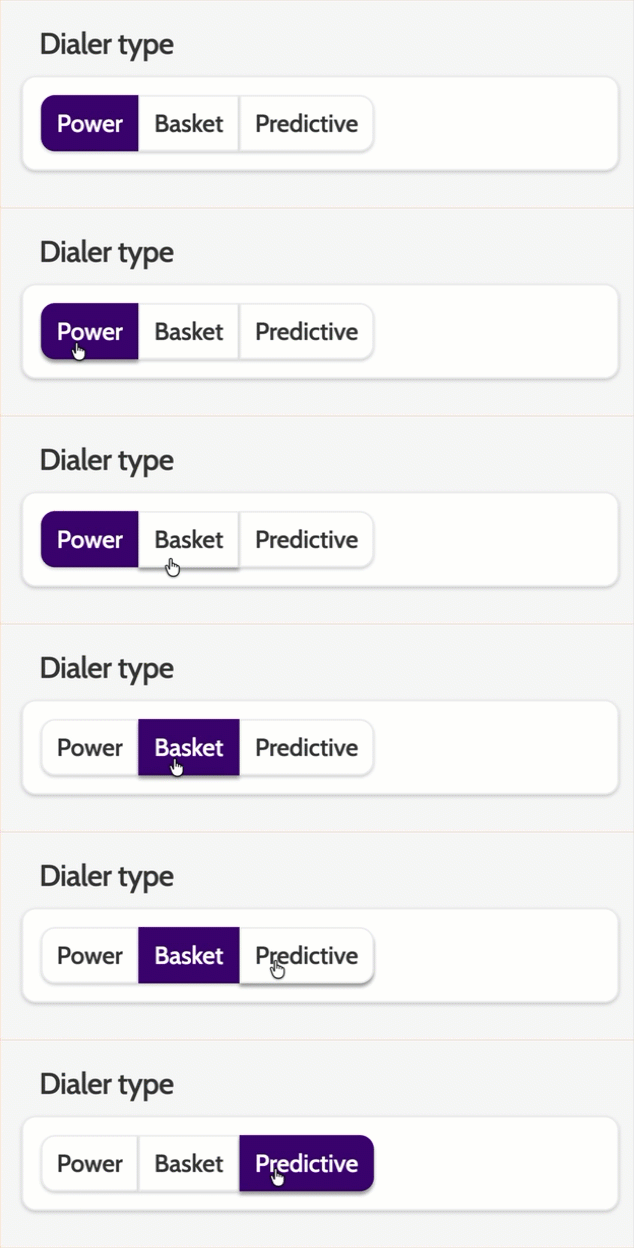
1. Choose Your Dialer Type
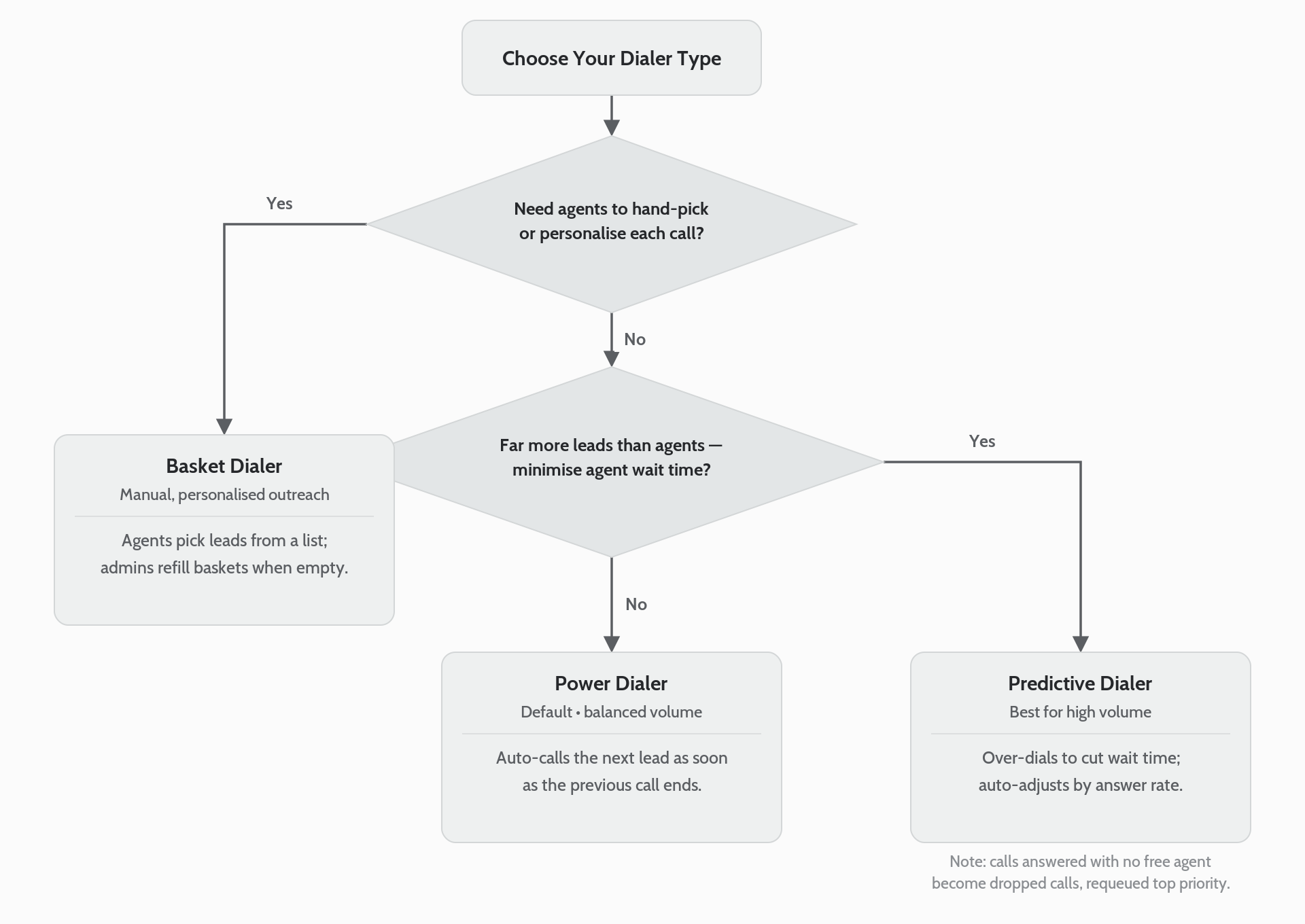
Power Dialer (default choice for most campaigns)
- Automatically calls the next lead as soon as the previous call ends
- Uses dialer priority rules to call leads in the most optimal order
- Ideal for balanced, medium-to-high volume campaigns.
Read more about Dialer Priority
Predictive Dialer (best for high-volume outreach)
- Dials more leads than available agents to reduce agent waiting time
- Connects answered calls instantly to free agents
- Automatically adjusts aggressiveness based on answer rates
- If a call is answered when no agent is available, it becomes a dropped call and is returned to the queue with the highest priority.
See how Predictive Dialer works here
Basket Dialer (for manual selection and personalised calls)
- Agents choose leads from a list—ideal when reviewing details before calling
- Works like a personalised to-do list
- Admins refill baskets when empty.
2. Configure Additional Dialer Settings
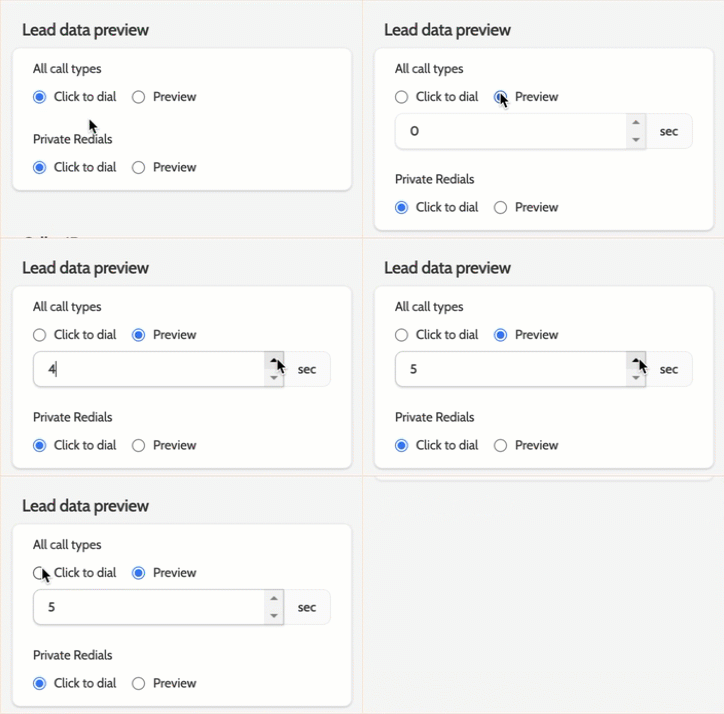
Lead Data Preview
Allows agents to review lead information before dialing—great for preparation and time management.
Options:
- Click to Dial
- Agents manually start the call after reviewing the data.
- Preview Mode
- Auto-preview for a set number of seconds before the call starts
- Power Dialer: preview on all calls or private redials
- Predictive Dialer: preview available only on private redials.
Redial Settings
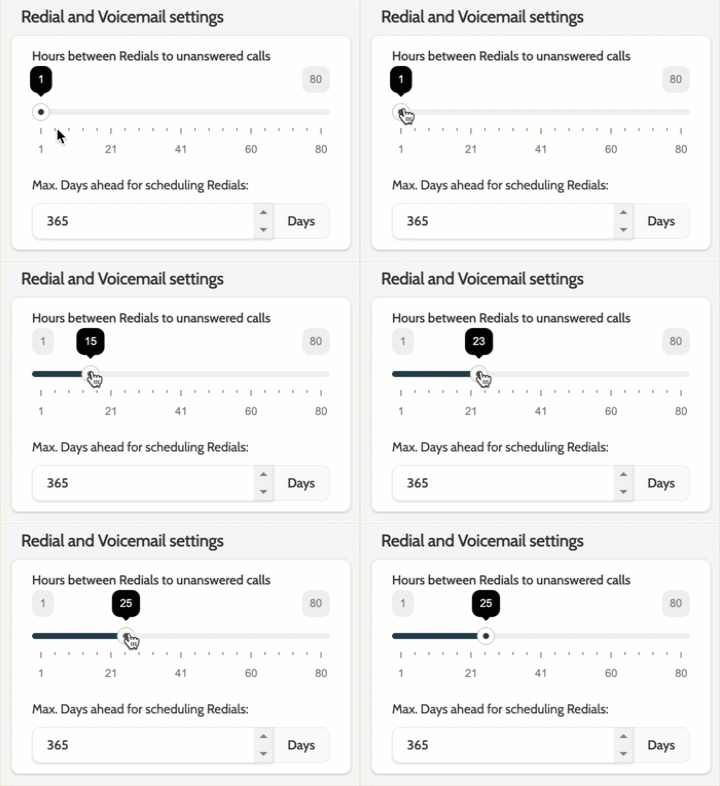
When a call is not answered, busy, or goes to voicemail, it becomes an Automatic Redial.
- Set Automatic Redial Hours (e.g., 25 hours) to try again at a more favourable time.
Example: No answer at 10:00 Monday → Retry at 11:00 Tuesday.
Dialing Duration
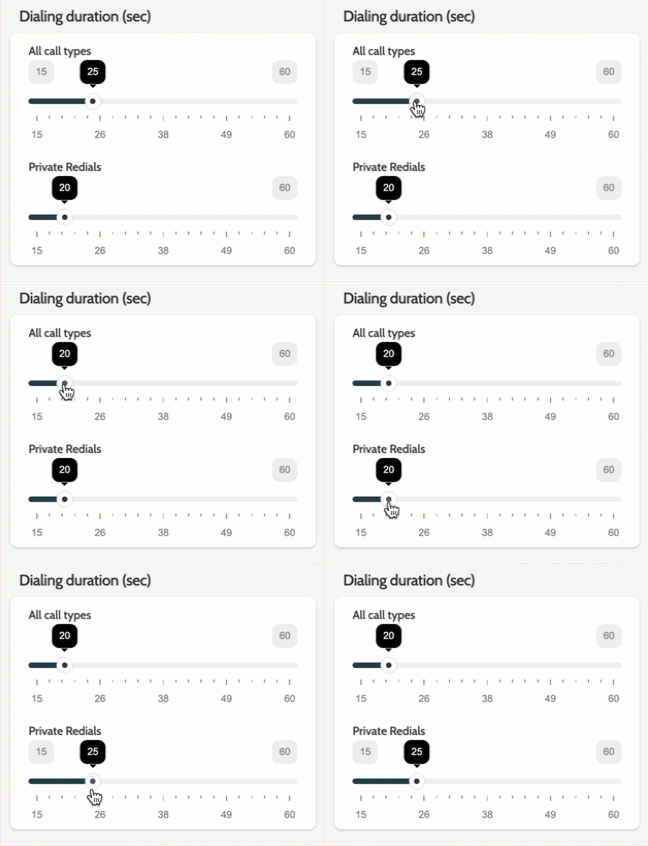
Controls how long the system should let the phone ring before marking the call as “not answered.”
- Test different durations to improve contact rate
- Lower durations can save agent time by avoiding statistically unlikely pickups
- Use a slightly longer duration for Private Redials—these leads expect your call!
Dial Through
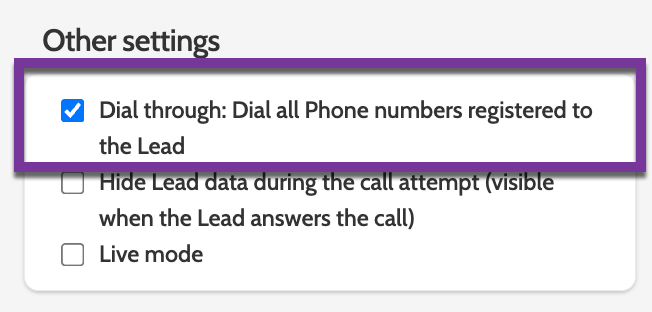
At the bottom of Dialer Settings:
- Enable Dial Through to allow agents to call secondary numbers if the primary number doesn't answer.
Check it’s working
- The campaign displays the selected dialer type
- Agents see correct behaviour (automatic calling, predictive flow, or basket list)
- Preview, redial, and dialing duration settings take effect during live calling.
Troubleshooting essentials
- Agents aren’t getting calls? check dialer type and available agent count
- Dropped calls too high? reduce predictive aggressiveness
- No lead preview? ensure preview is enabled and dialer type supports it
- Basket not filling? admins may need to refill assigned baskets.
Last updated: 7/7/26, 11:19 AM