Flows: SMS reports
With SMS reports you can create and view reports for all your SMS activities, and check their performance.
SMS reports
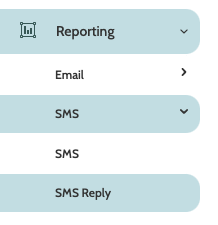
SMS reports can be found under the Reporting menu.
There are two options for viewing reports: SMS and SMS Reply.
SMS reports will allow you to generate detailed reports of how your SMS' have performed, and their development over time.
Begin building your report with the filters:
- Filter: Template: filter the report by SMS template
- Filter: Activity: next, filter the report by SMS activity, or individual messages sent by Flows
- Group One: select a category, or group, to be included in the Details report chart
- Group Two: select a second category to be included
- Date: use the date picker to choose a custom or preconfigured date range for your report.

Click Apply to apply the filters and view the report.

Your SMS Report will automatically generate.
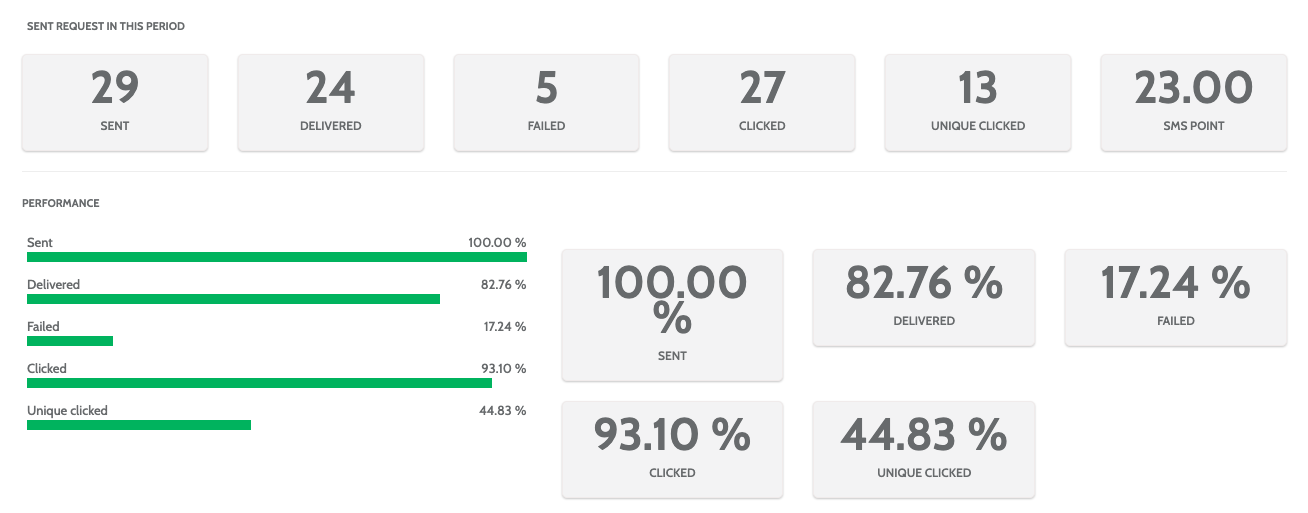
In the first part of the report, view a numerical and statistical breakdown of how your SMS performance, including Sent and Delivered rate, Clicks, Unique Clicks, and how many SMS have been sent according to length, under SMS Point.
Further down you can view a graph of development over time. Hover you cursor over the graph points to see the statistics of a certain date.
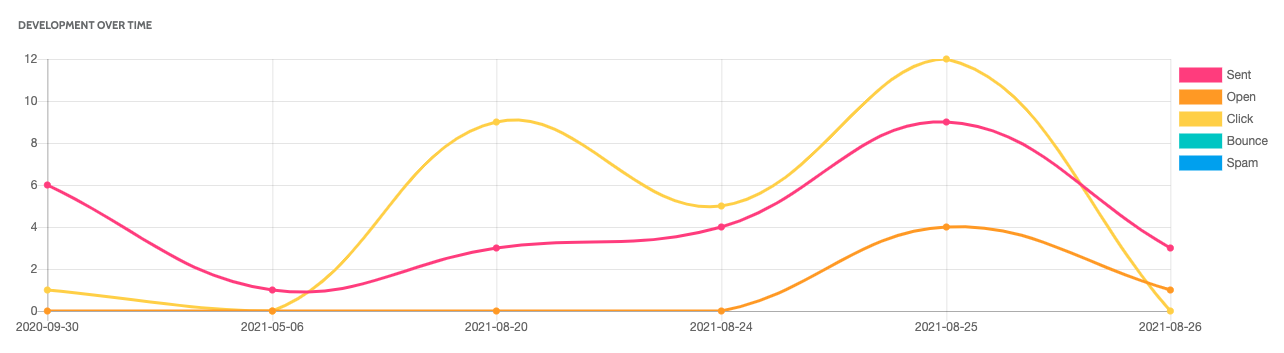
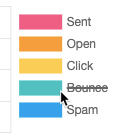
To edit the graph, click on the categories to the right to remove them from the view.
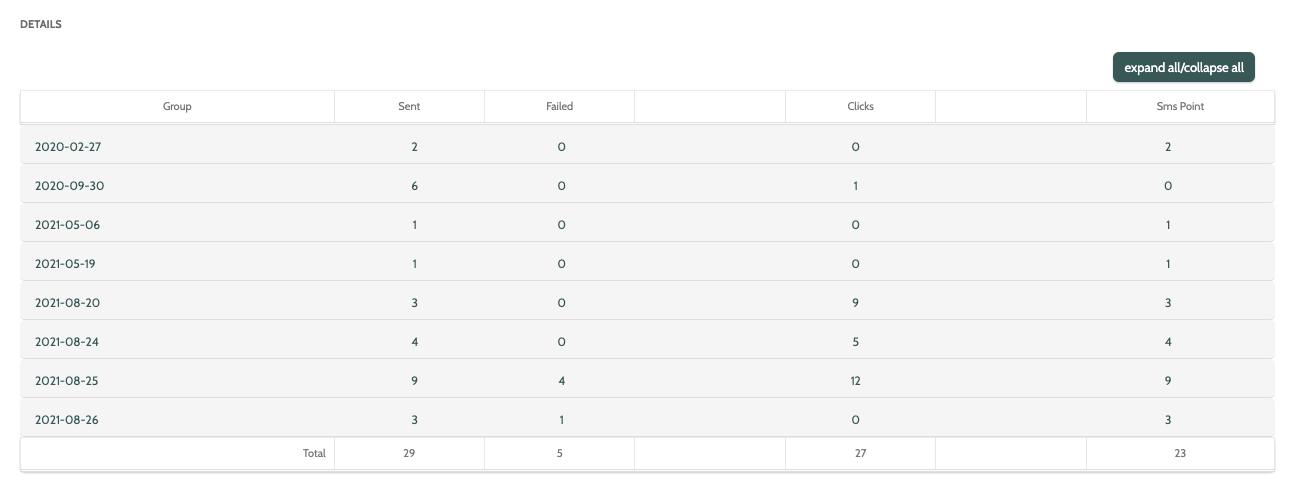
Under Details, view a detailed breakdown for Group 1 and Group 2 you included in the report.
Click each Group, or Expand/collapse all to expand a list of the data in numerical and percentage form.
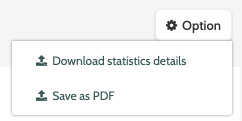
To export the report details, click Option and choose Download statistics details to download a .CSV file to your desktop.
Click Save as PDF, enter a name in the pop-up window, and click Download. The PDF file will be saved to your desktop.
SMS reply reports
SMS reply reports will allow you to view essential statistics about how your SMS performed, including how many were Delivered, Answered, and the percentage Answer rate.
In the navigation page, begin building your report with the filters:
- Filter: Template: filter the report by SMS template
- Filter: Activity: next, filter the report by SMS activity, or individual SMS messages sent by Flows
- Group One: select a category, or Group, to be included in the report
- Group Two: select a second category to be included
- Date: use the date picker to choose a custom or preconfigured date range for your report.
Click Apply to view the SMS reply report.
The report will automatically generate.
In the first part of the report, view a numerical and statistical breakdown of your SMS replies, including Delivered and Answered rate, and detailed information on how many leads replied.
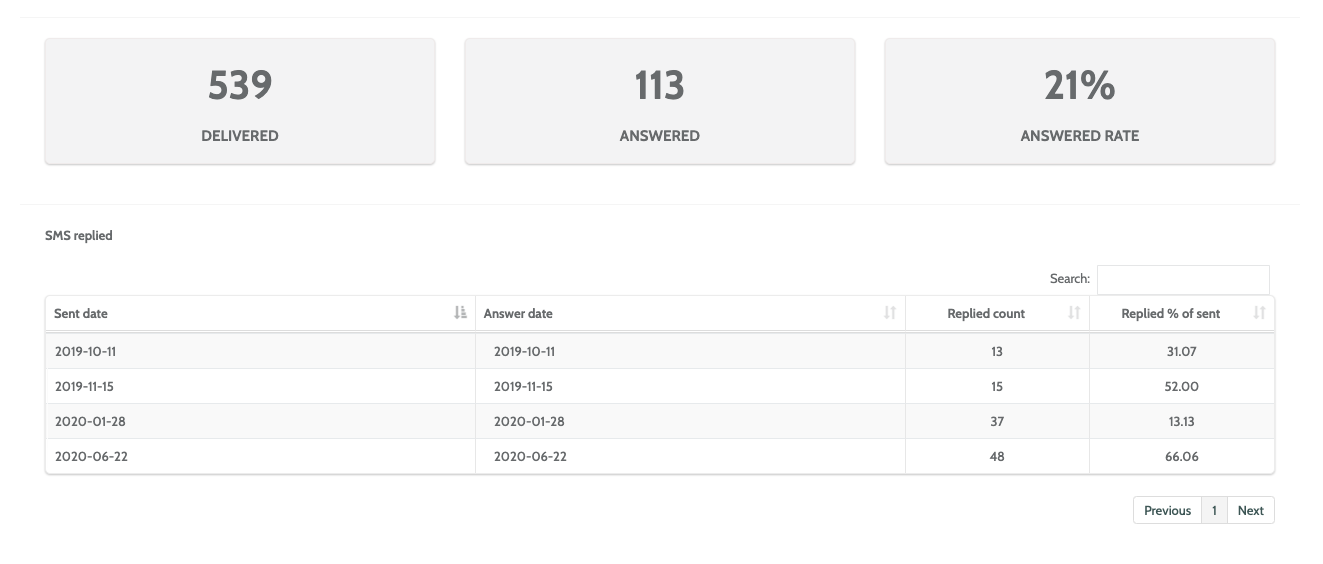
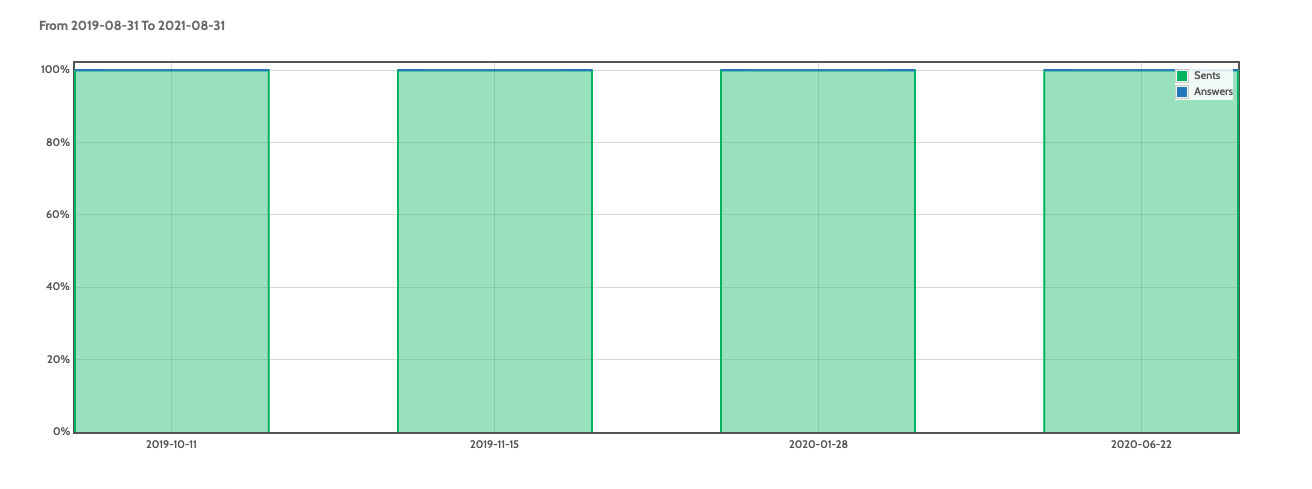
In the second part of the report, you can view a bar chart of all Sent and Answered SMS' over the period of time set in the filters.