
Leads: My Redials
With My Redials, agents can easily view, edit, call, and contact all the VIP, Common, and Private Redials that have been scheduled.
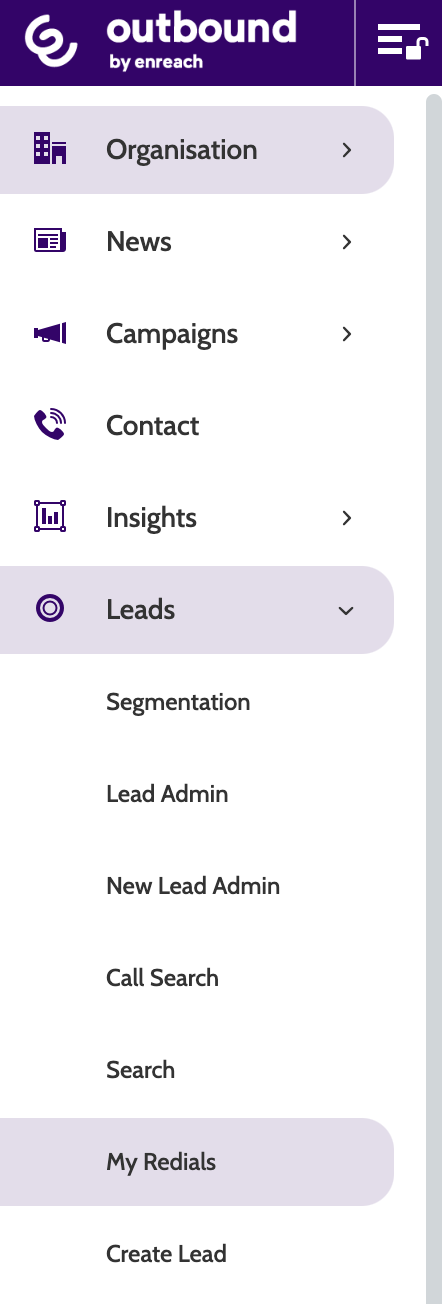
To access My Redials, expand the Leads drop-down menu and select My Redials.
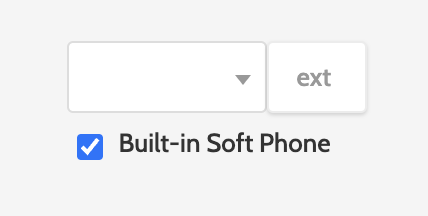
In the overview, decide whether to make a redial with the built-in soft phone, or your own number.
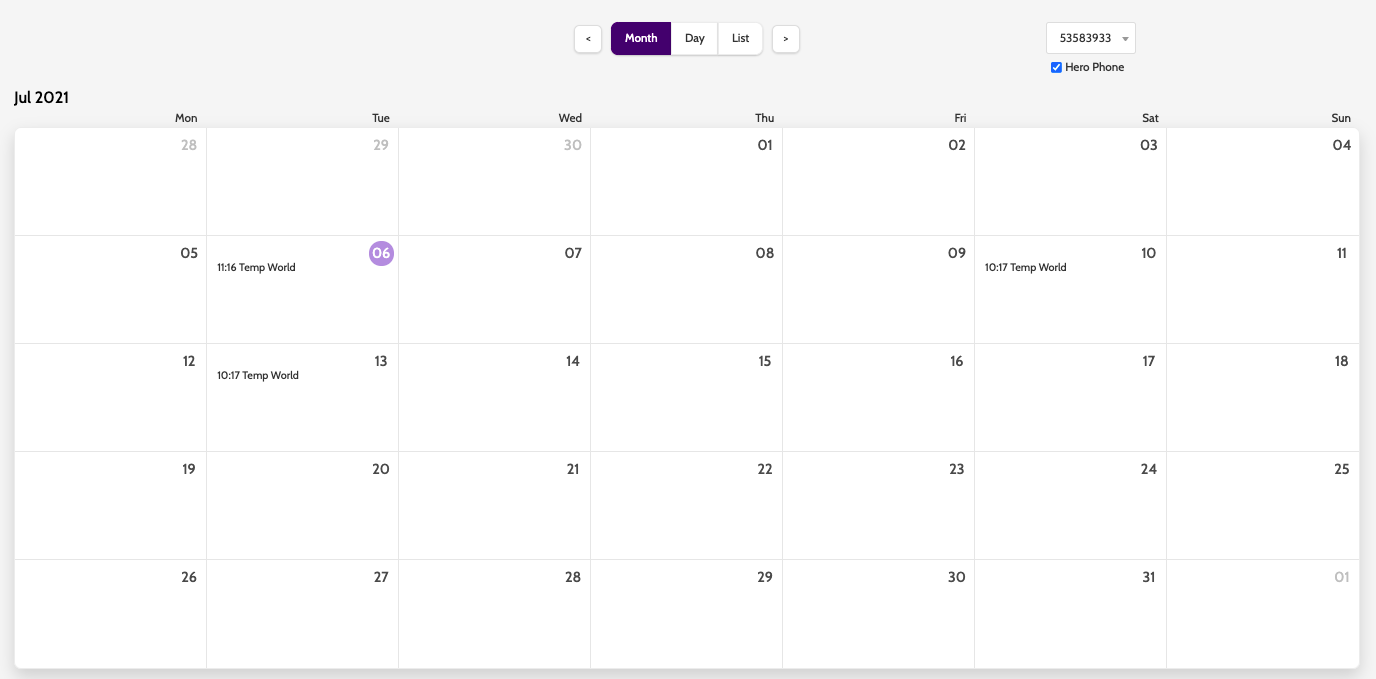
There are three views to view your redials in Outbound: month, day, or list.
Month will give you a complete overview of the all scheduled redials.
Click a redial to view it in a day view and edit the details.
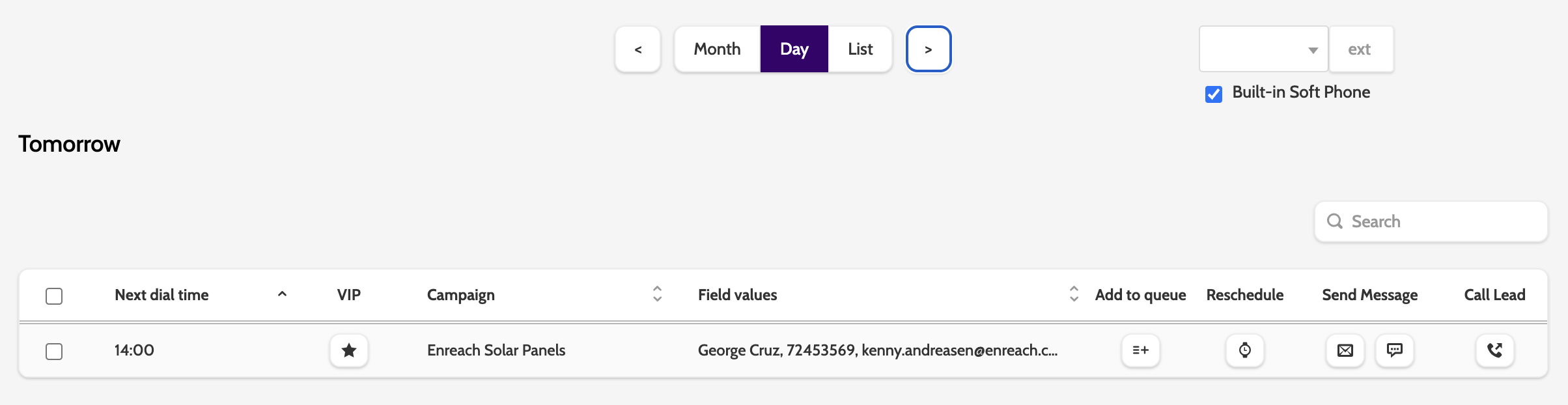
In the day view, view redials for the current day.
Check the checkboxes to individually reschedule redials or reschedule redials in bulk.
To designate a redial as VIP, click the star in the VIP column.
Click on any of the redials to view more detailed information about the lead.
Clicking View more will open the dialer in another window, and let you edit the lead master data fields, result data fields, or change the scheduled redial time.
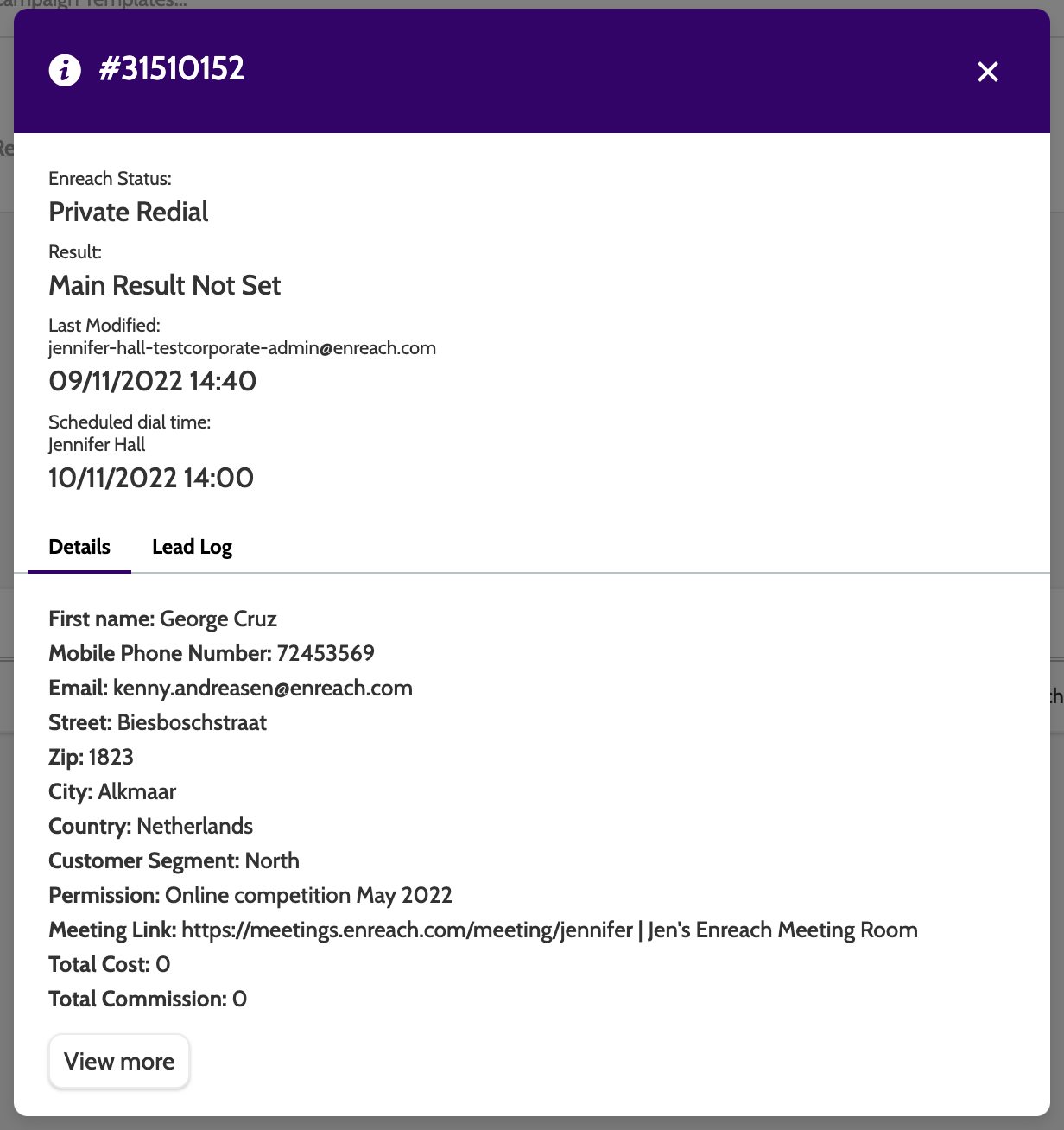
There are several options when working with redials:
- Add to queue will add the redial to the call queue
- Reschedule will allow you to reschedule the call
- Send Message will allow you to send an email from a template, or an SMS message to the lead
- Call Lead will take you to the contact page where you can call the lead.
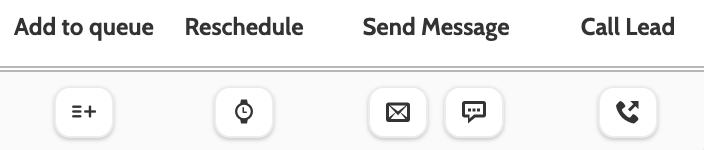
When rescheduling a redial, a pop-up window will open.
Expand the drop-down menu and choose from a list of pre-defined time periods, or select Custom and enter the date and time in the boxes.
Click Schedule to reschedule the redial.
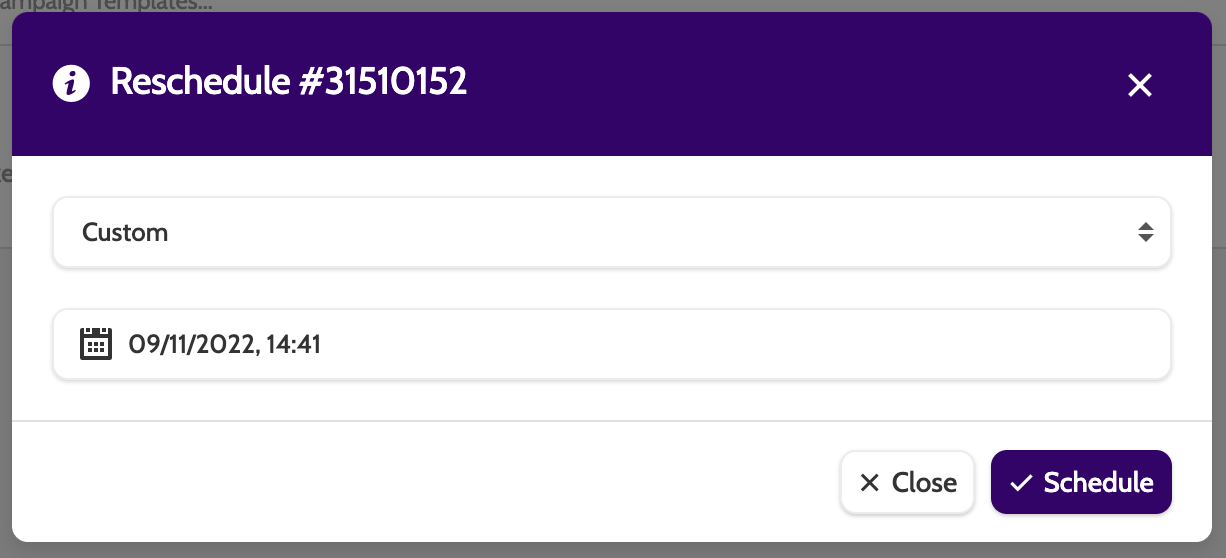
When sending an email to a lead, the email editor will open in a different browser window.
If you have already created an email template, choose it from the drop-down menu, and enter the details.
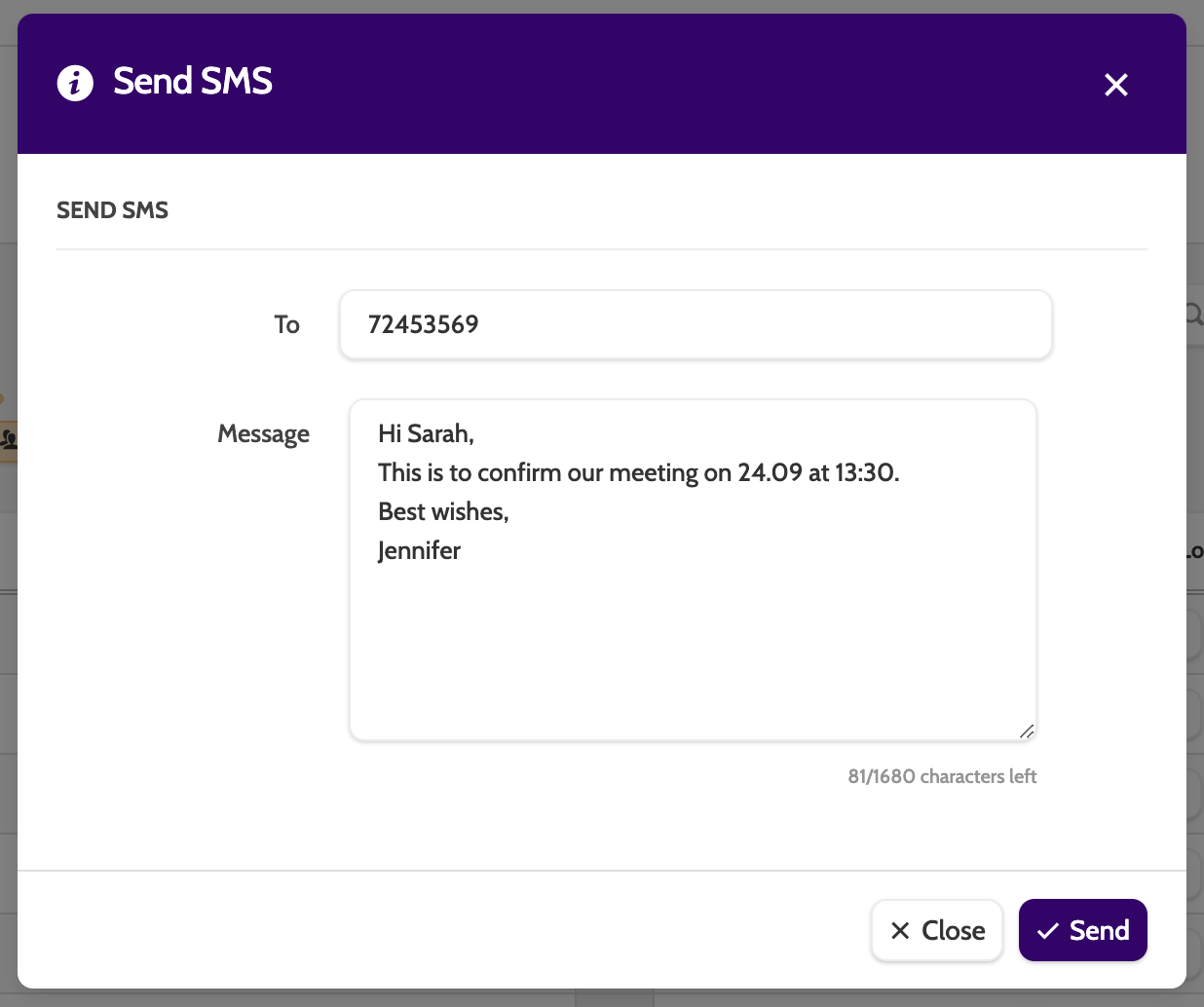
When sending an SMS, a pop-up window will open.
In list, view all redials currently scheduled.
