If you are an admin, use Search to search all leads based on lead ID, phone number, or another other type of lead data.
Please note that Search will search across all leads, regardless of whether the user owns the lead, or has permission to call the lead, so access must be granted only to users with this in mind.
It is not recommended to give this permission to agents.
Access to Search can be granted with the following feature permission.
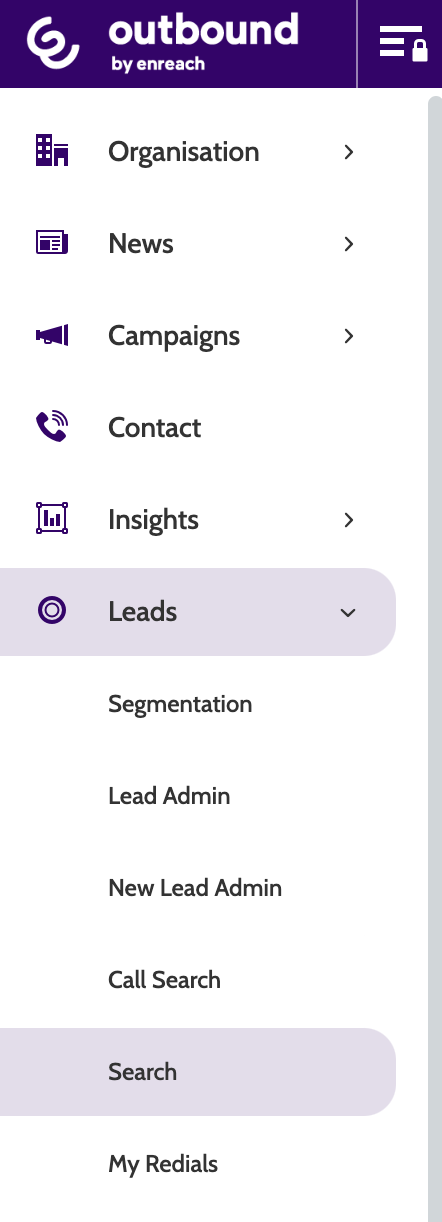
To access Search, expand the Leads drop-down menu and select Search.
Enter the lead data you want to search for in the search bar.
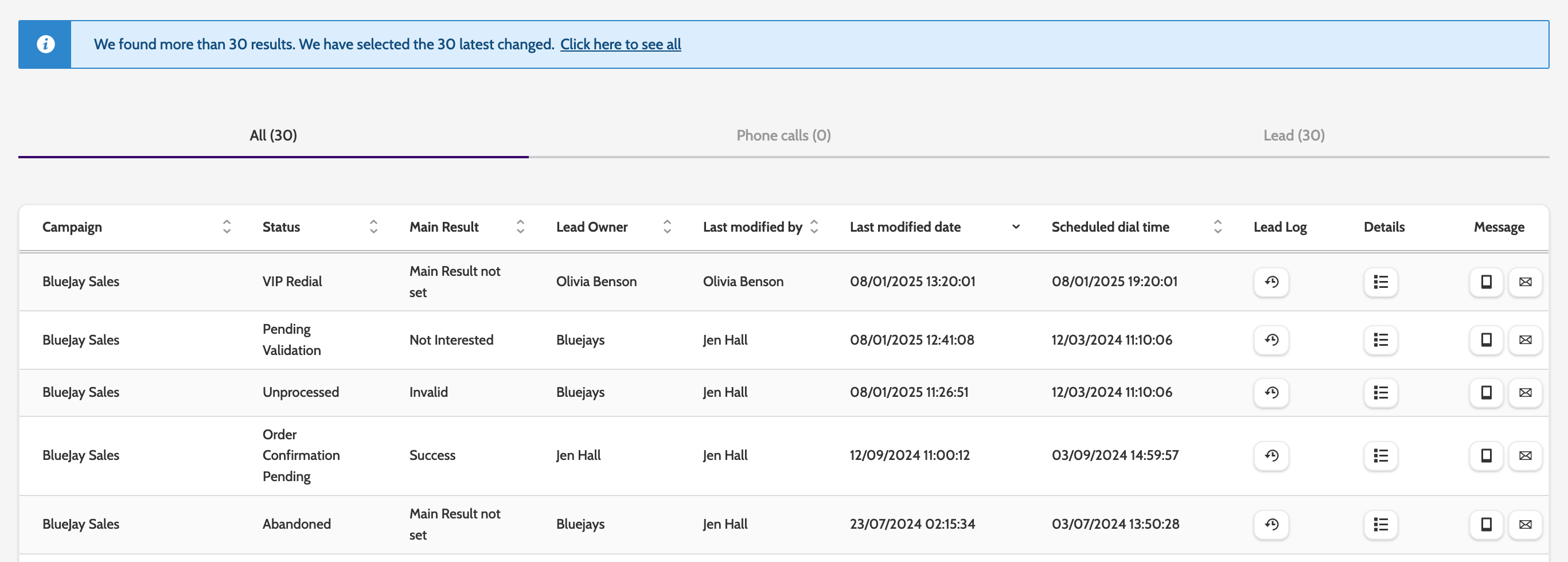
In the results, toggle between All, Phone calls, and Lead to change the view.
Scroll to the right for some options to work with the results:
Lead log will open a pop-up window that contains all actions made with the lead
Details will open a pop-up window that will contain detailed lead information
Message will allow you to send either an email or SMS to the lead
Dial will allow you to call the lead directly from the contact page
Call Queue will add the lead to the call queue
Edit will open the contact page where you can edit the lead details.
If you are calling a lead from this page, we strongly recommend against also having the contact page open! Adding the lead to your call queue will allow you to dial the lead without having two lines open.