
Flows: Segmentation
Create dynamic filters to segment your leads based on any combination of conditions, rules, and lead data.
What is Segmentation
To create a successful marketing campaign, you need to create segments. Knowing who you want to target, and why, allows you to establish effective automation flows, craft personalised communications, and contact Leads at the most optimal moment in the customer lifecycle.
With our intuitive drag 'n' drop segment builder, you can create segments in just minutes.
- First, start with the conditions: choose from a huge selection of various types of lead data and events that describe all different kinds of your lead's interactions with Flows.
- Next, add the rules: these are instructions that tell Flows what to do with the conditions.
Create any combination of conditions and rules, calculate how many leads fit the criteria, save the segment and you're ready to go!

Navigation page
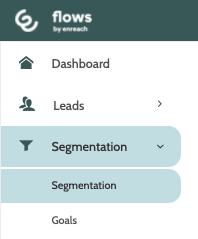
Segmentation can be found under the Segmentation menu.
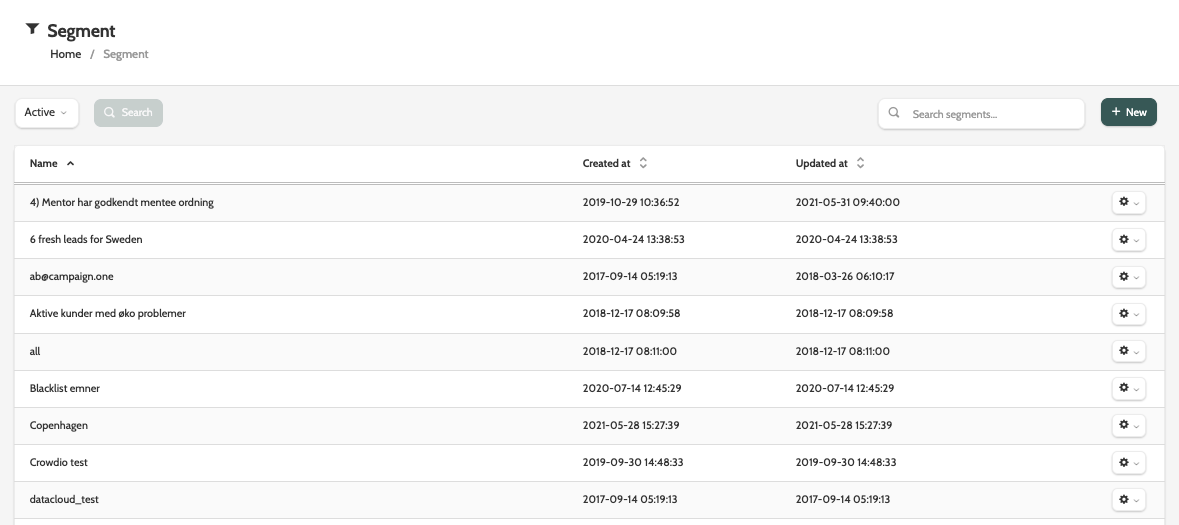
In the navigation page you can see all of your existing segments.
Working with segments
There are several options when working with segments, either from the navigation page, or the segment builder.
When in the navigation page, click the cog to view the Change log, or copy or delete the segment.
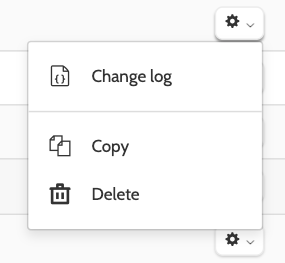
Change log
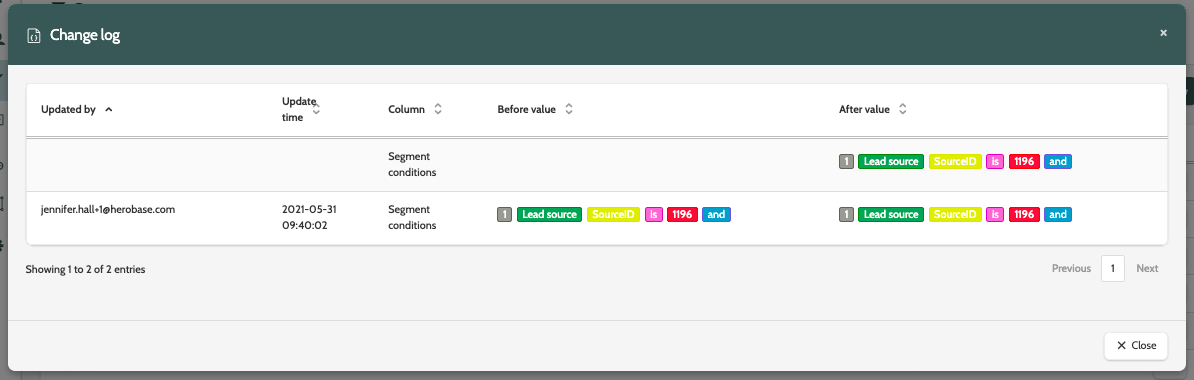
In the change lof, view all historical changes made to that segment, including who it was updated by, and all the changes that were made.
Copy
Select copy to create a copy of the segment. You will be taken to the segment builder where you can make adjustments and save the segment as new.
Delete
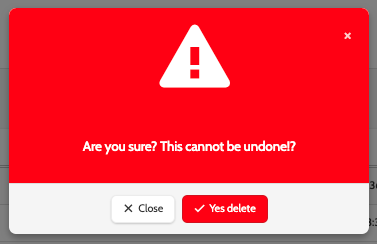
If you want to delete a segment, you will be asked to confirm, as deleted segments cannot be recovered.
Segment builder
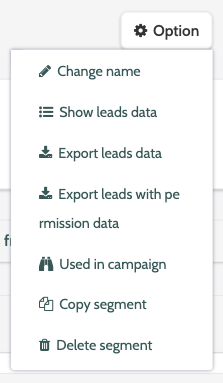
When in the segment builder, click the option button to view all of the various options.
Change name
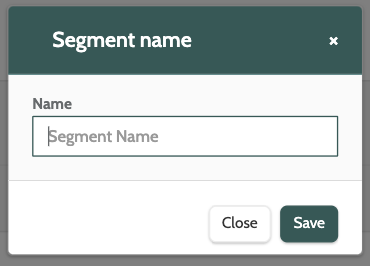
If you want to change the segment name, enter the new name in the text field, and click Save.
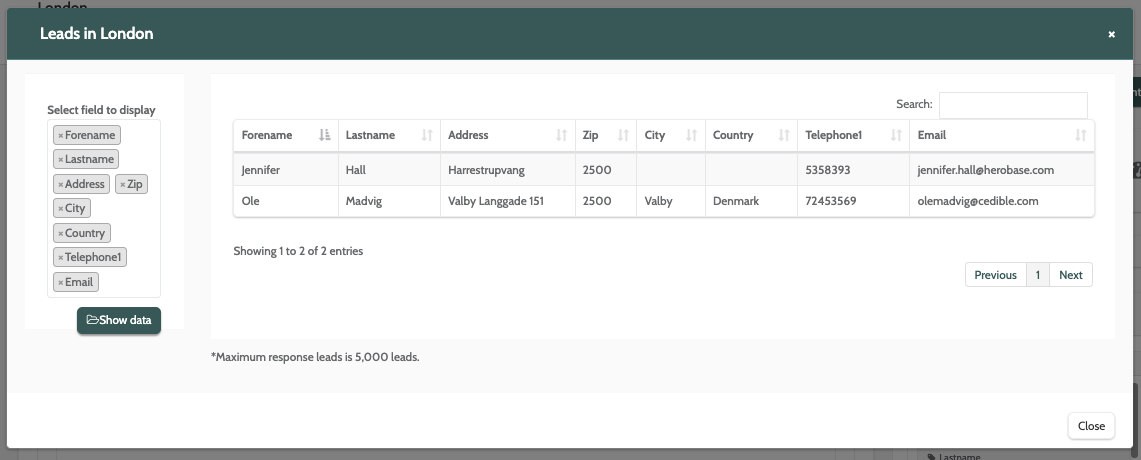
Show leads data
Show leads data will allow you to view all leads in the segment.
Add the lead fields you want to view in the Select field to display box and click Show data.
Please note that a maximum of 5000 Leads can be displayed.
Export leads data
Export leads data will download a .CSV file of lead data to your desktop.
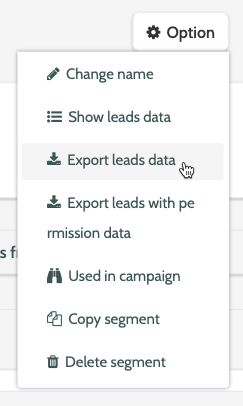
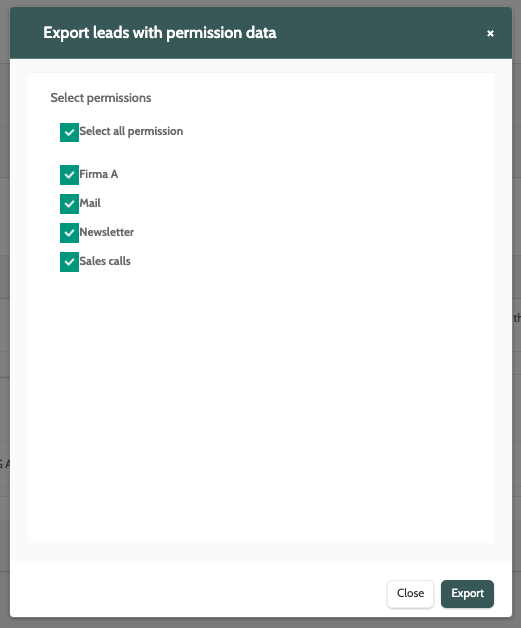
Export leads with permission data
Export leads with permission data will download a .CSV file to your desktop.
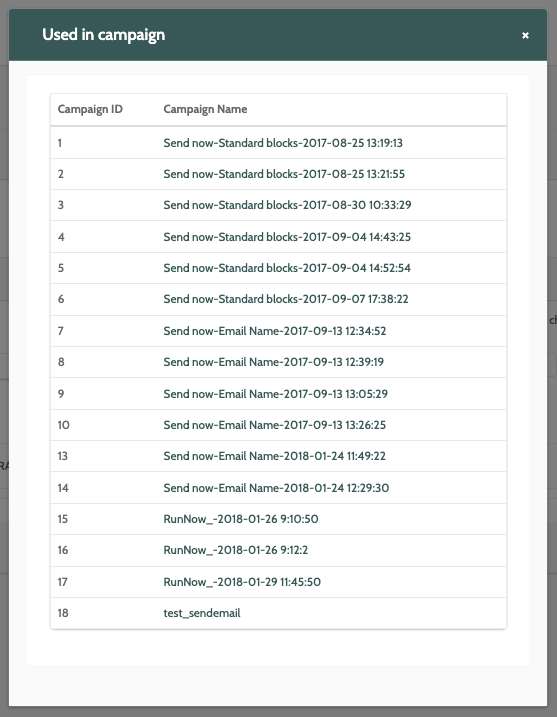
Used in campaign
Used in campaign will display all campaigns in which the segment has been used.
Copy segment
Copy segment will take you to the segment builder where you can make any edits and save the segment as new.
Delete segment
If you want to delete a segment, you will be asked to confirm, as deleted segments cannot be recovered
Create a new segment
To create a new segment, click + New.
You will be taken to the segment builder, where you can begin creating your segment with rules and conditions.
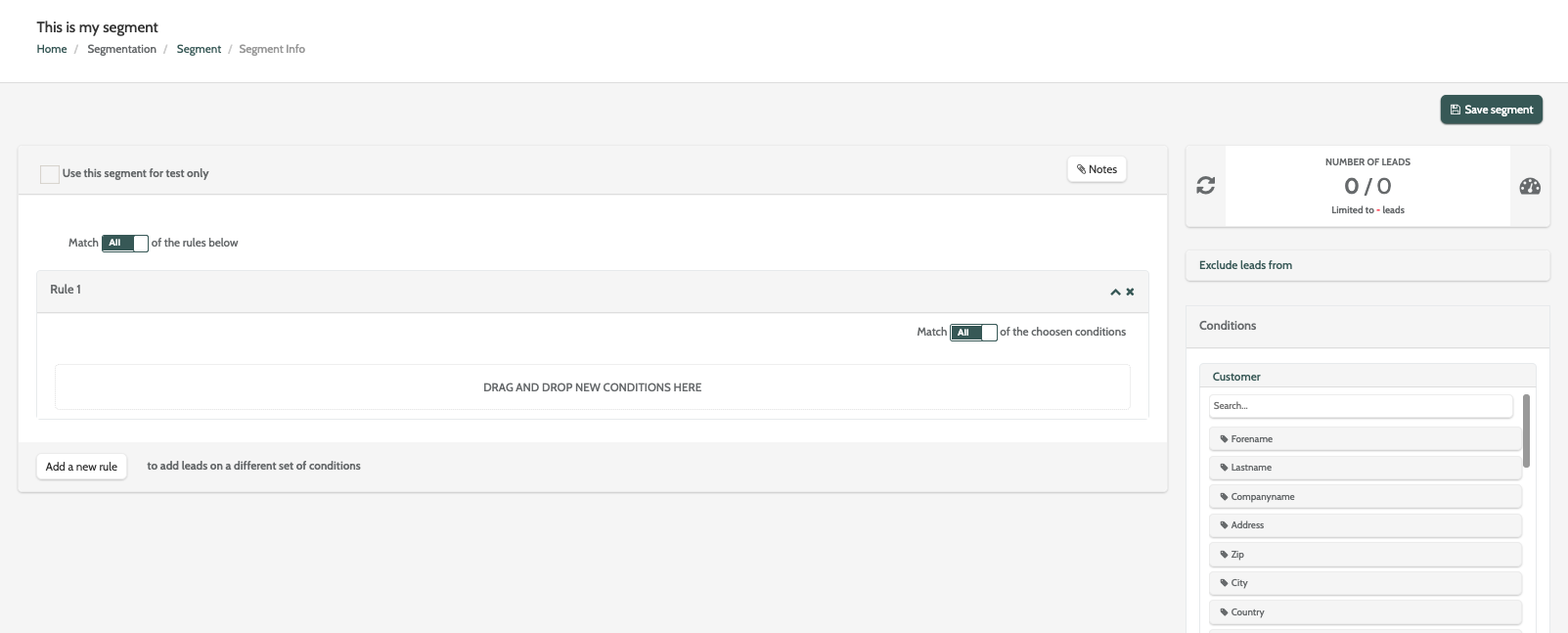
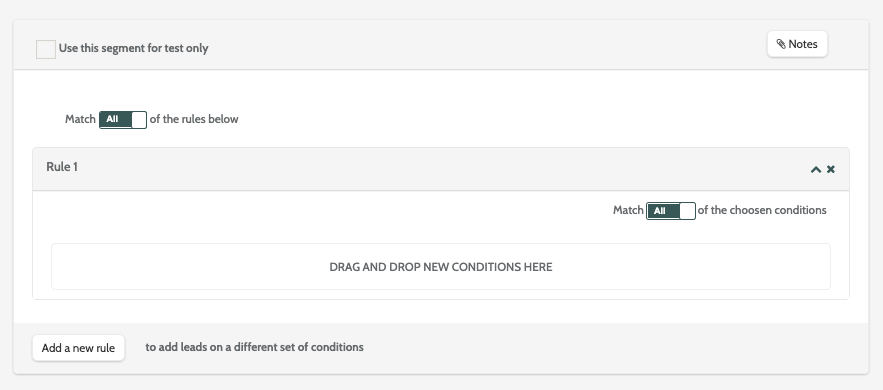
To the left is the canvas.
This is where you will drag and drop the conditions, and configure the rules that determine how the segment works.
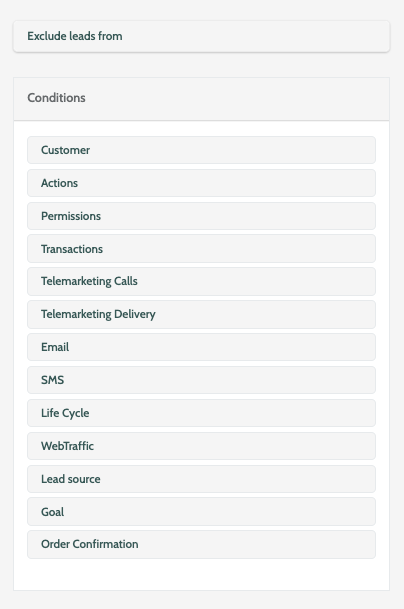
To the right are the conditions.
Conditions are grouped in categories such as customer, actions, and permissions, and include lead data, properties, and events.
To exclude leads from different stoplists in the segment, click Exclude leads from and select the stoplists.
Begin building your segment by dragging the condition into the canvas.
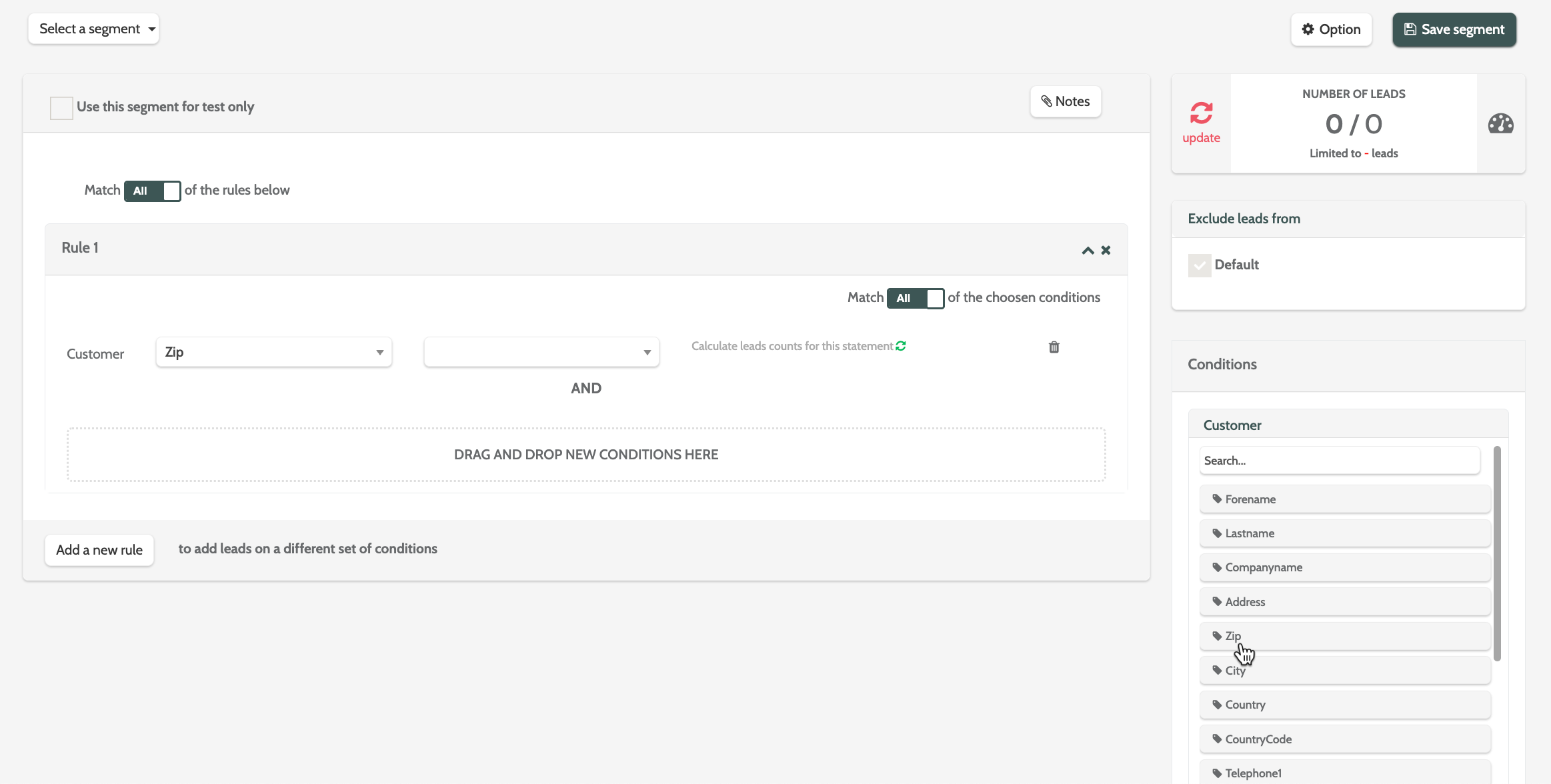
Next decide the rule.
Depending on whether you have chosen a text or numerical condition the rules will be different.
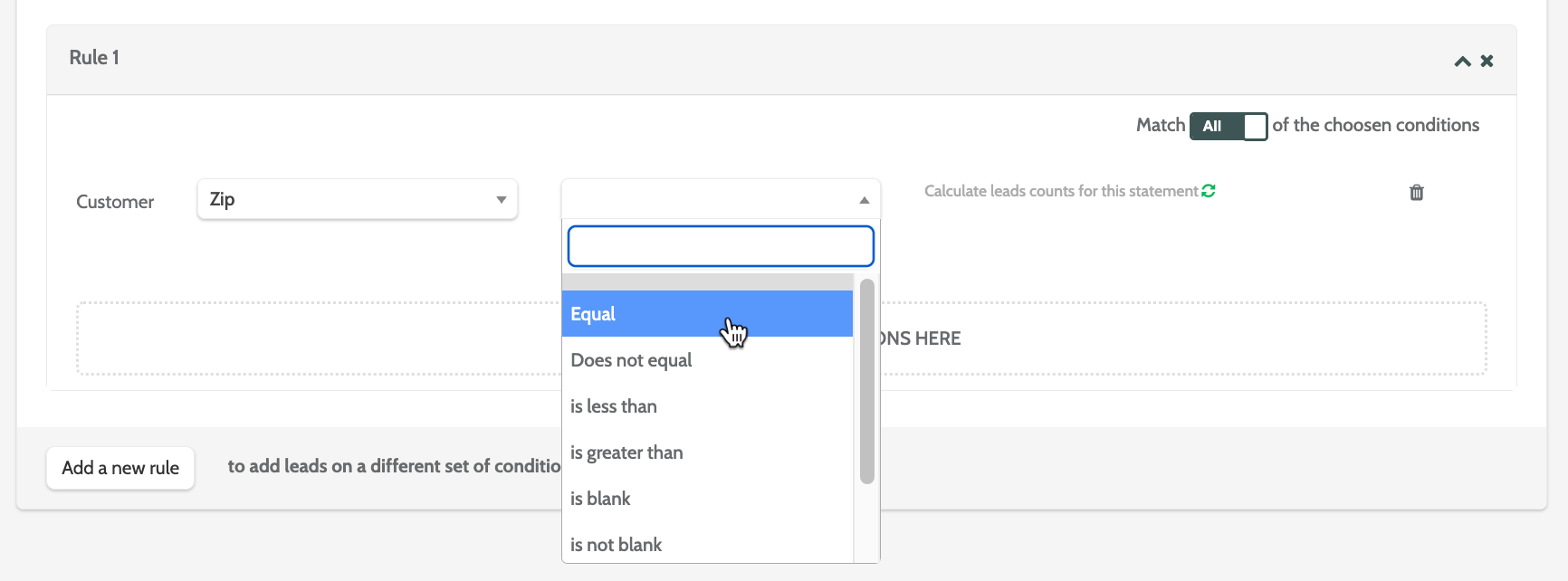
Enter the value of the condition in the text field.
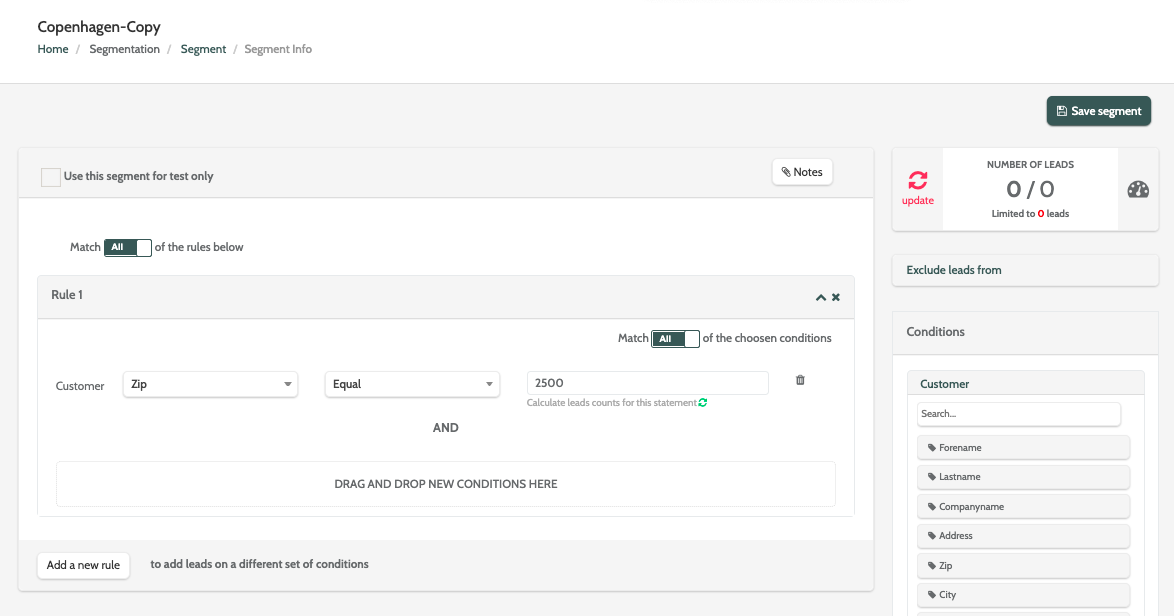
In the image below, the segment will search for all leads that have a Zip data field of 2500.

Calculate how many leads match the segment conditions by clicking the green arrows.

The number of leads will be displayed, along with the total number of unique email addresses.
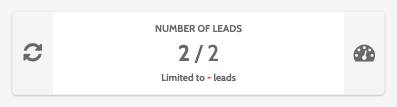
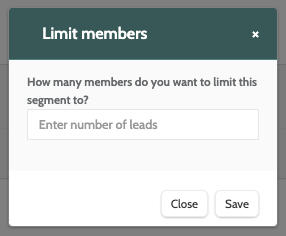
If the segment is large and you wish to limit the size, click the speedometer to the right, and enter the number in the text box. This is useful for when you want to make sure that the leads in the segment are kept fresh.
In the image below, three different conditions have been added to the canvas: Forename, Sales Calls, and Order Confirmed.
This combination of conditions will find all leads that have a first name attributed to them, have granted permission to receive sales calls, and have placed and order and had it confirmed.
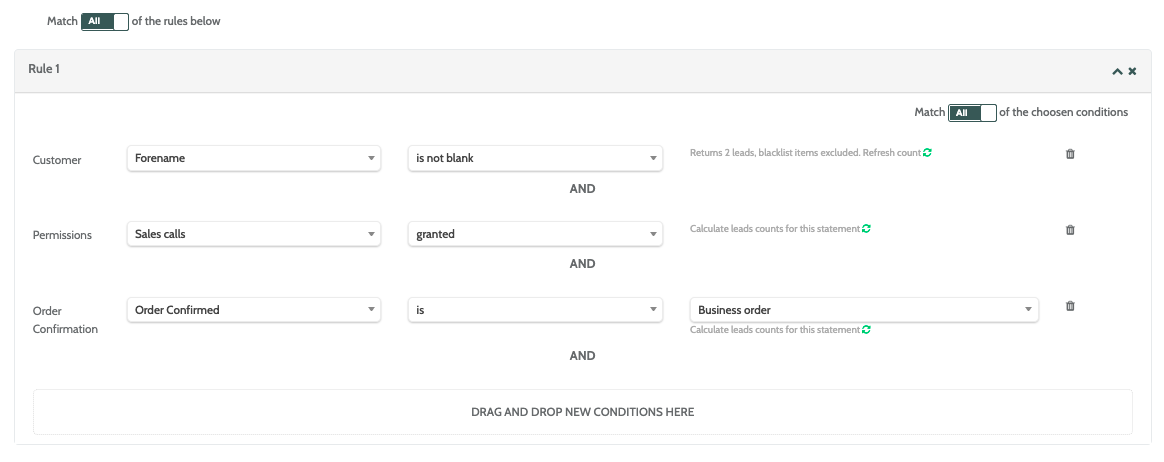
The segment is set to calculate leads that match all of the conditions in rule 1.
Toggle to Any so the segment will include leads based on any of the three conditions in rule 1.

Click Add a new rule to add a new set of conditions, and create a more complex segment.
At the top of the canvas you can decide whether to Match all or any of the rules created.